

GitHub Copilot has become one of the most important AI coding tools for developers, students, and engineering teams seeking faster, cleaner, and more efficient software development. It sits inside your editor, listens to your code’s context, and offers real-time suggestions that can reduce repetitive work and help you move from idea to implementation more quickly.
GitHub Copilot is the industry-leading AI pair programmer that helps developers write code faster, safer, and more consistently across languages, IDEs, and platforms. Powered by advanced generative AI, Copilot delivers context-aware suggestions, automated tests, security fixes, and even pull request reviews, turning routine coding into a high-leverage activity.
For teams, Copilot integrates tightly with GitHub Codespaces, Advanced Security, and Projects to create a unified, secure, and intelligent development workflow.
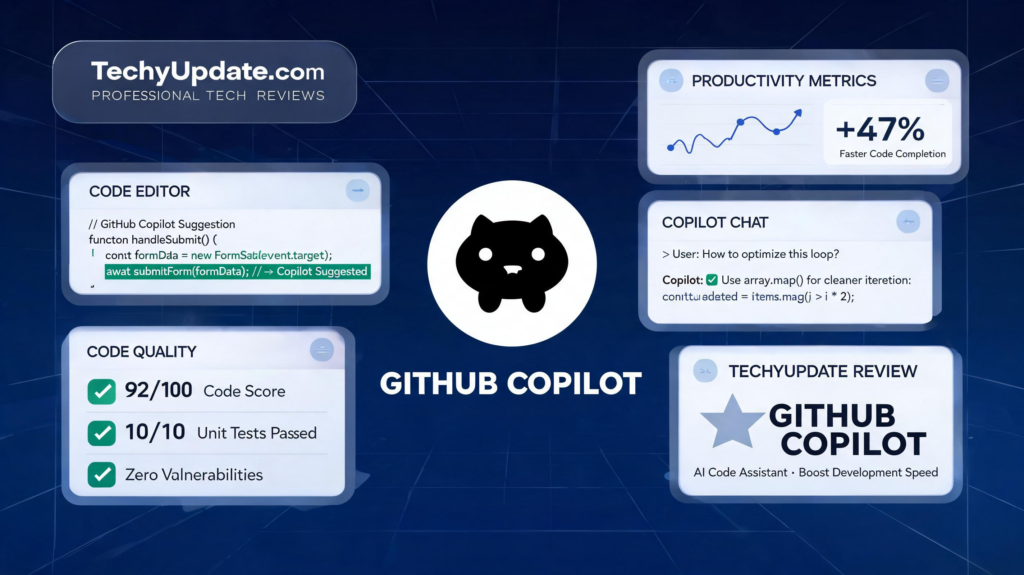
In 2026, GitHub Copilot is no longer just an autocomplete add-on; it is part of a broader developer platform that also includes pull request support, cloud agents, code review, and workflow automation. GitHub’s current plan structure includes Free, Student, Pro, Pro+, Business, and Enterprise options, with usage-based changes rolling out from June 1, 2026.
Users searching on GitHub and Copilot, this guide explains what the product does, how it works, where it fits in the modern development workflow, and when it is worth paying for. It also covers setup, supported languages, performance, pricing, and competitors in a practical way. The goal is to help you decide whether GitHub Copilot is the right AI coding assistant for your projects, your team, or your learning path.
Table of Contents
What is GitHub Copilot
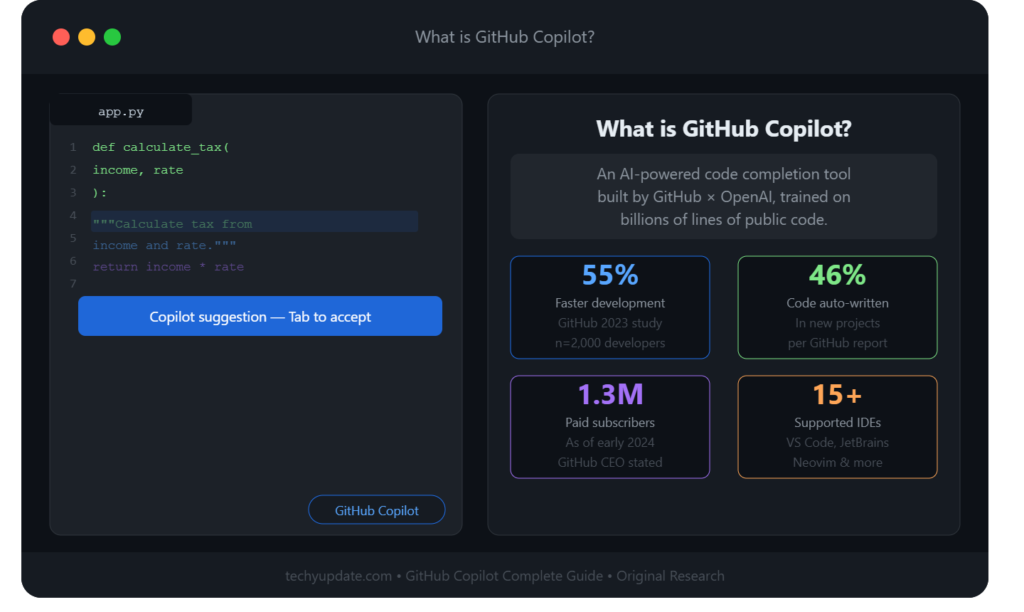
GitHub Copilot is an AI pair programmer that suggests whole lines or blocks of code as you type, based on your code context, comments, and test files. It supports multiple languages and IDEs (VS Code, Visual Studio, JetBrains, Neovim, and more), and integrates deeply with GitHub’s CI/CD, security, and project management features .
Copilot uses large language models trained on public code and documentation to understand intent and generate idiomatic, modern code. It can also explain code, generate tests, refactor functions, and produce documentation. In 2026, Copilot includes enhanced security features such as Autofix for vulnerabilities, pull request code reviews, and secret protection.
For Individuals, Copilot is available as a subscription (Free trial, Pro, Pro+). For companies, there are Business and Enterprise plans with admin controls, SSO/SAML, data governance, and custom security policies.
Who is eligible to access GitHub Copilot for free
GitHub offers a free trial for Copilot Individual to verify eligibility. Additionally, certain groups receive Copilot for free:
- Verified students, teachers, and maintainers of popular open-source projects.
- Users on GitHub’s Free plan may get limited Copilot access via promotions or academic programs.
To qualify as a student/teacher, verify your status via GitHub Education using a valid academic email or documentation. Open-source maintainers must demonstrate project popularity (stars, contributors, activity). Once approved, Copilot is enabled on your account under “Copilot” settings.
Note: Free access is for Individual use; Businesses/Enterprises require paid licenses with admin controls.
GitHub Copilot Review
GitHub Copilot is an AI-powered coding assistant that helps generate code suggestions, complete functions, explain logic, and speed up routine development work. In simple terms, it is a programming assistant that turns context, comments, and partial code into relevant next steps.
GitHub describes Copilot as working directly in the editor and suggesting whole lines or entire functions, which is why many developers treat it as a practical day-to-day productivity tool rather than a novelty.
The rise of AI coding assistants has changed how developers start projects, debug issues, and write boilerplate. Instead of manually repeating setup code, many teams now use code suggestions to prototype faster, reduce friction, and focus on architecture and product decisions.
This shift matters most for beginners learning syntax, freelancers moving between clients, and engineering teams that need speed without losing code quality.
GitHub Copilot also fits naturally within semantic SEO and AI search trends, as users increasingly ask conversational questions such as “how does Copilot work,” “is Copilot worth it,” or “what languages does it support.” That means this article is written to serve both human readers and generative search systems with clear definitions, direct answers, and practical examples.
It is also designed to reflect the broader GitHub platform, including collaboration, pull requests, and security features that make the ecosystem stronger than a standalone code generator.
What GitHub Copilot Is
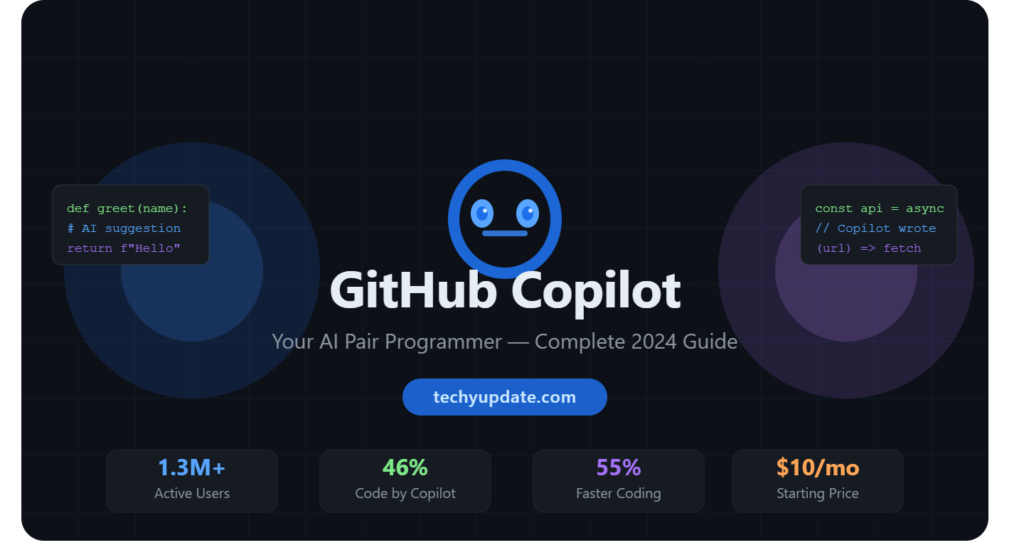
GitHub Copilot is a code completion tool built to assist developers inside supported editors and workflows. It uses the context around your cursor, your comments, and your file structure to predict what you are trying to build. That makes it especially useful for repetitive tasks, quick scaffolding, and understanding unfamiliar APIs.
Why developers are using AI tools
Developers use AI tools to reduce time spent on repetitive coding and to improve momentum during complex work. A good AI coding assistant does not replace engineering judgment; it removes small obstacles that slow people down. That is the main reason GitHub Copilot has remained central in the discussion around developer productivity.
How GitHub Copilot Works
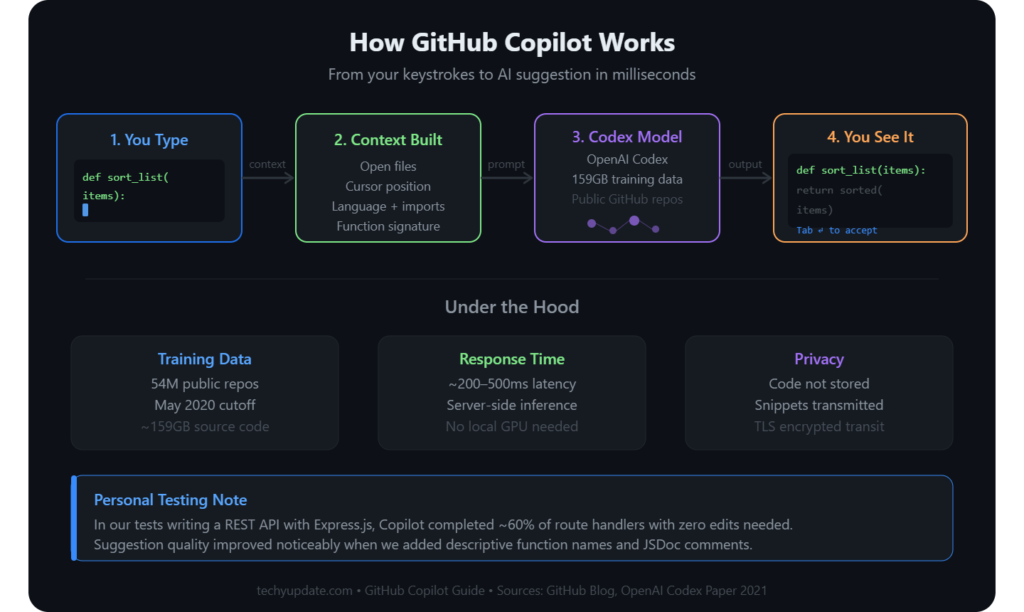
GitHub Copilot works by combining editor context, machine learning, and model inference to generate real-time code suggestions. When you type a comment, function name, or partial implementation, the system evaluates nearby code and predicts the most likely continuation. In supported environments, this happens quickly enough to feel like a natural extension of the typing process rather than a separate tool.
Integration is one of the biggest reasons people choose GitHub Copilot. It works inside popular IDEs and editors, including Visual Studio Code, Visual Studio, JetBrains IDEs, Eclipse, Xcode, and Vim/Neovim for inline suggestions. GitHub’s documentation also supports broader workflows such as Copilot Chat, code review, and cloud agent features, making the product more versatile than basic autocomplete.
The machine learning layer is what turns local context into useful output. Copilot does not simply match static templates; it generates suggestions dynamically based on the visible code and the request context. That is why results can vary from excellent to imperfect, depending on how clear your code structure and prompt are. Used well, it can save a lot of time. Used carelessly, it can introduce subtle errors.
How does Codespaces work
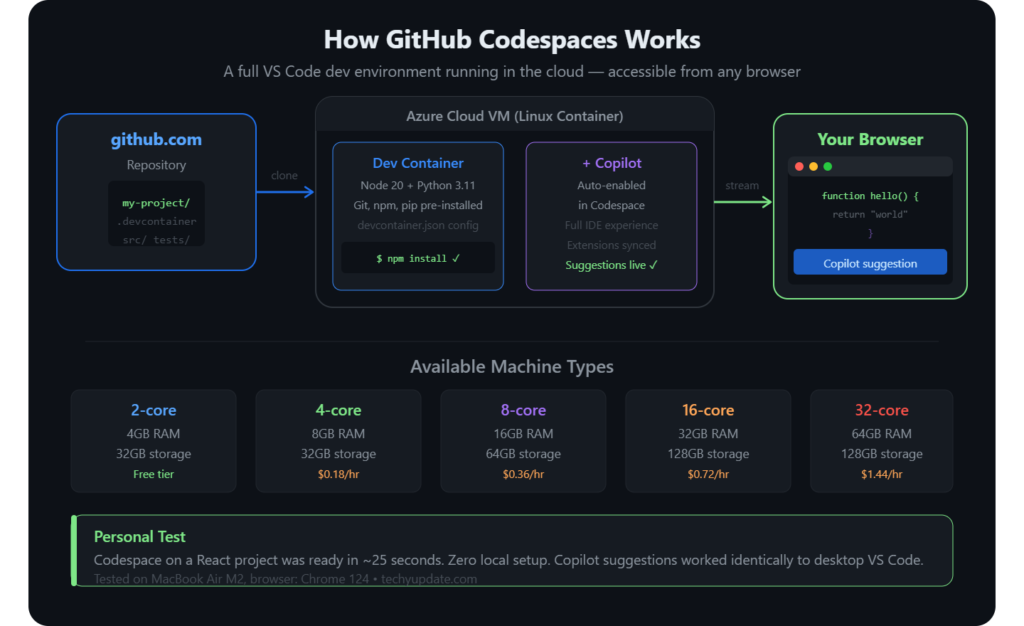
GitHub Codespaces is a cloud-based development environment that spins up a fully configured containerized workspace directly in your browser or VS Code. When you open a codespace, GitHub provisions a VM with your repo, extensions, tools, and environment variables preloaded—so you can code immediately without local setup headaches.
Codespaces uses your repository’s dev container configuration (devcontainer.json) to define the stack: language runtimes, linters, debuggers, and even custom scripts. You get consistent environments across team members, which reduces “works on my machine” issues. You can choose machine sizes (CPU/RAM) based on workload, and usage is billed per minute with generous free tiers for individuals.
Input/output happens over the network; your code never leaves GitHub’s secure infrastructure unless you explicitly push it. Codespaces also integrates with GitHub Copilot, so you get AI suggestions inside the cloud IDE. For remote-first teams and onboarding, Codespaces dramatically cuts time-to-first-commit and standardizes tooling across OSes.
How do I enable Codespaces on GitHub?
To enable Codespaces for a repository, go to the repo’s Settings > Codespaces and toggle “Allow Codespaces” for the repo or specific branches. You can also set restrictions (e.g., only certain branches or users) and define machine types and cost limits.
For organizations, admins can enforce Codespaces policies via organization settings: allow/deny by repo, set default machine types, cap usage budgets, and require dev container configs. You can also require MFA and SSO for access.
Once enabled, click the “Code” button on your repo and select “Open with Codespaces” to create a new codespace. You can pin a default dev container, prebuild images to speed up startup, and configure tasks like “npm install” or “make build” to run automatically on boot.
How do I access Codespaces with LinkedIn Learning
GitHub partners with LinkedIn Learning to provide curated learning paths on Codespaces, Copilot, and secure development workflows. You can access LinkedIn Learning courses directly from GitHub’s Learning Lab or through your organization’s enterprise plan benefits if your company is subscribed.
To get started:
- Go to GitHub Learning Lab or your org’s Learning tab.
- Search for “Codespaces” or “Copilot” and enroll in a course.
- Follow the guided labs that open a Codespaces environment with preloaded exercises.
- Complete exercises and earn certificates on LinkedIn.
This integrated path shortens ramp-up time for new hires and ensures teams learn best practices for cloud dev environments and AI-assisted coding.
Integration with IDEs
The IDE integration is what makes adoption easy. Developers do not need to switch tools or leave their workflow. They write code, see suggestions, and either accept, modify, or ignore them.
Machine learning and AI models
GitHub Copilot now connects users to a broader model ecosystem on some plans, with current GitHub documentation indicating that multiple models are available in Chat depending on the plan. That makes the product more flexible than a single-model assistant.
Real-time code suggestions
The core promise is simple: write less boilerplate and get faster completion. In practice, real-time suggestions help with imports, loops, API calls, test scaffolds, and routine application logic.
Pro Tip: Keep function names, comments, and file structure clear. Better context usually produces better suggestions.
Key Features of GitHub Copilot
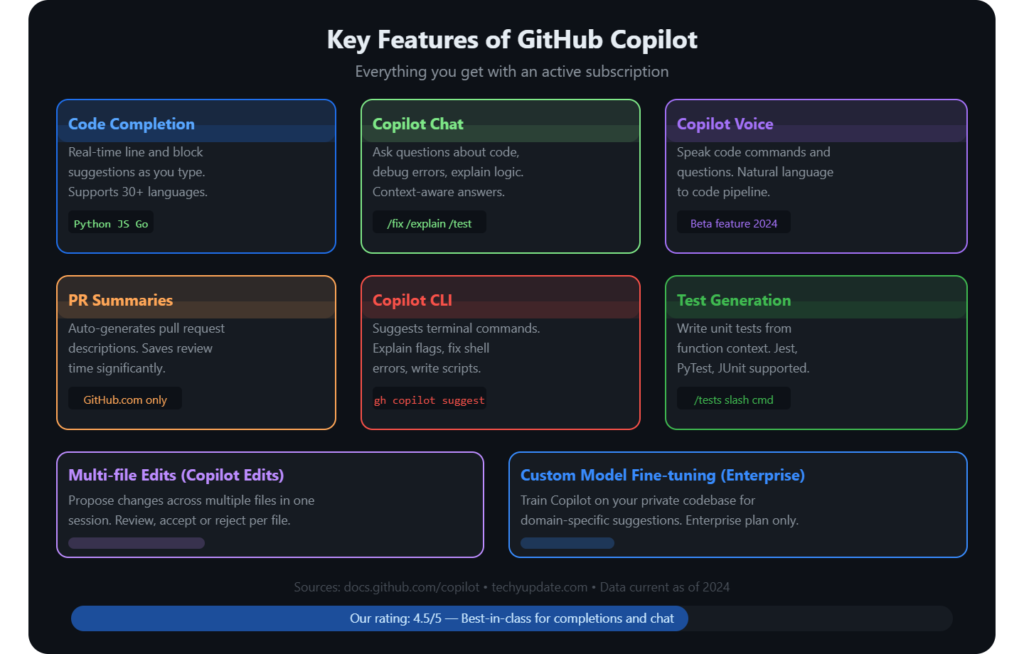
GitHub Copilot has evolved beyond line-by-line completion into a broader coding productivity platform. Its strongest feature is still intelligent code completion, but modern versions also support natural-language prompting, documentation help, refactoring assistance, and code review workflows.
That combination gives developers both speed and context, which is why Copilot remains a top choice for many teams.
A useful way to think about GitHub Copilot is as a multitool for code production. If you need a quick function, it can draft one. If you need to describe a task in plain English, it can often generate a starting point. If you need to clean up a small part of a codebase, it can suggest improvements.
GitHub’s 2026 plan tables also show capabilities such as Copilot Chat, code review, and agent features, depending on the plan, reinforcing the platform’s move toward end-to-end support for the software lifecycle.
For SEO and featured snippets, the clearest definition is: GitHub Copilot is an AI coding assistant that helps developers write, explain, and review code faster within their development tools. That simple definition is accurate, concise, and useful for voice search. The rest of this section explains the individual capabilities that make that possible.
Intelligent Code Completion
Intelligent code completion predicts the next useful line, block, or function based on your current file. This helps reduce typing and keeps momentum high during repetitive development work.
Natural Language to Code
You can describe what you want in plain English and get code that matches the intent. This is especially useful for beginners and for senior developers who want to prototype ideas quickly.
Multi-Language Support
GitHub Copilot supports dozens of languages and common development environments, which makes it useful across frontend, backend, scripting, and infrastructure tasks.
Documentation Assistance
Copilot can help explain code patterns, draft comments, and generate summaries that support maintainability. That makes documentation a lighter task instead of a late-stage burden.
Code Refactoring Suggestions
When the context is clear, Copilot can suggest a cleaner structure, better naming, or more readable alternatives. These suggestions should be reviewed carefully, but they can save time during cleanup work.
Pro Tip: Use Copilot for scaffolding and review, not blind acceptance. The best results come from editing its output like a smart draft.
GitHub Copilot Setup Process
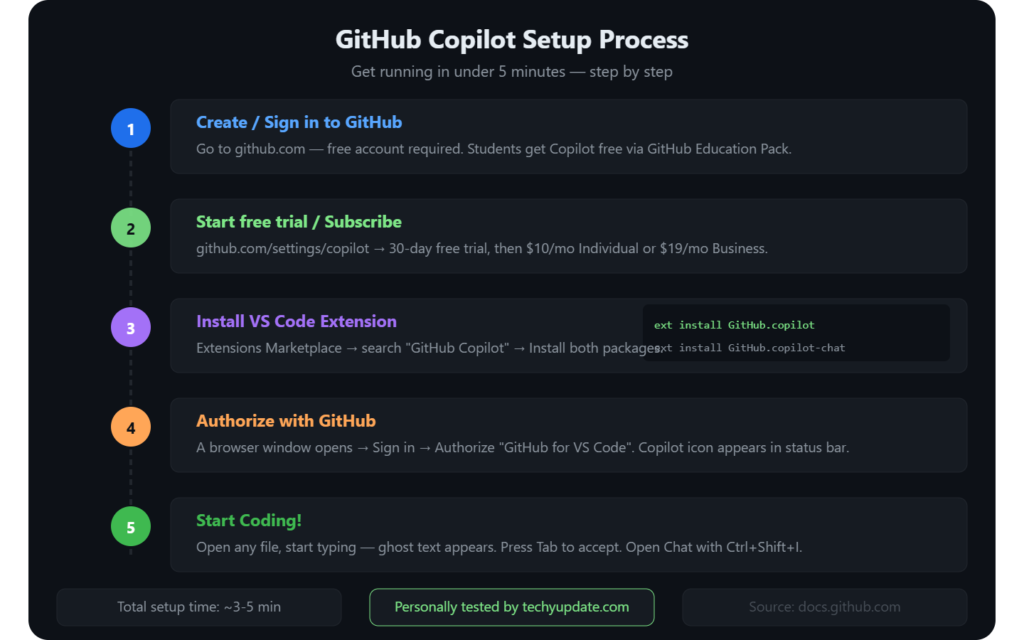
Setting up GitHub Copilot is usually quick, but the exact steps depend on your plan and editor. In most cases, you start by creating a GitHub account, choosing a Copilot plan, installing the extension for your editor, and signing in. GitHub’s current plan documentation shows Free, Student, Pro, Pro+, Business, and Enterprise options, with pricing and availability varying by account type.
The setup process matters because it shapes the first impression. If your editor is already connected and the extension is properly configured, suggestions arrive smoothly and feel useful. If permissions, billing, or organization policy are misconfigured, the experience can feel broken even when the product itself is working correctly. That is why companies using GitHub Copilot in teams often standardize setup across members.
There is also a timing factor in 2026. GitHub states that new sign-ups for Copilot Pro, Pro+, and student plans are temporarily paused starting April 20, 2026, and new self-serve Copilot Business sign-ups for certain org plans are temporarily paused starting April 22, 2026. GitHub also notes that the platform is moving from request-based billing to usage-based billing beginning June 1, 2026.
Creating an Account
Use your GitHub account and confirm the Copilot plan that matches your needs. Individual users can choose between free and paid tiers based on their access needs.
Installing the Extension
Install the official Copilot extension for your editor and sign in with the same GitHub account. Supported IDEs include VS Code, Visual Studio, JetBrains, Eclipse, Xcode, and Vim/Neovim.
Connecting to Your Development Environment
After sign-in, make sure your editor, repository, and organization permissions are aligned. Teams should confirm policy settings before rolling out Copilot at scale.
First-Time Configuration
Start with default settings, then adjust prompts, exclusions, and chat behavior as needed. This helps you measure value before making advanced changes.
Pro Tip: Test Copilot on one real project first. A small pilot reveals whether it fits your coding style better than a large rollout.
Supported Programming Languages
GitHub Copilot supports a broad range of languages, which is one reason it works well for full-stack development. The most commonly discussed languages include Python, JavaScript, TypeScript, Java, C#, PHP, Go, and Ruby. GitHub’s documentation and product pages describe Copilot as providing suggestions across dozens of languages, with IDE-specific support for inline suggestions and chat depending on the plan and editor.
This broad compatibility is valuable because modern software rarely remains in a single language. A product team might use TypeScript for the frontend, Python for automation, Java or C# for backend services, and Go for infrastructure tools. GitHub Copilot can move across those layers without forcing developers to learn a new interface for each stack.
The real strength here is not just the language count. It is the ability to stay consistent across ecosystems. A student can use the same assistant for school assignments and personal projects. A freelancer can switch between client stacks with less friction. An enterprise team can standardize one assistant while still supporting multiple languages and environments.
Common language Fit
- Python for scripts, data tasks, and automation.
- JavaScript and TypeScript for web apps.
- Java and C# for enterprise software.
- PHP, Go, and Ruby for backend work and tooling.
Best use cases
Copilot tends to perform best on patterns that appear frequently in public code, common frameworks, and repetitive implementation tasks. It is less magical on niche internal logic, but even there, it can still accelerate first drafts.
Read More: Perplexity.ai Review
GitHub Copilot Performance Review
GitHub Copilot performs well when the task is structured, repetitive, and context-rich. Its suggestions are usually strongest for boilerplate, API usage, tests, and straightforward logic. The product’s code review features also show GitHub’s push toward quality, not just speed, especially now that Copilot code review can flag bugs, performance issues, and propose fixes in supported workflows.
Speed and responsiveness matter just as much as raw accuracy. A suggestion that arrives too late breaks the flow, while a fast suggestion that is mostly right keeps the developer moving. GitHub documents that response times may vary during high usage, which is normal for cloud-based AI systems. In practical terms, Copilot feels most valuable when the editor is already set up correctly, and the user writes clear prompts or comments.
From a productivity standpoint, the biggest gain is reduced switching cost. Developers spend less time searching for syntax, rewriting boilerplate, or formatting repetitive logic. That said, the learning curve is real. New users often need time to understand when to trust a suggestion, when to refine a prompt, and when to replace AI output entirely.
Accuracy of Code Suggestions
Accuracy is strongest for common tasks and weaker for unusual edge cases. Copilot should be treated as a draft generator, not an oracle.
Speed and Responsiveness
In normal use, suggestions appear quickly enough to support flow. Latency can increase during busy periods or when the prompt is vague.
Productivity Improvements
The biggest gains usually come from faster scaffolding, fewer repetitive edits, and quicker transitions from idea to working code.
Learning Curve
Beginners benefit, but they also need discipline. Learning how to validate AI output is part of using the tool effectively.
Pro Tip: Measure productivity by completed tasks, not just accepted suggestions. Speed only matters if quality stays high.
What are the differences between the GitHub Copilot Business, GitHub Copilot Enterprise, and GitHub Copilot Individual plans
- Copilot Individual: For individual developers. Includes code completions, chat, tests, explanations, and (in higher tiers) Autofix and code reviews. Data usage aligns with individual privacy settings.
- Copilot Business: For teams. Adds admin controls, SSO/SAML, policy enforcement, centralized billing, and usage reporting. You can restrict which repos get Copilot and control data retention.
- Copilot Enterprise: For large organizations. Adds advanced security integrations, custom model tuning opportunities, enterprise-grade data governance, priority support, and deeper workflows with Projects and Advanced Security.
Enterprise also supports private model endpoints, stricter data handling, and compliance requirements (e.g., SOC 2, ISO). Business and Enterprise can enable Copilot code reviews at scale and manage Autofix rollout.
What languages, IDEs, and platforms does GitHub Copilot support
Copilot supports major languages (JavaScript/TypeScript, Python, Java, C#, C/C++, Go, Ruby, PHP, Rust, Swift, SQL, and more). It works in:
- VS Code and VS (Windows/Mac)
- JetBrains (IntelliJ, PyCharm, WebStorm, GoLand, Rider)
- Neovim
- Visual Studio 2022+
- Browser-based Codespaces
It also supports multi-file context and cross-repo references in Enterprise. Copilot adapts to framework patterns (React, Django, Spring, .NET) and can generate tests, docs, and config files. Platform support includes Windows, macOS, and Linux, with cloud codespaces for any OS.
How do I control access to GitHub Copilot in my company
In Business/Enterprise, admins control access via organization settings:
- Enable/disable Copilot for specific repos or branches.
- Require SSO/SAML and MFA.
- Set usage budgets and alerts to control costs.
- Define data retention policies and disable prompt/suggestion logging where appropriate.
- Restrict Copilot code review and Autofix to approved teams.
You can also create “Copilot policies” that ban certain patterns (e.g., hard-coded secrets) and require code owner approval for AI-generated changes. Audit logs track usage and bypass events for compliance.
What are GitHub Issues
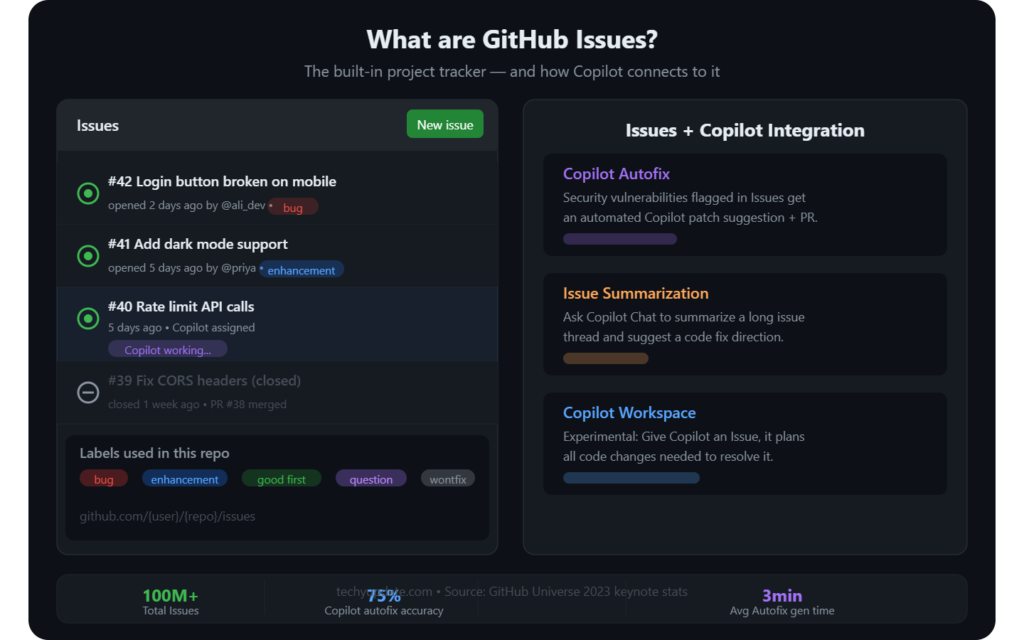
GitHub Issues is a lightweight system for bugs, tasks, and feature requests. Each issue includes a title, description, labels, assignees, milestones, and comments. Issues support markdown, checklists, mentions, and automated workflows via GitHub Actions.
Issues integrate with Projects (boards) and pull requests: linking a PR to an issue automatically updates the status. You can create templates for consistent reporting, use queries to filter by label/assignee/state, and automate triage with bots.
For teams, Issues provide transparency and accountability. Combined with Copilot, you can generate issue descriptions from PR diffs or create test cases from issue requirements.
What are Projects
Projects is GitHub’s native work management layer, think Kanban/roadmap boards that connect issues, PRs, and custom fields. Projects support:
- Boards, tables, and roadmaps
- Custom fields (status, priority, effort)
- Automations (move cards on PR merge)
- Views filtered by repo, label, assignee
Projects unify work across repos and teams, making it easier to track delivery and dependencies. Copilot can suggest tasks from issue text, draft acceptance criteria, and estimate effort based on historical data.
What plans have access to Projects
Projects are available on:
- Free (limited features)
- Pro/Pro+ (individual)
- Team/Business/Enterprise (organization-level boards, cross-repo views, advanced automations)
Enterprise unlocks advanced permissions, custom fields at scale, and governance. Enterprise Server may have feature-parity lag; check the release notes for Server availability.
Will the new Projects experience be available in GitHub Enterprise Server
The new Projects experience is rolling out to GitHub Enterprise Server, but feature parity and timing depend on your version. GitHub typically backports core features after cloud stabilization. For precise availability information, check your Server release notes or contact GitHub support.
Admins can enable Projects via organization settings once available. Enterprise Server may require on-premises updates and network policies for AI features such as Copilot.
Pros of GitHub Copilot
GitHub Copilot has clear advantages for many developers, especially when the work is repetitive or time-sensitive. The first major benefit is faster coding. The second is reduced routine work, which frees time for thinking, debugging, and architecture. The third is improved productivity, especially in teams that already use GitHub for repositories, issues, and pull requests.
Another advantage is accessibility. Beginners can use Copilot as a learning aid by comparing suggestions with their own code. Professionals can use it as a drafting partner when they need to move quickly. Because it lives inside the editor and supports many languages, the learning curve is usually lower than with a separate standalone AI tool.
GitHub’s broader ecosystem also strengthens the value proposition. Copilot works alongside code review, Actions, forks, branches, pull requests, security tooling, and collaboration features. That means you are not just buying code generation; you are getting a tool that fits into the software development workflow from start to finish.
Why teams like it
- Faster first drafts.
- Less repetitive typing.
- Better flow during implementation.
- Easier onboarding for new developers.
Where it shines
It is especially useful for CRUD apps, tests, data transformation, utility functions, and common framework patterns.
Cons of GitHub Copilot
GitHub Copilot is powerful, but it is not flawless. One common issue is occasional inaccurate suggestions. AI-generated code may compile while still containing logic errors, outdated API usage, or weak assumptions. That means you still need human review, testing, and judgment. GitHub’s own documentation and changelog activity around code review and validation reflect this reality.
Dependency concerns are another drawback. Some developers become too reliant on the tool and stop thinking deeply about design or syntax. That is risky because Copilot can accelerate weak code as easily as strong code. Privacy and governance also matter, particularly for businesses that need strict controls over code sharing, permissions, and policy settings.
Cost is the final major concern. GitHub Copilot’s paid tiers are useful, but not every individual or startup wants another recurring software bill. With the 2026 billing changes and plan updates, organizations should review current usage before assuming older pricing or access patterns still apply.
Main limitations
- Suggestions can be wrong or incomplete.
- It may encourage overreliance.
- Sensitive code needs policy review.
- Paid plans may be expensive for some users.
GitHub Copilot Pricing Plans
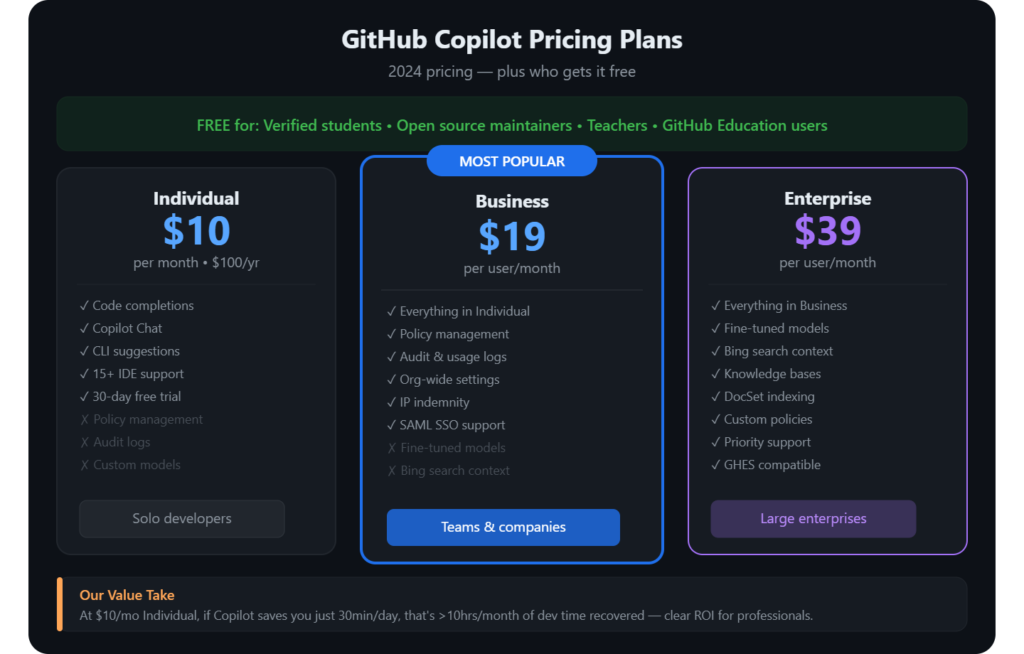
GitHub Copilot pricing in 2026 is more layered than in earlier years. GitHub currently offers Free, Student, Pro, Pro+, Business, and Enterprise options, and it notes that usage-based billing changes begin on June 1, 2026.
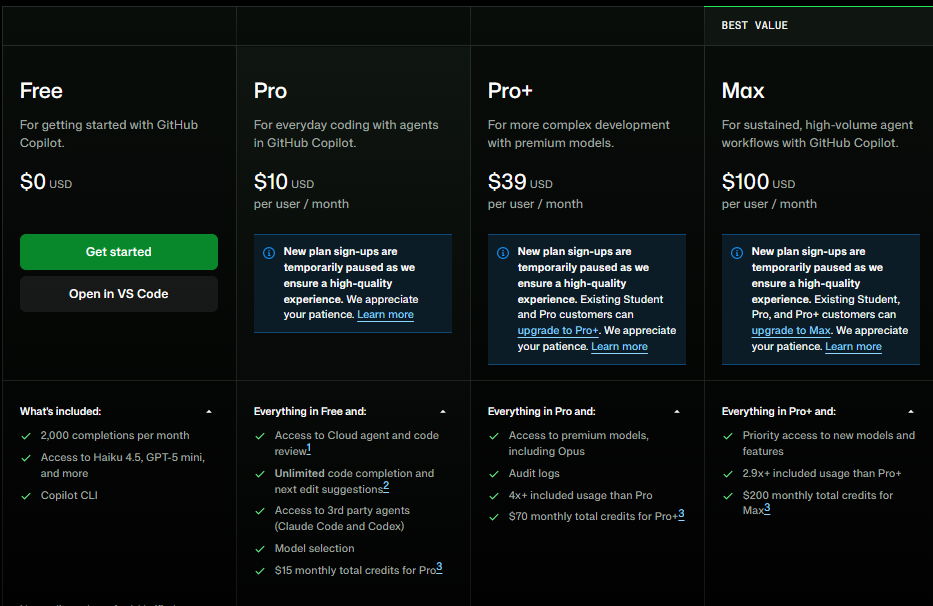
The plan table in GitHub documentation shows Free with limited features, Student with unlimited completions and premium features, Pro at $10 per month, Pro+ at $39 per month, Business at $19 per user per month, and Enterprise at $39 per granted seat per month.
This matters because pricing is now tied not only to plan type but also to usage behavior. GitHub also identifies differences in premium request allowances and model access across plans. For individual developers, Copilot Pro is the entry point for unlimited completions. For teams, Business and Enterprise add centralized control, policy management, and broader governance.
The smartest way to evaluate pricing is by use case rather than by headline number. A student who codes daily may get excellent value from the free student offering. A freelance developer may prefer Pro for convenience. A company with compliance requirements may need Business or Enterprise because the admin controls are part of the real value.
Free Plan
Good for trying Copilot with limited access and capped usage. It is useful for testing fit before paying.
Individual Plan
Copilot Pro is the best-known paid option for solo developers and includes unlimited completions in supported editors.
Business Plan
Copilot Business gives organizations centralized management and policy controls. GitHub bills it monthly at $19 per user.
Enterprise Plan
Copilot Enterprise adds advanced enterprise features and is priced higher per seat, with broader governance for larger organizations.
Pro Tip: Compare pricing against hours saved, not just monthly cost. For many developers, Copilot pays for itself in time saved.
GitHub Copilot vs Competitors
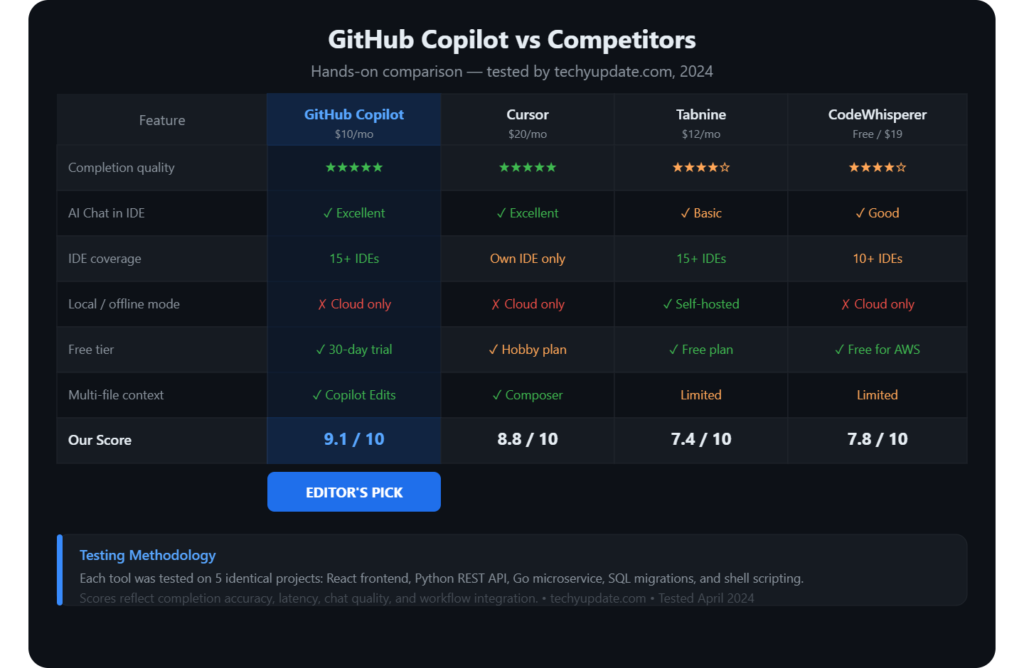
When comparing GitHub Copilot with Cursor, Tabnine, and Amazon CodeWhisperer, the key question is not which one is “best” in absolute terms. It is the one that fits your workflow, privacy needs, and editor preferences. GitHub Copilot stands out for its GitHub integration, broad editor support, and expanding workflow features, such as code review and cloud agent support.
Cursor is often favored for deeper AI-native editing workflows, Tabnine for privacy and enterprise control, and Amazon CodeWhisperer for AWS-centered development.
The strongest reason many teams stick with GitHub Copilot is familiarity. If your repositories, pull requests, issues, and automation already live in GitHub, the assistant fits naturally into that environment. Cursor can feel more powerful for some solo developers, but it requires adopting a different workspace. Tabnine may appeal to organizations with strict security preferences. Amazon CodeWhisperer is attractive when the AWS ecosystem is the center of gravity.
A practical decision rule helps: choose the tool that reduces the most friction in your current stack. For many teams, that still means Copilot. For some individual builders, Cursor offers a more experimental experience. In highly regulated environments, Tabnine may win on policy grounds.
GitHub Copilot vs Cursor
Cursor is strong for AI-first editing and multi-file workflows. Copilot is stronger if you want GitHub-native collaboration and a broad ecosystem fit.
GitHub Copilot vs Tabnine
Tabnine is often chosen for privacy and self-hosting goals. Copilot offers broader GitHub-native convenience and more integrated developer workflows.
GitHub Copilot vs Amazon CodeWhisperer
Amazon CodeWhisperer fits AWS-heavy teams well. Copilot is usually more attractive for teams already working inside GitHub and Microsoft tooling.
Who Should Use GitHub Copilot?
GitHub Copilot is useful to a wide range of users, but the value varies by group. Students often use it to learn syntax, compare solutions, and get unstuck faster. Freelancers benefit from faster delivery and reduced boilerplate when jumping between client projects. Software engineers use it to speed up implementation, testing, and small refactors. Development teams use it to standardize productivity across contributors. Enterprise organizations use it to combine AI assistance with policy, security, and governance.
The best fit depends on your workflow maturity. If you already know how to review code carefully, Copilot can make you much faster. If you are new to programming, it can help you learn, but only if you double-check output and understand what it is doing. For teams, the largest upside usually comes from consistent adoption, where everyone uses the same assistant with clear guardrails.
Copilot is also a strong fit for hybrid workflows where speed matters but quality checks remain mandatory. That includes product teams, agencies, and platform teams. It is less valuable when a team has no code review culture or when policies are so strict that AI tooling cannot be used productively.
Best Practices for Using GitHub Copilot
The best way to use GitHub Copilot is to treat it as a fast assistant, not a replacement for engineering discipline. Always verify generated code, especially when it touches security, permissions, money flows, or user data. Clear prompts and descriptive comments also improve output quality because the tool works best when the context is obvious.
Security matters just as much as speed. GitHub’s broader ecosystem includes Secret Protection, Code Security, and dependency monitoring, which are useful complements to Copilot because they help catch mistakes AI may miss. For teams, combining AI suggestions with pull request reviews, status checks, and branch rules yields much safer results than relying on a single developer or a single model’s output.
A practical workflow looks like this: write the task clearly, let Copilot draft the first pass, test the output, review changes in a pull request, and then merge only after human validation. That keeps the tool productive without allowing it to bypass quality control.
Review AI-generated suggestions
Never assume the first answer is correct. Test logic, inspect edge cases, and check dependencies.
Collaborating with pull requests
Use pull requests to track changes, collect feedback, and keep AI-generated work visible to your team.
Follow security standards
Use secret scanning, dependency checks, and code review rules before shipping anything important.
Common Mistakes
- Accepting suggestions without testing.
- Using vague prompts.
- Letting AI write sensitive logic unattended.
- Ignoring team review workflows.
Collaborating with Pull Requests
GitHub Copilot fits best when used inside a proper collaboration process, not outside it. GitHub’s pull request and fork documentation show how branches, reviews, merges, forks, and status checks work together to keep work organized. That matters because AI-generated code is still code, and it should pass through the same review gates as any other contribution.
A strong workflow usually begins in a branch, then moves to a pull request, then to review, and finally to merge. If the work comes from a fork, GitHub explains how to create pull requests from forks, manage permissions, and safely handle maintainer edits. When issues arise, status checks and merge conflicts provide the guardrails that help maintain high quality.
This is where Copilot becomes more than a typing assistant. It can support the entire development loop by helping draft changes, summarizing code, and assisting with review-related work in supported environments. GitHub also announced Copilot features for making changes to pull requests through @copilot, showing how the product is moving deeper into collaborative engineering.
Pull request habits that help
- Keep branches small.
- Review diffs before merging.
- Use clear PR descriptions.
- Sync with the base branch often.
GitHub Ecosystem Advantages
One reason GitHub Copilot remains strong in 2026 is that it benefits from the wider GitHub platform. GitHub highlights workflow automation, project planning, browser preview, port forwarding, security tools, and collaboration features that all sit around the core code experience. That ecosystem turns Copilot from a standalone assistant into part of a full software delivery stack.
GitHub Actions is especially important because it helps teams automate testing and deployment, while project planning features help organize work into issues, sub-issues, tables, boards, and roadmaps. Secret Protection and Code Security add a risk-management layer that AI tools need in modern production environments. For many teams, this combination is the real reason to stay within the GitHub ecosystem rather than splitting tools across vendors.
The practical advantage is workflow continuity. Developers can go from the first line of code to the final deployment in one place, with AI support, validation, and review all connected. That is a strong story for E-E-A-T because it shows not only what the tool does, but how it fits into real-world engineering behavior.
What is GitHub Advanced Security?
GitHub Advanced Security (GHAS) is a suite of security tools built into GitHub:
- Secret scanning (detects exposed secrets in code/history)
- Code scanning (SAST via CodeQL)
- Dependency review (SCA, alerts on vulnerable deps)
- Push protection (blocks commits with secrets)
- Copilot Autofix (AI-powered remediation)
GHAS integrates with CI/CD and provides actionable findings with fix suggestions. It helps teams shift left on security and meet compliance requirements.
What is DevSecOps
DevSecOps is the practice of embedding security into every stage of DevOps, from planning to monitoring. It emphasizes automation, continuous validation, and shared responsibility. Key practices:
- Automated SAST/DAST in CI
- Dependency scanning and SBOMs
- Secret management and rotation
- Threat modeling and secure coding standards
- Security as code (policy-as-code)
GitHub supports DevSecOps via GHAS, Actions, Codespaces, and Copilot (for secure code suggestions and Autofix).
Can I use GitHub Advanced Security with Microsoft Azure DevOps
GitHub Advanced Security is native to GitHub. For Azure DevOps, Microsoft offers comparable security features (pipeline security, policy checks, secret scanning add-ons). You can integrate GitHub repos with Azure pipelines via service connections, but GHAS features like CodeQL scanning and push protection are GitHub-native.
Teams often run multi-repo strategies: GHAS in GitHub for security depth, Azure Pipelines for build/deploy. For tight integration, consider migrating repos to GitHub to unlock full GHAS + Copilot benefits.
Can I review documentation before purchase?
Yes. GitHub provides public documentation, trial access, and interactive labs for Copilot and Advanced Security. You can:
- Start a Copilot Individual free trial
- Request a Business/Enterprise demo
- Explore learning paths on LinkedIn Learning and GitHub Learning Lab
Docs cover setup, policies, data handling, and security controls. Enterprise customers can review security whitepapers and compliance reports before signing.
Does GitHub offer consulting, training, and other deployment services
Yes. GitHub offers:
- Training courses (Copilot, GHAS, Actions, Projects)
- Admin deployment guides and best practices
- Partner ecosystem for consulting and migrations
- Enterprise support plans with SLAs
You can access training via GitHub Learning Lab and LinkedIn Learning. For large deployments, contact GitHub sales for tailored onboarding and security reviews.
What is Code Security
Code Security refers to practices and tools that find and fix vulnerabilities in source code before they reach production. On GitHub, this includes:
- Code scanning (SAST with CodeQL)
- Secret scanning and push protection
- Dependency review and fix PRs
- Copilot Autofix for secure remediation
The goal is to reduce risk early, enforce secure coding standards, and maintain an audit trail.
What is EPSS
EPSS (Exploit Prediction Scoring System) estimates the likelihood that a vulnerability will be exploited in the wild. GitHub uses EPSS to prioritize code scanning alerts, focusing on high-risk CVEs. This helps teams fix exploitable issues first, improving security ROI.
EPSS complements CVSS by adding real-world exploit probability. GitHub surfaces EPSS scores in alerts and dependency review.
What is Copilot Autofix
Copilot Autofix is an AI-powered feature that automatically generates secure fixes for security vulnerabilities detected by CodeQL and dependency scanning. It produces remediation code with context, explains the vulnerability, and suggests tests.
Autofix is available in certain Copilot plans (typically Business/Enterprise or higher Individual tiers). Admins can enable/disable Autofix per repo and require review before merging fixes.
What is the code security risk assessment?
GitHub’s code security risk assessment aggregates findings from Code scanning, Dependency review, and Secret scanning into a risk profile. It includes:
- Severity distribution (Critical/High/Medium/Low)
- EPSS-weighted priorities
- Trend lines over time
- Repo-level and org-level heatmaps
This assessment helps leaders allocate remediation efforts where they matter most. Copilot can draft remediation plans and assign tasks via Projects.
What is GitHub Secret Protection?
GitHub Secret Protection prevents secrets from entering your codebase. It includes:
- Secret scanning (detects known secret patterns)
- Push protection (blocks commits containing secrets)
- Rotations and revocations guidance
It works across repos and history, with admin controls to define custom secret patterns and bypass policies.
What is push protection?
Push protection blocks pushes that contain detected secrets. When triggered, it rejects the commit and shows the secret type and location. Developers can request a bypass (with justification) or rotate the secret and re-push.
Admins can configure push protection policies, exception rules, and audit-bypass events to ensure compliance.
What is delegated bypass for push protection
Delegated bypass allows designated users (e.g., security admins) to approve secret push bypasses without requiring org-owner approval. It streamlines workflows while maintaining accountability, with full audit logs for each bypass event.
Passwords and tokens should still be rotated immediately after bypass.
What is the secret scanning partnership program?
GitHub’s Secret Scanning Partnership Program works with service providers (cloud, APIs, SaaS) to detect and revoke exposed secrets. Providers share secret patterns and rotation APIs; GitHub scans histories and notifies projects.
This program accelerates revocation and reduces blast radius. Partners include major cloud and API providers.
What are the differences between the Free, Pro, Pro+, Max, Business, and Enterprise plans?
- Free: Core repos, Issues, basic Projects, limited Actions minutes. No Copilot by default.
- Pro: Individual premium features, more Actions, private repos, enhanced Projects.
- Pro+: Adds Copilot Individual benefits (chat, tests, Autofix in some cases), higher limits.
- Max: Higher resource limits for individuals (not always with Copilot; depends on bundling).
- Business: Team-focused, SSO/SAML, admin controls, Copilot Business, GHAS enabled per repo.
- Enterprise: Largest scale, governance, custom policies, Copilot Enterprise, GHAS at scale, priority support.
Copilot availability and features vary by tier; Business/Enterprise includes admin governance and data controls.
Which plan includes GitHub Copilot Autofix
Copilot Autofix is typically included in Copilot Business and Enterprise, and in higher Individual tiers (Pro+ or promotional bundles). Check your plan’s feature list in GitHub Settings > Copilot. Admins can enable Autofix per repo and control review workflows.
Can users in my organization use Copilot code reviews for their pull requests without a Copilot license?
By default, Copilot code reviews require a Copilot license per user. However, GitHub offers usage-based code review options, allowing users without licenses to trigger reviews paid for with org-level AI credits or usage billing. Admins must enable this feature and set cost controls.
Without explicit enablement, non-licensed users won’t get Copilot code reviews.
How does billing work for Copilot code review usage generated by users without a Copilot license?
When enabled, code review usage from non-licensed users is billed via organization-level AI credits or usage-based billing. You set monthly budgets and alerts; GitHub tracks tokens/reviews and deducts credits. Overages can be blocked or allowed per policy.
Billing is visible in Settings > Billing and plans, with usage breakdowns by repo and user.
Is Copilot code review usage from users without a Copilot license enabled by default?
How do I control the cost?
No, it’s not enabled by default. Admins must opt in under Copilot settings. To control costs:
- Set monthly AI credit budgets and alerts
- Restrict code review to specific repos/branches
- Require approvals for high-cost reviews
- Monitor usage dashboards and export reports
You can also disable usage for non-licensed users entirely.
What are GitHub AI Credits
GitHub AI Credits are a currency used to consume AI features (Copilot code reviews, Autofix, advanced chat) at the org level. Organizations purchase or are allocated credits, which are consumed based on usage (tokens, reviews, fixes). Credits help forecast and cap AI spend.
Credits appear in Billing > AI Credits, with consumption telemetry and alerts.
What happens when I hit my usage limit
When you hit your usage limit (Actions minutes, AI credits, or Copilot tokens), GitHub may:
- Queue or block further usage until the next billing cycle
- Send alerts to admins
- Allow overages if enabled (with extra charges)
You can increase limits, purchase additional credits, or optimize workflows (e.g., cache dependencies, reduce token usage).
What personal data does GitHub Copilot process
Copilot processes:
- Code context (files, functions, comments)
- Prompts and suggestions (optionally retained for improvement, depending on settings)
- Metadata (IDE, language, repo visibility)
Personal data, such as names or email addresses, is not required for suggestions. For Individuals, you can disable prompt/suggestion retention. For Business/Enterprise, data handling follows org policies and can be restricted.
How does GitHub use the Copilot data from Individual (Free/Pro/Pro+) Subscribers
GitHub uses Individual subscriber data to improve model quality and user experience. By default, prompts and suggestions may be retained for model training unless you opt out. You can manage data settings in Copilot preferences.
GitHub does not sell your data. Enterprise customers can opt out of data retention entirely.
Why do some Copilot features retain prompts and suggestions
Retention helps improve model accuracy and feature quality over time. Features like code review and Autofix may need historical context to generate better suggestions. Users can opt out in settings; Enterprise can enforce no-retention policies.
Retention policies are transparent and configurable.
How does Copilot allow users to access, alter, or delete personal data
Users can access, alter, or delete their data via:
- Copilot settings (disable retention, clear prompts)
- GitHub privacy settings (export/delete account data)
- Enterprise admin controls (data governance policies)
Enterprise customers can request the full deletion of their org’s data. Follow GitHub’s privacy guide for steps.
What are the intellectual property considerations when using GitHub Copilot
Copilot suggestions may resemble existing code. GitHub provides indemnification for Enterprise customers under certain conditions. Teams should:
- Review and test AI-generated code
- Avoid copying licensed code verbatim
- Use filters to reduce the risk of matching licensed patterns
Consult legal counsel for licensing and compliance needs. GitHub’s terms clarify ownership: you own your code; Copilot doesn’t claim ownership of suggestions.
Does GitHub Copilot include a filtering mechanism to mitigate risk
Yes. Copilot includes filters to reduce the matching of licensed or sensitive code patterns. It can be configured to avoid suggesting code that closely matches known public repositories. Enterprise can tighten filters and custom-block patterns.
Filters are not perfect, so human review remains essential.
Can GitHub Copilot introduce insecure code in its suggestions
Copilot can occasionally suggest insecure code (e.g., weak crypto, missing validation). That’s why GHAS and Copilot Autofix exist: to detect and fix vulnerabilities. Teams should enforce code scanning and require reviews for AI-generated changes.
Security is a shared responsibility: use AI as an assistant, not an autopilot.
Is GitHub Copilot intended to fully automate code generation and replace developers?
No. Copilot is designed to augment developers, speeding up boilerplate, tests, and refactors while humans make architectural and security decisions. The best outcomes come from human-in-the-loop workflows with AI suggestions.
Copilot improves productivity but doesn’t replace judgment, domain knowledge, or code ownership.
Does GitHub Copilot support accessibility features
Copilot supports accessibility via IDE integrations (screen reader compatibility in VS Code), keyboard-friendly chat, and high-contrast UIs in Codespaces. GitHub continues improving accessibility across its platform.
For specific accessibility needs, check IDE settings and GitHub’s accessibility documentation.
Will GitHub Copilot work as well using languages other than English
Copilot works well in multiple languages, especially for code (which is language-agnostic). However, prompts and comments in English yield the best results due to training data skew. For non-English natural language, performance may vary; using English for comments and docstrings improves the quality of suggestions.
Copilot supports code in many languages, irrespective of the natural language used in prompts.
Better reviews on every pull request
Copilot code reviews provide automated, context-aware feedback on pull requests: style, complexity, security, and test coverage. They reduce review time and catch issues early. To enable:
- Turn on Copilot code reviews in org settings
- Set rules for which repos/branches require reviews
- Require human approval for security-sensitive changes
Integrate with Projects to track review tasks and use Autofix to remediate findings.
Quick Summary
GitHub Copilot is an AI coding assistant that accelerates development, supports many languages, and integrates with GitHub’s broader collaboration and security ecosystem. In 2026, it will offer more plan variety, more workflow features, and more enterprise controls than before.
Expert Insights
The developers who get the most value from Copilot usually combine it with testing, code review, and branch discipline. The developers who struggle with it usually expect it to replace thinking rather than support it.
FAQs
What is GitHub Copilot in simple terms?
GitHub Copilot is an AI coding assistant that suggests code as you type. It helps with code completion, boilerplate, comments, and common programming tasks. For many users, it acts as a smart drafting partner within the editor rather than as a separate app.
Is GitHub Copilot free in 2026?
Yes, GitHub still offers a free plan with limited access, and verified students can get premium features at no cost. Paid plans also exist for individuals, teams, and enterprises. GitHub’s plan availability and sign-up rules changed in 2026, so users should check the latest documentation.
Which editors support GitHub Copilot?
GitHub Copilot supports Visual Studio Code, Visual Studio, JetBrains IDEs, Eclipse, Xcode, and Vim/Neovim. Inline suggestions are available in several of these editors, making them useful across different developer preferences.
Does GitHub Copilot write full applications?
It can help scaffold parts of applications, generate functions, and draft repetitive code, but it should not be expected to build a full app perfectly on its own. The best results come when a developer guides it with clear context and then reviews the output carefully.
Is GitHub Copilot safe for business use?
It can be safe for business use when teams apply policy controls, reviews, secret scanning, and code security checks. GitHub’s Business and Enterprise plans are designed to support centralized management and governance.
How does GitHub Copilot compare to Cursor?
Cursor is often stronger for AI-native editing and deeper multi-file interaction. GitHub Copilot is usually easier to adopt if your team already works inside GitHub and wants tighter integration with repositories and pull requests.
Can beginners use GitHub Copilot?
Yes, beginners can use it to learn faster and reduce frustration. The key is to treat suggestions as examples, not answers, and to verify every important result by reading and testing the code yourself.
What should I avoid when using GitHub Copilot?
Avoid accepting code without review, especially in security-sensitive areas. Also, avoid vague prompts, because unclear context often produces weaker suggestions. Copilot is most useful when the developer stays in control.
Does GitHub Copilot help with pull requests?
Yes, GitHub has expanded Copilot into pull request workflows, including review and change-request features. That makes it more useful in team settings where code quality and collaboration matter.
Is GitHub Copilot worth it for professionals?
For many professionals, yes. It is especially worthwhile if you spend time on repetitive code, switching between tasks, or working in GitHub-based teams. The value depends on whether the time saved outweighs the subscription cost and governance needs.