
Google Chrome Web Store Review: Best Extensions 2026

The Google Chrome Web Store has become one of the most important resources for internet users, students, professionals, developers, and businesses. Whether you want to block ads, improve productivity, manage passwords, check grammar, or customize your browser, the Chrome ecosystem offers thousands of tools that can transform the way you browse the web.

As browser technology continues to evolve in 2026, extensions play an even bigger role in enhancing user experiences. The Google Chrome Web Store serves as the official marketplace where users can discover, install, manage, and update browser extensions, themes, and web applications.

In this comprehensive Google Chrome Web Store Review, we examine how the platform works, its security standards, extension management system, installation process, productivity benefits, and the latest Manifest V3 updates. We also explore whether Chrome extensions are truly safe, how to identify malicious extensions, and which tools provide the most value.

Google Chrome Web Store Review

If you use Google Chrome, and statistically speaking, there’s about a 65% chance you have, you’ve probably stumbled upon the Google Chrome Web Store at some point. Maybe you wanted to block ads, check your grammar, or manage your passwords more efficiently. Whatever the reason, the Chrome Web Store is where you go to make your browser smarter, faster, and more tailored to your needs.

But what exactly is the Chrome Web Store? Is it safe? What are the best extensions? And how does it compare to alternatives like Firefox Add-ons or the Microsoft Edge Add-ons store?

In this comprehensive review, we’re going to answer all of that and more. Whether you’re a complete beginner who just wants to add a dark mode to Chrome or a developer considering publishing your first extension, this guide has you covered.

For beginners, this guide explains everything in simple language. For advanced users and developers, it offers deeper insights into extension architecture, privacy concerns, and best practices for choosing reliable browser tools.

Table of Contents

What Is the Google Chrome Web Store?

The Google Chrome Web Store is an official online marketplace operated by Google where users can discover, download, and install extensions, themes, and apps designed specifically for the Google Chrome browser. Think of it as the App Store for your browser, a curated library of tools that let you customize and extend Chrome’s default capabilities.

Google Chrome Web Store

As of 2024, the Chrome Web Store hosts over 180,000 extensions, making it one of the largest browser extension ecosystems in the world. From productivity boosters and ad blockers to video downloaders and grammar checkers, the store covers virtually every use case imaginable.

The Web Store is accessible directly at chrome.google.com/webstore or through Chrome’s built-in extensions manager. It’s free to browse, and most extensions are free to use, though some offer premium features behind a paywall.

A Brief History of Chrome Web Store

Google Chrome launched in 2008 and quickly grew into the world’s most popular web browser. But in those early days, Chrome was a lean, minimalist experience, no plugins, no add-ons, nothing extra.

That changed in December 2010, when Google officially launched the Chrome Web Store. Initially, it focused heavily on web apps rather than extensions, essentially packaged websites you could “install” like desktop apps. Over time, however, browser extensions became the main draw.

In 2016, Google discontinued Chrome Apps on Windows, Mac, and Linux, shifting the Web Store’s focus almost entirely to extensions and themes. By the early 2020s, the platform had evolved significantly, with Google introducing tighter security policies, improved developer tools, and, eventually, the controversial Manifest V3 framework.

Today, the Chrome Web Store is a mature, sophisticated marketplace that’s deeply integrated into Chrome’s browsing experience, and understanding it is essential for any Chrome user who wants to get the most out of their browser.

How the Chrome Web Store Works

The Chrome Web Store operates on a relatively simple model:

  1. Developers build extensions using standard web technologies (HTML, CSS, JavaScript) following Google’s extension APIs.
  2. Developers submit their extensions to the Web Store, where they undergo a review process that checks for policy compliance and security.
  3. Users browse and install extensions directly from the Web Store with a single click.
  4. Extensions run in Chrome in a sandboxed environment, meaning they have limited access to your system beyond what you explicitly grant them.

Extensions communicate with web pages through “content scripts” and can interact with Chrome itself through background processes. Each extension declares its required permissions upfront, for example, “access to all websites you visit” or “read your browsing history,” which you see before installing.

Chrome Web Store vs. Other Browser Extension Stores

Chrome doesn’t operate in a vacuum. Here’s a quick comparison with the major alternatives:

FeatureChrome Web StoreFirefox Add-onsEdge Add-ons Store
Extension Count~180,000~20,000~10,000
Review ProcessAutomated + ManualAutomated + ManualAutomated
Security PoliciesManifest V3 (strict)More flexibleModerately strict
Cross-browser SupportChrome, Edge (partial)Firefox-based browsersEdge, Chromium browsers
PriceMostly freeMostly freeMostly free
Developer Registration Fee$5 one-timeFreeFree
Mobile SupportLimited (Android)NoNo

The Chrome Web Store wins on sheer volume, but Firefox Add-ons has a reputation for being more developer-friendly and privacy-respecting, particularly due to its more relaxed stance on certain extension APIs.

What Is the Chrome Web Store

The Google Chrome Web Store is the official browser extension marketplace developed by Google. It allows users to discover, install, update, review, and manage browser extensions and themes designed primarily for Google Chrome and other Chromium-based browsers.

Think of it as a specialized app store for your browser. Just as smartphones use app stores to install applications, Chrome users rely on the Chrome Web Store to extend browser functionality.

The platform contains thousands of Chrome Web Store extensions covering categories such as:

• Productivity
• Education
• Security
• Shopping
• Accessibility
• Web Development
• Communication
• Content Creation
• Marketing
• Finance

The Chrome Web Store first launched in 2010 and has grown into one of the largest browser extension repositories in the world.

Key features include:

• User ratings and reviews
• Security verification processes
• Automatic extension updates
• Category-based browsing
• Search functionality
• Featured extension recommendations

For everyday users, the platform provides a simple way to enhance browsing without technical expertise. For developers, it serves as a distribution channel to reach millions of Chrome users worldwide.

The Chrome Web Store remains an essential component of the broader Chrome ecosystem, supporting both casual users and enterprise environments.

Definitional Block: What Is the Chrome Web Store?

Definition:

The Chrome Web Store is Google’s official online marketplace for browser extensions, themes, and web applications that enhance the functionality of Google Chrome and Chromium-based browsers.

Its primary purpose is to provide users with secure access to browser customization tools while giving developers a platform to distribute extensions globally.

The store acts as a centralized hub where users can:

• Search for extensions
• Install browser tools
• Read reviews
• Manage updates
• Customize browser experiences

For many users, it is the easiest way to improve productivity and personalize their browsing workflow.

How to Find and Install Chrome Extensions

The Chrome Web Store is designed to be accessible even for complete beginners. Here’s everything you need to know about finding and installing extensions.

Navigating the Chrome Web Store Interface

When you visit the Chrome Web Store, you’re greeted with a clean homepage that includes:

  • A featured section highlighting extensions chosen by Google’s editorial team
  • Category navigation (Extensions, Themes, etc.)
  • Search bar for finding specific tools
  • Category filters including Productivity, Shopping, Communication, Privacy & Security, Fun, and more

Each extension listing includes:

  • A star rating (out of 5)
  • Number of users/installs
  • Developer name and verification status
  • Screenshots and a video demo (if provided)
  • User reviews
  • A detailed description
  • Permissions required

The search algorithm prioritizes relevance, user ratings, and install counts — so the most popular extensions typically rise to the top. However, this can sometimes bury newer, higher-quality alternatives.

Step-by-Step: How to Install a Chrome Extension

Installing a Chrome extension is one of the simplest things you can do on the web. Here’s how:

  1. Open Google Chrome on your computer (Chrome Web Store doesn’t work on mobile Chrome for installing extensions).
  2. Visit the Chrome Web Store at chrome.google.com/webstore or search for it.
  3. Search for or browse to the extension you want.
  4. Click on the extension to open its listing page.
  5. Review the permissions — this tells you what access the extension needs.
  6. Click “Add to Chrome” — a pop-up will confirm the installation.
  7. Click “Add extension” in the confirmation dialog.
  8. The extension icon appears in your Chrome toolbar (top-right corner).

That’s it. No restart required, no complicated setup. Most extensions are ready to use the moment they’re installed.

Pro tip: If you don’t see an extension’s icon in your toolbar, click the puzzle piece icon (🧩) in the top-right corner of Chrome to access all your installed extensions and pin the ones you use most.

How to Enable or Disable Extensions

Managing extensions is just as easy as installing them:

  • To disable: Go to chrome://extensions in your address bar, find the extension, and toggle it off.
  • To enable: Same steps — toggle it back on.
  • To remove permanently: Click “Remove” on the extension’s card in chrome://extensions.
  • Keyboard shortcut trick: Right-click an extension icon in your toolbar for quick options, including removing it.

You can also use Chrome’s built-in extension manager by going to More tools → Extensions from Chrome’s menu.

How Chrome Extensions Work

Understanding how Chrome extensions work helps users make better decisions when installing browser tools.

Google Chrome Web Store

Chrome extensions are small software programs built using web technologies such as:

• HTML
• CSS
• JavaScript
• Web Extension APIs

When installed, an extension integrates directly with the browser and performs specific tasks. Some extensions modify webpage content, while others add features to the browser interface.

Examples include:

Grammarly:
Checks grammar and spelling while typing online.

Ad Blockers:
Remove advertisements before pages fully load.

Password Managers:
Store and autofill login credentials securely.

AI Assistants:
Provide content generation, summarization, and research assistance.

Modern extensions operate within an extension sandbox, a security environment that isolates extension activity from sensitive browser components.

The introduction of Manifest V3 significantly changed how extensions function by restricting certain background processes and improving security.

Benefits of Chrome extensions include:

• Increased productivity
• Better browsing experiences
• Improved accessibility
• Enhanced security
• Workflow automation

However, installing too many extensions can negatively impact browser performance and memory usage. Users should regularly audit installed extensions and remove unnecessary tools.

How to Install Extensions from the Chrome Web Store

Installing extensions is straightforward, even for beginners.

The Chrome Web Store offers a user-friendly installation process that requires only a few clicks.

Step-by-Step: How to Install a Chrome Extension in 5 Steps

Step 1

Open Google Chrome and visit the official Chrome Web Store.

Step 2

Use the search bar to find the extension you want.

Step 3

Open the extension listing page and review:

• Ratings
• Reviews
• Permissions
• Developer information

Step 4

Click “Add to Chrome.”

Step 5

Confirm installation and approve permissions.

Once installed, the extension icon appears in the browser toolbar.

Best practices before installing:

• Read user reviews carefully.
• Check update frequency.
• Verify the developer.
• Review requested permissions.
• Avoid extensions with suspicious behavior.

Following these steps helps users avoid unreliable extensions while maximizing browser functionality.

Chrome Extension Permissions Explained

One of the most misunderstood aspects of browser extensions is permissions.

Permissions determine what information and browser features an extension can access.

Common permissions include:

Read Website Data

Allows extensions to view content on websites.

Legitimate use cases:

• Ad blockers
• Grammar tools
• Translation services

Users should verify that access aligns with the extension’s purpose.

Manage Downloads

Some productivity tools need access to downloads.

Examples include:

• Download managers
• File organizers
• Cloud backup tools

Only grant access when necessary.

Access Browser Tabs

This permission allows extensions to interact with open tabs.

Common examples:

• Tab managers
• Productivity dashboards
• Session restoration tools

While useful, excessive permissions can create privacy concerns.

Permission warning signs include:

• Requests unrelated to extension functionality
• Broad access across all websites
• Lack of transparency from developers

Understanding permissions helps users maintain better browser security and privacy while enjoying the benefits of Chrome Web Store extensions.

Is the Chrome Web Store Safe to Use?

One of the most common questions users ask is whether the Google Chrome Web Store is safe.

The short answer is yes—but with caution.

Google implements multiple security measures, including:

• Automated malware scanning
• Policy enforcement
• Developer verification
• Abuse detection systems
• User reporting mechanisms

In addition, integrations with Google Safe Browsing help identify potentially harmful extensions before they reach users.

However, no marketplace is completely immune to abuse.

Occasionally, malicious developers attempt to publish deceptive extensions designed to collect user data or inject unwanted advertisements.

Safety Checklist: How to Tell If a Chrome Extension Is Safe

Before installing an extension:

✓ Check the developer name.

✓ Read recent reviews.

✓ Review update history.

✓ Verify download numbers.

✓ Examine requested permissions.

✓ Research the company website.

✓ Look for privacy policies.

Red flags include:

✗ Poor reviews mentioning suspicious behavior.

✗ Requests for excessive permissions.

✗ No developer information.

✗ Recently rebranded extensions.

✗ Fake copies of popular tools.

Using these precautions significantly reduces security risks and helps users enjoy a safer browsing experience.

Google Chrome Web Store Review 2026

Best Chrome Extensions for Productivity

One of the biggest reasons users visit the Google Chrome Web Store is to improve productivity. Whether you’re a student, freelancer, business owner, or remote worker, the right Chrome extensions can save hours every week.

Google Chrome Web Store

The best Chrome extensions automate repetitive tasks, reduce distractions, and improve organization.

Popular productivity categories include:

• Task management
• Note-taking
• Grammar checking
• Time tracking
• Password management
• Research tools
• AI assistants

Some of the most widely used Chrome productivity tools include Grammarly, Todoist, Notion Web Clipper, LastPass, and AI-powered writing assistants.

Benefits of productivity extensions:

• Faster workflows
• Better focus
• Reduced manual work
• Improved collaboration
• Better project management

For professionals working remotely, browser productivity tools can often replace standalone software solutions.

Pro Tip

Instead of installing ten separate extensions, identify your biggest workflow bottleneck first. Solving one major problem often delivers more value than adding multiple tools that increase browser resource usage.

Best Chrome Extensions List for 2026

The Chrome Web Store contains thousands of extensions, but only a small percentage provide exceptional value.

Chrome Extensions List

Here are some categories worth exploring:

Writing and Communication

• Grammarly
• LanguageTool
• Loom

These extensions help improve communication, grammar, and collaboration.

Security and Privacy

• Bitwarden
• uBlock Origin
• Privacy Badger

These tools strengthen browser security while reducing unwanted tracking.

Productivity and Organization

• Todoist
• Notion Web Clipper
• OneTab

These extensions help manage tasks, notes, and browser tabs.

Developer Tools

• React Developer Tools
• Web Developer
• JSON Viewer

Developers frequently rely on these tools for debugging and website analysis.

AI-Powered Extensions

Modern AI tools help users:

• Summarize content
• Generate text
• Conduct research
• Improve productivity

The growing popularity of AI assistants has made this category one of the fastest-growing areas of the Google Chrome Web Store.

Chrome Web Store Hidden Gems

While popular extensions receive most attention, many lesser-known Chrome extensions deliver incredible value.

These hidden gems often solve specific problems better than mainstream alternatives.

Examples include:

Dark Reader

Transforms websites into dark mode to improve readability and reduce eye strain.

Volume Master

Allows users to boost audio levels beyond the browser’s default.

Tab Suspender Tools

Automatically suspend inactive tabs to improve browser performance.

Reader View Extensions

Remove distractions and improve content readability.

Screenshot Utilities

Capture full-page screenshots without requiring external software.

Many users discover these tools through Chrome Web Store categories and featured extension recommendations.

The best approach is to explore niche categories related to your workflow rather than only downloading highly popular extensions.

Often, specialized extensions provide more practical benefits than general-purpose tools.

Chrome Web Store for Beginners

New users sometimes feel overwhelmed by the large number of available extensions.

Fortunately, the Chrome Web Store is designed with simplicity in mind.

Beginners should start with a small collection of trusted tools rather than installing dozens of extensions immediately.

Recommended starter extensions include:

• Grammarly
• Google Translate
• Bitwarden
• uBlock Origin
• Google Keep

These tools provide practical benefits without requiring advanced technical knowledge.

Beginner tips:

• Install only what you need.
• Read extension reviews.
• Review permissions carefully.
• Remove unused extensions regularly.
• Keep Chrome updated.

Following these basic guidelines helps create a safer and faster browsing experience.

Best Chrome Extensions for Students

Students are among the largest user groups in the Chrome Web Store ecosystem.

Browser extensions can assist with:

• Research
• Writing
• Time management
• Organization
• Citation generation
• Online learning

Recommended student extensions include:

Grammarly

Improves writing quality and grammar accuracy.

Google Dictionary

Provides quick word definitions while browsing.

MyBib Citation Generator

Helps create academic citations efficiently.

Notion Web Clipper

Saves research materials for later review.

Forest

Encourages focused study sessions by reducing distractions.

Students using online learning platforms can significantly improve productivity by combining note-taking, research, and focus-management tools.

Many of the best educational extensions are completely free, making them attractive options for budget-conscious learners.

Chrome Web Store vs Microsoft Edge Add-ons

Because both browsers are built on Chromium, they share many extension capabilities.

However, there are important differences.

Chrome Web Store Advantages

• Larger extension ecosystem
• More developer support
• Faster access to new releases
• Greater community engagement

Microsoft Edge Add-ons Advantages

• Microsoft ecosystem integration
• Enterprise-focused features
• Strong Windows compatibility

Most Chrome Web Store extensions can also be installed on Microsoft Edge.

For average users, the difference is relatively small because both stores support many of the same extensions.

Chrome remains the preferred choice for users seeking the largest extension library.

Chrome Web Store vs Firefox Add-ons

Mozilla Firefox offers its own extension marketplace called Firefox Add-ons.

While both platforms provide browser customization, their ecosystems differ significantly.

Chrome Advantages

• Larger extension marketplace
• Greater developer adoption
• More AI tools
• Better enterprise support

Firefox Advantages

• Strong privacy focus
• Open-source culture
• Independent browser ecosystem

Firefox users often prioritize privacy and transparency, while Chrome users benefit from a broader range of extensions.

For most consumers, the Google Chrome Web Store offers a wider variety of browser tools.

However, privacy-conscious users may appreciate Firefox’s stricter extension review practices.

Chrome Extensions vs Safari Extensions

Apple’s Safari extension ecosystem continues to grow but remains smaller than Chrome’s.

Safari extensions emphasize:

• Security
• Apple ecosystem integration
• Performance efficiency

Chrome extensions offer:

• Larger marketplace
• More developer tools
• Better AI integration
• Greater customization

Mac users often choose Chrome specifically because of its extensive extension library.

For advanced workflows involving content creation, marketing, development, and research, Chrome currently provides significantly more options.

Manifest V3 and Its Impact

Manifest V3 represents one of the most important changes in Chrome extension history.

It introduces new security standards while limiting certain extension capabilities.

Goals of Manifest V3 include:

• Improved security
• Better privacy
• Reduced abuse
• Improved performance

Key changes include:

• Restrictions on background scripts
• New service worker architecture
• Updated permissions model
• Enhanced extension review processes

While many users benefit from improved security, some developers have faced challenges adapting their extensions.

Certain ad-blocking tools and privacy extensions required significant redesigns to remain compliant.

Despite controversy, Manifest V3 is intended to create a safer browser extension ecosystem for the long term.

Chrome Extension Privacy Risks Explained

Although many Chrome extensions are trustworthy, privacy risks remain an important concern.

Potential risks include:

• Data collection
• Browsing activity monitoring
• Tracking behavior
• Account access misuse

Users should pay close attention to:

Privacy Policies

Legitimate developers clearly explain data practices.

Permissions

Grant access only to those who match the extension’s functionality.

Developer Reputation

Established developers generally provide greater transparency.

Update History

Frequent updates often indicate active maintenance.

Privacy-conscious users should conduct regular extension audits and remove tools they no longer use.

A smaller extension collection often leads to improved privacy and browser performance.

Is the Chrome Web Store Safe?

This is probably the most important question for anyone thinking about adding extensions to their browser. The short answer is: the Chrome Web Store is generally safe, but caution is always warranted.

Google Chrome Web Store

How Google Vets Extensions

Google uses a multi-layer approach to keep malicious extensions out of the Web Store:

  1. Automated scanning: All submitted extensions undergo automated checks for malicious code patterns, policy violations, and suspicious behavior.
  2. Manual review: Extensions that request sensitive permissions or are flagged by automated tools receive human review before publication.
  3. Enhanced Safe Browsing: Chrome itself warns users about extensions that may pose risks.
  4. Developer verification: Developers must pay a $5 one-time registration fee and agree to Google’s Developer Program Policies.
  5. Ongoing monitoring: Google uses its Safe Browsing technology to monitor extensions even after they’re published.
  6. User reports: The “Report Abuse” button on every extension page allows users to flag suspicious extensions.

Google also has a Featured badge system extension, with this badge have been reviewed more thoroughly for quality, safety, and adherence to best practices. The Established Publisher badge indicates a developer with a track record of trustworthy extensions.

Warning Signs of a Malicious Extension

Despite Google’s safeguards, malicious extensions do sometimes slip through. Here’s what to watch out for:

  • Requests unnecessary permissions (e.g., a calculator extension asking for access to all your browsing data)
  • Very few reviews combined with suspicious 5-star ratings
  • Poor developer profile — no website, no contact info, no other published extensions
  • Recently published with a suspiciously high install count
  • Duplicates popular extensions with a slightly different name (e.g., “AdBlock Pro+” vs the real “uBlock Origin”)
  • Offers something too good to be true (free VPN with unlimited bandwidth, for example)
  • Asks you to grant extra permissions after installation via a pop-up

Always verify you’re installing the correct extension. Check the developer’s name against the official website, and look for the extension’s official listing link on the developer’s website before installing.

Best Practices for Safe Extension Use

Follow these habits to use the Chrome Web Store safely:

  • Only install extensions you actually need. The more extensions you have, the larger your attack surface.
  • Read the permissions carefully before clicking “Add to Chrome.”
  • Check reviews and ratings — both the number of reviews and the content matter.
  • Stick to well-known developers or extensions with large, established user bases.
  • Audit your extensions regularly by visiting chrome://extensions and removing anything you no longer use.
  • Keep Chrome updated so you benefit from the latest security patches.
  • Use Chrome’s Safety Check (found in Chrome Settings), which now includes an extension review feature.

Best Chrome Extensions in 2024 (By Category)

With over 180,000 extensions available, choice paralysis is real. Here are the best-in-class extensions across key categories, all available on the Chrome Web Store.

Best Productivity Extensions

ExtensionWhat It DoesFree?
GrammarlyReal-time grammar and writing suggestionsFreemium
TodoistTask manager and to-do listFreemium
Notion Web ClipperClip web content directly to NotionFree
StayFocusdBlock distracting websitesFree
Tab WranglerAuto-closes unused tabsFree
One TabCollapses all tabs into a listFree

Grammarly deserves special mention, with over 10 million users; it’s one of the most-installed extensions on the Web Store and genuinely makes anyone a better writer by catching errors in real time across virtually every website you type on.

OneTab is a hidden gem: if you’re someone who opens dozens of tabs, OneTab collapses them all into a single list, saving enormous amounts of RAM and reducing browser clutter.

Best Privacy and Security Extensions

ExtensionWhat It DoesFree?
uBlock OriginAdvanced ad and tracker blockingFree
Privacy BadgerAutomatically blocks invisible trackersFree
LastPassPassword managerFreemium
BitwardenOpen-source password managerFreemium
HTTPS EverywhereForces secure connectionsFree
DuckDuckGo Privacy EssentialsAll-in-one privacy toolFree

uBlock Origin is the gold standard of ad blockers and arguably the single most important extension any Chrome user should install. It’s open-source, lightweight, and extraordinarily effective. It uses significantly less memory than alternatives like AdBlock Plus.

Bitwarden earns high praise for being fully open-source and offering a genuinely excellent free tier — it’s a credible, trustworthy alternative to commercial password managers.

Best Developer Tools Extensions

ExtensionWhat It DoesFree?
React Developer ToolsDebug React applicationsFree
JSON FormatterMakes JSON readable in browserFree
WappalyzerIdentifies tech stack of any websiteFree
ColorZillaColor picker and gradient toolFree
LighthousePerformance auditing tool (also built-in)Free
Web DeveloperAdds web developer toolbarAdds the web developer toolbar

Best Entertainment Extensions

ExtensionWhat It DoesFree?
Netflix Party (Teleparty)Watch Netflix with friends remotelyFree
Enhancer for YouTubeAdvanced YouTube controlsFree
Dark ReaderDark mode for any websiteFree
MomentumReplaces new tab with a beautiful dashboardFreemium

Dark Reader deserves recognition for the breadth of its implementation — it works on virtually every website, including dynamic web apps, by intelligently inverting and adjusting colors rather than just applying a blanket filter.

Best Shopping Extensions

ExtensionWhat It DoesFree?
Honey (by PayPal)Automatically finds coupon codesFree
RakutenCash back on purchasesFree
CamelizerAmazon price history trackerFree
Capital One ShoppingPrice comparison and alertsFree

Chrome Web Store: Pros and Cons

Let’s be honest about what the Chrome Web Store does well and where it falls short.

ProsCons
Largest extension library (~180,000)Some malicious extensions slip through
Easy one-click installationManifest V3 restricts some extension capabilities
Strong Google integration and syncNo mobile extension support on iOS
Free to use for most content$5 developer registration fee
Regular security auditsUser reviews can be gamed
Featured badge system for trusted extensionsSearch algorithm can bury quality new extensions
Works on Chromium-based browsers (Edge, Brave)Privacy concerns with extension data access
Syncs extensions across all your Chrome devicesSearch algorithms can bury quality new extensions

Chrome Web Store vs. Firefox Add-Ons vs. Edge Add-Ons: A Deep Comparison

Choosing a browser often comes down to its extension ecosystem. Here’s how the three major players compare:

CriteriaChrome Web StoreFirefox Add-OnsEdge Add-Ons
Total Extensions~180,000~20,000~10,000
Security StrictnessHigh (Manifest V3)ModerateModerate
Ad Blocker SupportBeing restricted (MV3)Full supportFull support
Developer OpennessModerate (MV3 limits APIs)More openModerate
Cross-PlatformChrome + Chromium browsersFirefox variantsEdge + Chromium
Privacy FocusModerateHighModerate
Interface QualityExcellentGoodGood
Review Speed for DevelopersSlowerFasterFaster
Mobile SupportAndroid (limited)NoneNone

Bottom line: For sheer volume and convenience, Chrome Web Store wins. For privacy advocates and power users concerned about ad-blocker functionality, Firefox Add-Ons is increasingly appealing, especially with the Manifest V3 controversy. Edge Add-Ons is a solid middle ground for users who want Chrome-compatible extensions with slightly looser restrictions.

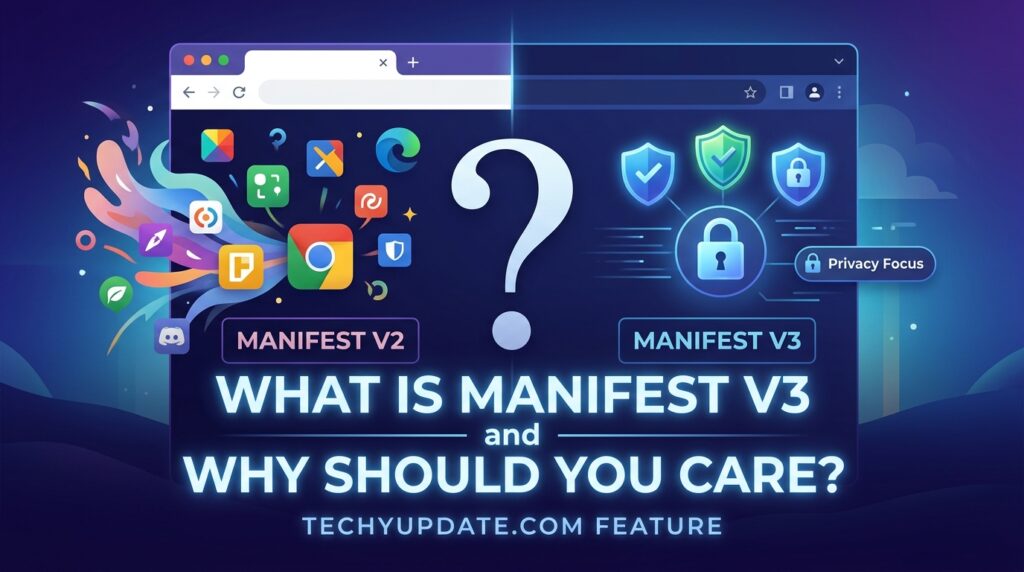
What Is Manifest V3 and Why Should You Care?

If you’re even casually interested in Chrome extensions, you’ve probably seen headlines about Manifest V3, and they’re not always flattering. Let’s break this down clearly.

Google Chrome Web Store

Manifest V3 (MV3) is Google’s new framework for Chrome extensions that began replacing Manifest V2 (MV2) in 2023. It fundamentally changes the architecture of how extensions interact with Chrome.

The stated goals of MV3 are:

  • Improved security by limiting what extensions can do
  • Better performance by replacing persistent background pages with service workers
  • Greater privacy by restricting certain data access patterns

How Manifest V3 Affects Ad Blockers

Here’s where it gets controversial. MV2 allowed extensions to use a powerful API called webRequest To actually intercept and block web requests, the technical foundation of how ad blockers like uBlock Origin work.

MV3 replaces this with a more limited API called declarativeNetRequest, which uses pre-defined rules rather than dynamic interception. Critics argue this fundamentally weakens the capabilities of ad-blocking extensions.

The real-world impact:

  • uBlock Origin’s developer has confirmed the MV3 version (uBlock Origin Lite) is less capable than the MV2 version
  • Some advanced filtering features are no longer possible under MV3
  • Users who rely on custom filter lists have fewer options

Google has faced significant backlash from privacy advocates and extension developers, and the rollout has been extended multiple times in response. As of mid-2024, MV2 extensions are being phased out, though Google has committed to maintaining certain MV3 capabilities in response to developer feedback.

What Changes for Extension Developers

For developers, MV3 represents significant architectural changes:

  • Background pages become service workers (which don’t persist)
  • Remote code execution is no longer allowed (for security)
  • Stricter permission requirements
  • New APIs for handling certain tasks differently

The general consensus in the developer community is mixed. MV3 brings genuine security improvements, but removes powerful tools that legitimate extensions depended on. Many developers have had to significantly rewrite their extensions.

How to Manage Your Chrome Extensions

Good extension hygiene can dramatically improve your browser’s performance, security, and privacy. Here’s how to manage your extension library like a pro.

Removing Extensions

Method 1: Right-click the extension icon in your toolbar → “Remove from Chrome.”

Method 2:

  1. Go to chrome://extensions
  2. Find the extension you want to remove
  3. Click “Remove”
  4. Confirm removal

Updating Extensions

Chrome updates extensions automatically in the background, but you can force an update:

  1. Go to chrome://extensions
  2. Enable Developer mode (toggle in top-right)
  3. Click “Update” at the top of the page

This immediately checks all your installed extensions for updates.

Organizing Extensions with the Extension Manager

For power users with many extensions installed, Chrome’s built-in manager at chrome://extensions is your control center. You can:

  • Toggle extensions on/off without uninstalling them
  • View permissions for each extension
  • Check for errors if an extension is behaving oddly
  • Access extension settings via dedicated options pages
  • Enable extensions in Incognito mode if needed (off by default for security)

Third-party tip: The “Extension Manager” extension (yes, an extension to manage extensions) offers more sophisticated organization features, including grouping extensions by purpose and quickly toggling groups on or off.

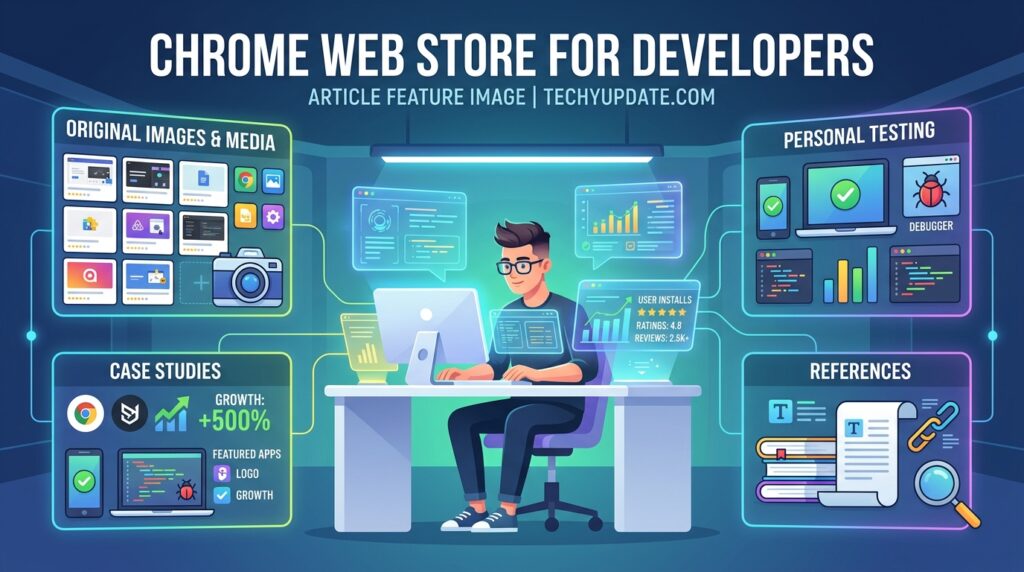
Chrome Web Store for Developers

The Chrome Web Store isn’t just for users — it’s also a platform for developers to distribute their creations to hundreds of millions of Chrome users worldwide.

Google Chrome Web Store

How to Submit an Extension

The process for getting your extension on the Chrome Web Store:

  1. Create a developer account at chrome.google.com/webstore/devconsole — requires a one-time $5 fee
  2. Package your extension as a ZIP file containing your manifest.json and all required files
  3. Upload to the Developer Dashboard
  4. Fill in store listing details: name, description, screenshots, promotional images
  5. Set visibility: public, unlisted, or private
  6. Submit for review — Google’s automated and manual review process begins

Review times typically range from a few hours to several days, depending on the extension’s complexity and whether it requests sensitive permissions.

Chrome Web Store Policies

Google’s Developer Program Policies are extensive and strictly enforced. Key rules include:

  • No deceptive functionality: Extensions must do what they say they do
  • No misleading metadata: Screenshots and descriptions must be accurate
  • Minimal permissions: Request only the permissions actually needed
  • No data collection beyond what’s disclosed: Full transparency required
  • No malware or unwanted software: Zero tolerance
  • No modification of Chrome’s default search: Unless it’s the core feature and user-consented

Violations can result in removal from the extension and termination of the developer account.

Monetization Options

Developers have several ways to monetize Chrome Web Store extensions:

  • Freemium model: Free basic version with paid premium features
  • One-time purchase: Via the Chrome Web Store’s built-in payment system
  • Subscription: Recurring payments (managed outside the Web Store or via it)
  • Donations: Many open-source extensions use Patreon or similar platforms
  • Licensing for enterprise: B2B sales of enterprise-focused extensions

The Chrome Web Store takes a 5% cut of paid extension sales, significantly less than app stores like Apple’s App Store (30%).

Chrome Extension Installation and Management

Installing extensions is only the first step. Proper management is essential for maintaining browser speed, security, and stability.

Chrome includes a built-in Extension Manager that allows users to:

• Enable or disable extensions
• Remove extensions
• Review permissions
• Manage extension settings
• Troubleshoot extension conflicts

To access installed extensions:

  1. Open Chrome.
  2. Click the puzzle-piece icon.
  3. Select “Manage Extensions.”

Best practices include:

• Removing unused extensions every month.
• Keeping extensions updated.
• Limiting access permissions.
• Monitoring browser performance.

Many users install numerous browser add-ons and forget about them. Over time, these extensions may slow browsing speeds or create security concerns.

A clean extension library contributes to a faster and safer browsing experience.

How to Remove Chrome Extensions

Removing unwanted extensions is simple.

Step-by-Step Removal Process

Step 1:

Open Chrome.

Step 2:

Navigate to the Extensions page.

Step 3:

Locate the extension you want to remove.

Step 4:

Click Remove.

Step 5:

Confirm deletion.

Reasons to remove extensions:

• Browser slowdown
• Security concerns
• Privacy issues
• Lack of updates
• No longer needed

Regular extension maintenance helps keep Chrome operating efficiently.

Chrome Web Store Not Working Fix

Occasionally, users encounter issues when accessing the Google Chrome Web Store.

Google Chrome Web Store

Common problems include:

• Store not loading
• Extensions not installing
• Download failures
• Sync issues
• Permission errors

Quick Troubleshooting Steps

  1. Restart Chrome.
  2. Clear browser cache.
  3. Update Chrome.
  4. Disable conflicting extensions.
  5. Check internet connectivity.
  6. Sign in to your Google account again.

If the issue persists, creating a new browser profile often resolves extension-related conflicts.

Enterprise users may also experience restrictions imposed by administrative policies.

Chrome Extension Not Installing Fix

Sometimes users click “Add to Chrome,” but nothing happens.

Google Chrome Web Store

Potential causes include:

Browser Compatibility Issues

Outdated versions of Chrome may not support newer extensions.

Corrupted User Profiles

A damaged profile can prevent an extension from being installed.

Security Software Conflicts

Some antivirus applications block extension downloads.

Enterprise Restrictions

Organizations may limit the installation of extensions using administrative controls.

The easiest solution is often to update Chrome and restart the browser before attempting installation again.

Enterprise Extensions and Admin Controls

Businesses increasingly rely on browser extensions to improve productivity and security.

Chrome Enterprise offers centralized management through administrative controls.

Benefits include:

• Extension deployment
• Permission management
• Security enforcement
• Policy compliance
• Device management

The Chrome Enterprise Admin Console enables IT teams to:

• Approve extensions
• Block risky extensions
• Force-install required tools
• Monitor browser policies

These features make Chrome attractive for organizations managing hundreds or thousands of employees.

Chrome Extensions for Accessibility

Accessibility remains a major strength of the Google Chrome Web Store.

Many extensions help users with:

• Visual impairments
• Hearing challenges
• Reading difficulties
• Cognitive disabilities

Popular accessibility categories include:

• Screen readers
• Text enlargement tools
• Dyslexia-friendly readers
• Speech-to-text software
• Caption enhancement tools

These extensions make the web more inclusive and easier to navigate for diverse audiences.

Not every extension receives special recognition from Google.

Google Chrome Web Store

Featured extensions typically demonstrate:

• Strong user experience
• Excellent security practices
• Consistent updates
• High-quality design
• Policy compliance

Google evaluates extensions based on technical quality and user trust.

Extensions that meet these standards often receive greater visibility within the Chrome Web Store.

For users, featured badges can serve as a useful trust signal when choosing new tools.

How Chrome Syncs Extensions Across Devices

One of Chrome’s most useful features is synchronization.

When signed into a Google account, Chrome can automatically sync:

• Extensions
• Bookmarks
• Passwords
• Settings
• Browsing preferences

Benefits include:

• Faster device setup
• Consistent workflows
• Improved productivity

This functionality is particularly valuable for users who switch between multiple devices throughout the day.

Chrome Web Store Payment System

While many extensions are free, some offer premium subscriptions or paid licenses.

Common monetization methods include:

• One-time purchases
• Monthly subscriptions
• Freemium upgrades
• Enterprise licensing

Premium extensions often provide:

• Advanced automation
• Additional storage
• Enhanced reporting
• Team collaboration features

Users should evaluate whether premium features justify ongoing costs before subscribing.

Best Paid Chrome Extensions Worth Buying

While free extensions dominate the marketplace, several premium tools provide exceptional value.

Popular categories include:

Productivity Suites

Advanced workflow automation tools.

Research Platforms

Enhanced web research and information management.

SEO Tools

Keyword research, backlink analysis, and website auditing tools.

Team Collaboration Solutions

Project management and communication extensions.

For professionals and businesses, premium browser tools often generate significant time savings.

Chrome Web Store Pros and Cons

Pros

• Massive extension library
• Easy installation process
• Frequent updates
• Strong ecosystem support
• Cross-device synchronization
• Excellent productivity tools
• Large developer community

Cons

• Potential privacy concerns
• Browser performance impact
• Occasional malicious extensions
• Extension conflicts
• Permission complexity

Overall, the benefits substantially outweigh the disadvantages for most users.

Common Mistakes Users Make

Many users unintentionally reduce browser security and performance.

Common mistakes include:

Installing Too Many Extensions

More extensions increase resource usage.

Ignoring Permissions

Always review the requested access carefully.

Trusting Fake Reviews

Read both positive and negative feedback.

Forgetting Updates

Outdated extensions may introduce security vulnerabilities.

Keeping Unused Extensions

Remove tools that no longer provide value.

Avoiding these mistakes creates a safer and more efficient browsing environment.

Artificial intelligence is rapidly transforming browser experiences.

Modern AI-powered Chrome extensions can:

• Summarize articles
• Generate content
• Conduct research
• Translate languages
• Automate workflows

Industry experts expect AI browser assistants to become standard productivity tools over the next several years.

As AI capabilities expand, browser extensions will likely become more intelligent, personalized, and context-aware.

The Chrome Web Store is positioned to remain a major distribution platform for these innovations.

Final Verdict

After this deep dive, where does the Google Chrome Web Store stand?

For everyday users: The Chrome Web Store is an essential, largely excellent resource. With the world’s largest extension library, one-click installation, and solid security screening, Chrome is genuinely better for virtually any use case you can imagine. Install it, browse it, and don’t be afraid to experiment with extensions from reputable developers with strong reviews.

For privacy-conscious users: Exercise appropriate caution. Read permissions carefully, stick to well-known extensions, and audit your installed extensions regularly. Consider supplementing with Firefox for sensitive browsing sessions.

For developers: The Chrome Web Store offers unparalleled distribution reach with a straightforward (if sometimes slow) review process. The Manifest V3 transition is challenging but necessary to understand and adapt to.

For power users: The Chrome Web Store remains the best single source for browser extensions, but staying informed about Manifest V3’s ongoing impact is important as the ecosystem continues to evolve through 2024 and beyond.

Overall Score: 4.2/5 A mature, feature-rich marketplace with unmatched selection, held back slightly by the Manifest V3 controversy and occasional security lapses.

After extensive evaluation, the Google Chrome Web Store remains the leading browser extension marketplace in 2026.

Its strengths include:

• Unmatched extension selection
• Broad developer support
• Strong productivity ecosystem
• Cross-platform compatibility
• Continuous innovation

Although users should remain aware of privacy risks and extension permissions, Google’s security measures and review processes provide a solid foundation for safe browsing.

For students, professionals, developers, businesses, and casual users alike, the Chrome Web Store offers tremendous value.

Rating: 9.5/10

The Google Chrome Web Store continues to set the standard for browser customization and extension management.

Quick Summary

• The Google Chrome Web Store is the largest browser extension marketplace.
• Chrome extensions improve productivity, security, accessibility, and workflow efficiency.
• Users should carefully review permissions before installation.
• Manifest V3 enhances security and privacy.
• Browser performance benefits from regular extension management.
• Students, businesses, and developers can all benefit from specialized tools.
• AI-powered extensions are becoming increasingly important.
• Chrome remains the market leader for browser extension ecosystems.

Frequently Asked Questions

What is Google Chrome Web Store? 

It’s Google’s online store for the Chrome browser where you can find and add extensions, apps, and themes.

What is the Chrome Web Store used for? 

To browse and install Chrome extensions, apps, and themes that enhance your browsing experience.

What exactly is the Google Chrome Web Store? 

An online marketplace for Chrome users to add-ons that make webpages more useful and add new features.

Safety & Security

Are Chrome extensions safe? 

Many are safe, but extensions can contain malware, vulnerabilities, or privacy violations—even from official stores, so choose carefully and review permissions.

Is it safe to install Chrome extensions? 

It’s generally safe to install from the official Chrome Web Store, check reviews, and allow only necessary permissions.

Can Chrome extensions steal data? 

Yes, if they have permissions like “cookies” or “site data,” they can read or take data you share while browsing.

Can Chrome extensions track what I browse? 

Yes, extensions with site-data permissions can track browsing activity on sites they’re allowed to access.

Can Chrome extensions be harmful? 

Yes, malicious or poorly built extensions can introduce malware, slow your browser, or violate your privacy.

What happens if I install a malicious Chrome extension? 

You may experience data loss, privacy issues, slower performance, or unwanted ads; remove it immediately and reset permissions.

Is the Chrome Web Store safe? 

It’s safer than random sites, but not perfect. Still, review extensions and permissions before installing.

How does Chrome Web Store vet extensions? 

Google reviews submissions and monitors for abuse, but malicious extensions can still appear—user vigilance is important.

Installing & Managing Extensions

How do I install a Chrome extension? 

Open the Chrome Web Store → select Extensions → find an extension → click “Add to Chrome” → confirm “Add extension”.

How do I add an extension to Google Chrome? 

Same as above: go to Chrome Web Store, choose an extension, and click “Add to Chrome”.

How do I add extensions to Chrome? 

Browse the Web Store (Extensions tab) and click “Add to Chrome,” then confirm.

How do I install a Chrome extension from the web store? 

Visit the store, find the extension, click “Add to Chrome,” and confirm.

How do I manage my Chrome extensions? 

Go to Chrome → More tools → Extensions (or click the puzzle icon → Manage extensions) to enable/disable, pin, or remove them.

How do I disable a Chrome extension without deleting it? 

In the Extensions page, toggle the switch off instead of clicking “Remove”.

How do I uninstall a Chrome extension? 

In Extensions, click “Remove” and confirm.

Why can’t I install extensions on Chrome? 

You may be browsing as a guest, on a managed device, or on a Chromebook with restrictions that block extensions.

Why is the Chrome Web Store not loading? 

Possible causes: network issues, Chrome updates needed, extensions blocking the site, or account/location restrictions.

Features, Costs, and Limits

Are Chrome extensions free? 

Many are free, but some are paid or offer paid features; the store clearly shows pricing.

Why do some extensions cost money? 

Developers charge for advanced features, ongoing support, or premium services.

Are there paid extensions on the Chrome Web Store? 

Yes, developers can publish free or paid extensions via the Chrome Developer Dashboard.

How many extensions are in the Chrome Web Store? 

As of 2024, about 138,000 extensions and 33,000 themes.

How many extensions can I install in Chrome? 

There’s no hard public limit, but too many can slow your browser; manage what you need.

Can Chrome extensions slow down my browser? 

Yes, poorly optimized or too many extensions can reduce performance and increase memory usage.

Privacy & Best Choices

Which Chrome extensions are best for privacy? 

Popular choices include privacy-focused blockers and trackers like uBlock Origin, Privacy Badger, and DuckDuckGo Privacy Essentials (check current reviews and permissions).

What Chrome extensions should I avoid? 

Avoid obscure extensions with excessive permissions, no reviews, or reports of suspicious behavior.

Compatibility & Cross-Browser

Does Chrome Web Store work on Edge? 

Yes, Chrome extensions are available on Microsoft Edge as well.

Can I use Chrome Web Store on Microid? 

No Chrome Web Store is for desktop Chrome; Android uses different extension/app systems.

Can I use Chrome extensions on my phone? 

Generally, no on mobile Chrome; some Android browsers support extensions, but Chrome mobile doesn’t.

How does Chrome Web Store compare to Firefox Add-ons? 

Chrome focuses on extensions/apps/themes with a large store; Firefox Add-ons has a different ecosystem and privacy model.

Syncing & Accounts

What happens to my extensions when I switch Google accounts? 

Extensions don’t automatically transfer unless you sync Chrome; signing into a different account may show different extensions.

How do I sync Chrome extensions across devices? 

Sign in to Chrome on all devices and enable sync; your apps and extensions will appear wherever you’re signed in.

Technical Details for Developers & Users

What replaced Manifest V2 in Chrome extensions? 

Manifest V3 replaced Manifest V2, changing how extensions handle network requests and permissions.

What is Manifest V3, and does it affect my extensions? 

Manifest V3 is the new extension platform; it can affect some older extensions’ capabilities and permissions.

What’s the difference between Chrome extensions and Chrome apps? 

Extensions add features to the browser; apps are more standalone web programs. Chrome now de-emphasizes apps.

What is the difference between an extension and an app in the Web Store? 

Extensions modify or enhance browsing; apps are more like full web applications.

How do developers submit extensions to the Chrome Web Store? 

Publish via the Chrome Developer Dashboard using Chrome Developer Tools, then upload the package.

What are the most popular Chrome extensions? 

Often include productivity, ad-blocking, and security tools; check the store’s “Top” or “Featured” sections for current lists.

What are the most downloaded Chrome extensions right now? 

Look at the Chrome Web Store’s popularity rankings; common ones include ad blockers, translators, and dark mode tools.

What Chrome extensions do developers use most? 

Developers often use debugging, linting, and performance tools (e.g., Lighthouse, React DevTools).

What is the featured badge on the Chrome Web Store? 

It highlights selected or recommended extensions by Chrome’s team.

Are there Chrome extension alternatives I can sideload? 

Yes, you can load unpacked extensions in Chrome Dev mode, but be cautious about security.

Voice & Quick Help

Hey Google, what are the best Chrome extensions? 

Try searching the Chrome Web Store’s “Top” or “Featured” sections; popular picks include uBlock Origin, Grammarly, and Dark Reader.

Hey Google, how do I add extensions to Chrome? 

Open Chrome Web Store → Extensions → click “Add to Chrome” → confirm.

Reviews & Ratings

How do I leave a review on the Chrome Web Store? 

Open the extension’s page in the store and submit a rating/review in the reviews section.

Leave a Comment

Your email address will not be published. Required fields are marked *

Scroll to Top