

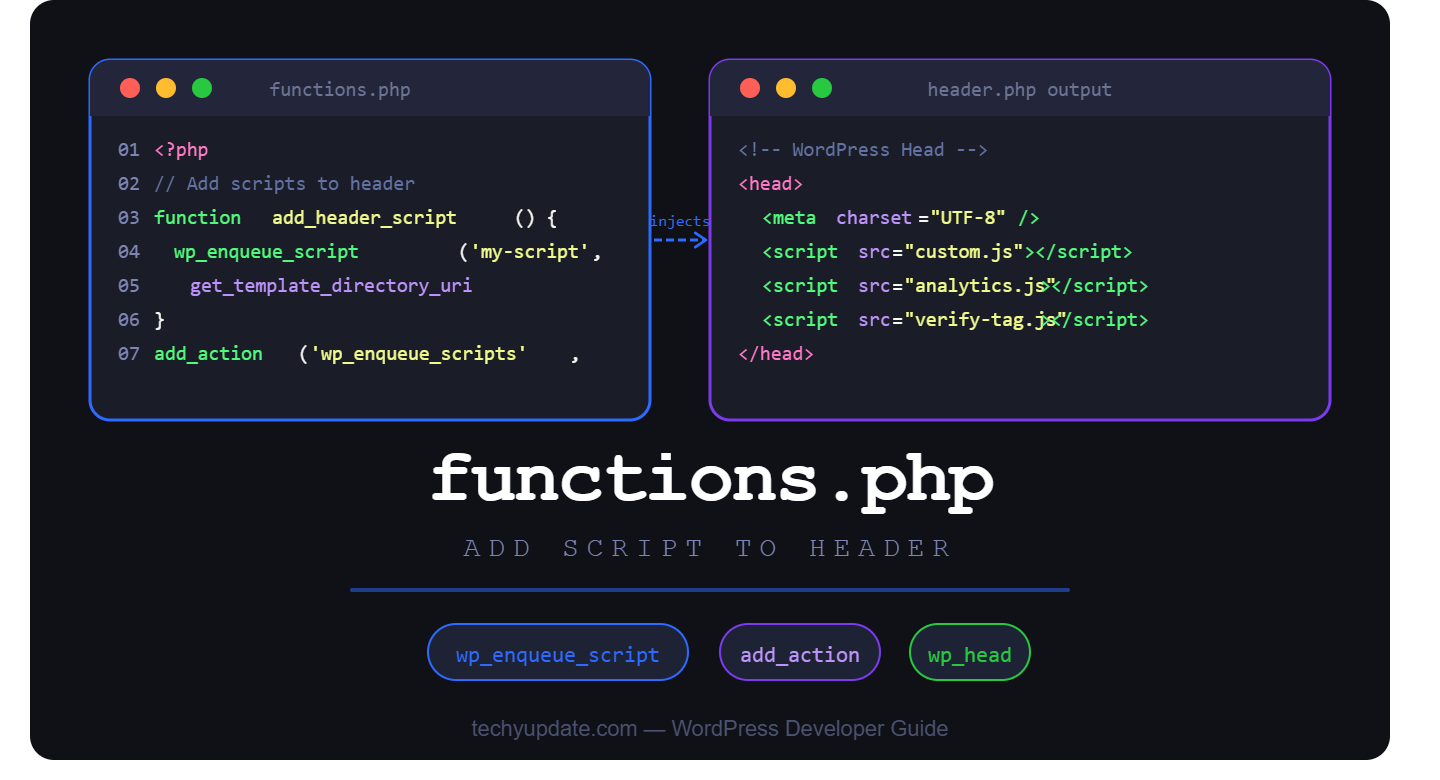
Every serious WordPress developer eventually reaches the same crossroads: you need to add a tracking code, integrate a third-party tool, or inject a custom JavaScript snippet, and you are not sure where to begin. If you have been copying code directly into your theme’s header.php file, you are making a mistake that could break your site the next time you update your theme.
This is exactly where WordPress Functions PHP becomes your most valuable asset. The functions.php file sits at the heart of your WordPress theme and gives you a clean, structured way to control nearly every aspect of your website’s behavior, including what loads in the header. Using it correctly to add scripts to the header is a skill that separates amateur developers from professionals.
In this guide, you will learn every reliable method for using WordPress Functions PHP to add scripts to the header, understand when and why to use each approach, and walk away with production-ready code you can implement today. Whether you are a beginner building your first site or an experienced developer optimizing an enterprise WordPress installation, this article covers it all.
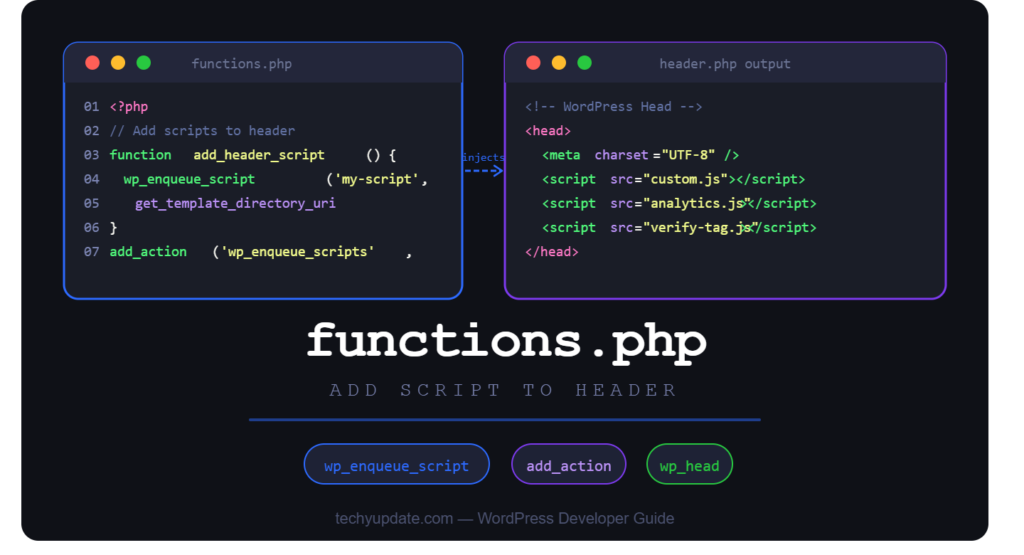
Table of Contents
Adding Scripts in WordPress
Scripts are the engine behind modern web functionality. Without them, your website could not run Google Analytics, serve retargeting ads, verify your domain with Google Search Console, load smooth animations, or connect to dozens of APIs that power today’s digital experience. Simply put, scripts are non-negotiable for any WordPress site that aims to do more than display static text.
Why scripts matter so much comes down to three realities. First, analytics and tracking tools like Google Analytics 4, Meta Pixel, and Hotjar all require a JavaScript snippet placed in the document head before the closing tag. Second, third-party integrations, from live chat widgets to payment processors, depend on header scripts to initialize correctly. Third, performance-optimized custom JavaScript sometimes needs to fire before the rest of the page content renders.
The most common use cases for header scripts include:
- Google Analytics and GA4 tracking codes
- Meta Pixel (formerly Facebook Pixel) for ad attribution
- Google Search Console site verification meta tags
- Bing Webmaster Tools verification
- Hotjar heatmap and session recording
- Custom fonts via JavaScript loaders
- A/B testing tools like Optimizely or VWO
- Structured data injection via schema scripts
- Custom JavaScript that modifies DOM behavior on load
Among all the available methods, using WordPress Functions PHP is the most reliable and upgrade-safe approach. It keeps your custom code separated from core theme files and ensures that scripts survive theme updates without disappearing. The functions.php file acts as your site’s custom control center, and understanding it is essential for any developer who wants full control over what loads in their WordPress header.
Understanding the WordPress Functions.php File
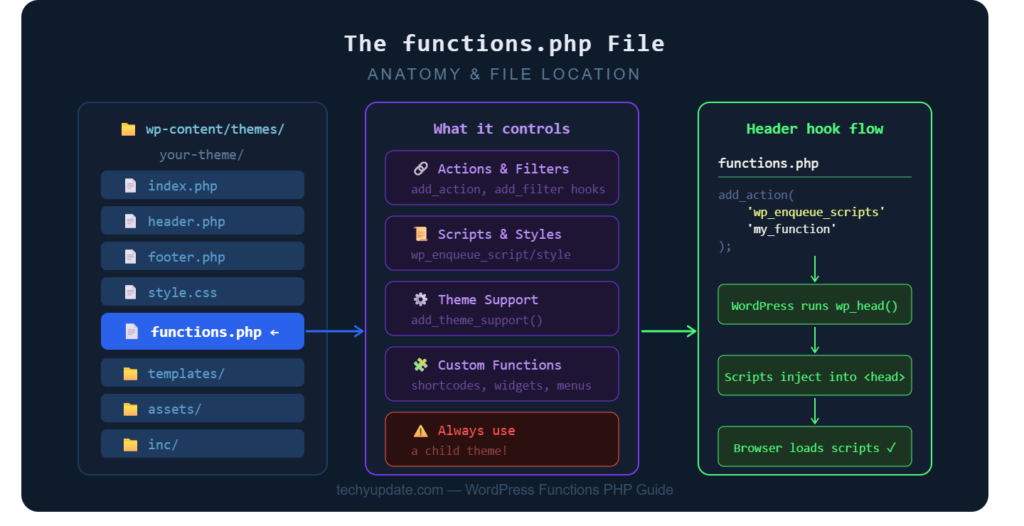
If you have ever wondered what WordPress Functions PHP actually does, the answer is: almost everything. The functions.php file is a special template file included in every WordPress theme. WordPress loads it automatically on every page request, making it the perfect place to register custom functionality, add actions, filter content, and yes, inject scripts into your header.
Think of it as your theme’s personal plugin. Unlike plugin files, which are stored in the wp-content/plugins directory, the functions.php file lives inside your active theme folder at wp-content/themes/your-theme-name/functions.php. WordPress automatically reads and executes this file before rendering any page, which gives you a powerful hook into the entire request lifecycle.
Finding the file is straightforward. You can access it in three ways:
- Through the WordPress admin panel: go to Appearance > Theme File Editor, then select functions.php from the file list on the right
- Via an FTP client like FileZilla: navigate to wp-content/themes/your-active-theme/
- Using your hosting provider’s cPanel File Manager
Before you make any edits to WordPress Functions PHP, take a few essential precautions. Always back up your site first, as a syntax error in functions.php can make your entire WordPress site go blank. Use a staging environment to test changes before pushing them to production. If you are editing through the WordPress admin, one misplaced semicolon or bracket can lock you out of your site entirely.
A safer and strongly recommended alternative is to use a child theme. A child theme has its own functions.php that inherits all the parent theme’s functionality but does not get overwritten when the parent theme updates. This setup keeps your custom code safe through every theme update, plugin update, and WordPress core upgrade.
Why Add Scripts to the Header
Understanding why you should add scripts specifically to the WordPress header, rather than the footer or body, matters more than many developers realize. The placement of a script determines when it loads, which affects both functionality and page performance.
Analytics tracking codes are the clearest example. Google Analytics 4 and similar tools must load as early as possible in the page lifecycle to capture every visitor session, including those who navigate away quickly. Google’s own documentation recommends placing the GA4 snippet in the head section of every page. Placing it in the footer risks missing pageview events for fast-bouncing visitors.
Verification meta tags from Google Search Console, Bing Webmaster Tools, Pinterest, and other platforms must go in the head element by design. These platforms look for a specific meta tag in your HTML head to verify site ownership. If the tag is absent from the head, verification simply fails.
Third-party integrations often have strict placement requirements. Live chat widgets from tools like Intercom or Zendesk, A/B testing scripts from Optimizely, and consent management platforms like OneTrust all require header placement to function before the page content renders. Loading these in the footer can result in visible content flashing, functionality gaps, or broken features.
Custom JavaScript functionality sometimes needs early initialization. If you are building a progressive web app experience, a custom cookie consent banner, or a dynamic header that adjusts based on scroll position, that logic often must be available before the DOM finishes loading. Using WordPress Functions PHP to add a script to the header gives you precise control over this timing.
The key takeaway is that header scripts run first, giving them access to the full DOM lifecycle, a capability footer scripts simply cannot match.
Methods to Add Scripts to the WordPress Header
Using the functions.php File
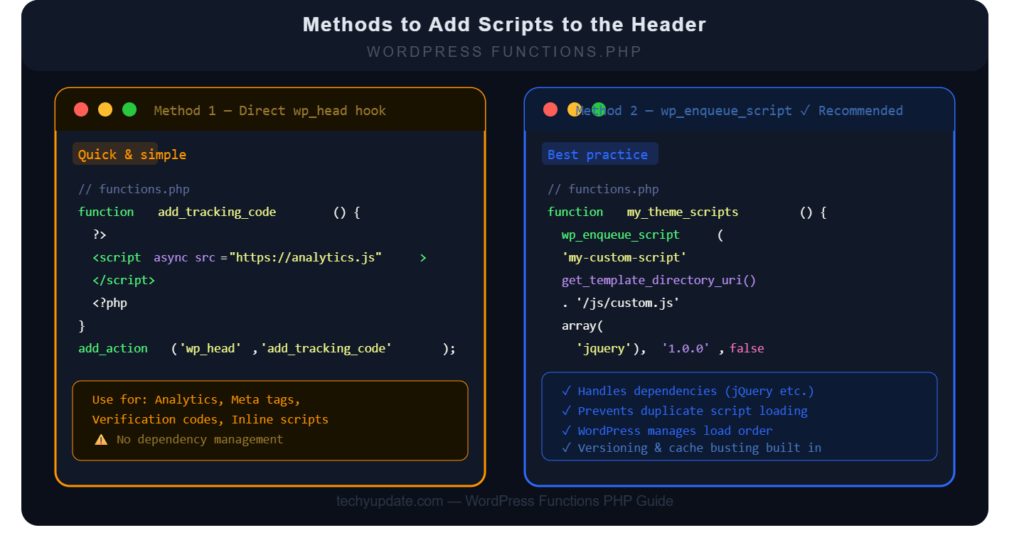
The most direct way to add a script to the WordPress header is by using the wp_head action hook in functions.php. WordPress fires the wp_head hook just before the closing head tag on every page, which is exactly where you want most scripts to appear.
Here is the fundamental pattern for hooking into wp_head:
function techyupdate_add_header_script() {
?>
<script>
// Your custom JavaScript here
console.log(‘Script loaded from WordPress Functions PHP’);
</script>
<?php
}
add_action( ‘wp_head’, ‘techyupdate_add_header_script’ );
For adding a Google Analytics 4 tracking code using this method:
function techyupdate_add_ga4_script() {
?>
<!– Google tag (gtag.js) –>
<script async src=”https://www.googletagmanager.com/gtag/js?id=G-XXXXXXXXXX”></script>
<script>
window.dataLayer = window.dataLayer || [];
function gtag(){dataLayer.push(arguments);}
gtag(‘js’, new Date());
gtag(‘config’, ‘G-XXXXXXXXXX’);
</script>
<?php
}
add_action( ‘wp_head’, ‘techyupdate_add_ga4_script’ );
Replace G-XXXXXXXXXX with your actual GA4 Measurement ID. This function registers a callback that WordPress automatically calls when it processes the wp_head hook, injecting your script cleanly into the head section without modifying any core files.
You can also control the priority of your script by passing a third argument to add_action. Lower numbers fire earlier. The default priority is 10:
add_action( ‘wp_head’, ‘techyupdate_add_header_script’, 5 ); // Fires before default priority
This method is fast, reliable, and requires no plugins. The best practice is to always use a uniquely named function to avoid conflicts with other themes or plugins. Prefix your function names with your site or brand name, as shown in the examples above.
Using wp_enqueue_script
While hooking directly into wp_head works well for inline scripts and third-party code snippets, WordPress provides a more structured and powerful method for loading JavaScript files: wp_enqueue_script. This is the official WordPress way to add external script files and is recommended by the WordPress Developer Handbook.
The benefits of using wp_enqueue_script over manual script tags are significant. WordPress manages dependencies intelligently, ensuring that if your script depends on jQuery, jQuery loads first. It prevents the same script from loading twice if multiple plugins or themes try to register it. It also integrates with WordPress’s caching and optimization ecosystem, meaning plugins like WP Rocket, W3 Total Cache, and LiteSpeed Cache can properly minify and defer your enqueued scripts.
Here is how to use wp_enqueue_scripts to load a JavaScript file in the header:
function techyupdate_enqueue_header_scripts() {
wp_enqueue_script(
‘my-custom-script’, // Handle (unique ID)
get_template_directory_uri() . ‘/js/custom.js’, // Script file URL
array( ‘jquery’ ), // Dependencies
‘1.0.0’, // Version number
false // false = load in header, true = footer
);
}
add_action( ‘wp_enqueue_scripts’, ‘techyupdate_enqueue_header_scripts’ );
The fifth parameter is critical: setting it to false forces the script to load in the header. Setting it to true moves it to the footer. For scripts that must be in the head, always set this to false.
You can also use wp_register_script to register a script without immediately loading it, then call wp_enqueue_script later conditionally:
function techyupdate_register_scripts() {
wp_register_script( ‘my-script’, get_template_directory_uri() . ‘/js/custom.js’, array(), ‘1.0’, false );
// Only load on single posts
if ( is_single() ) {
wp_enqueue_script( ‘my-script’ );
}
}
add_action( ‘wp_enqueue_scripts’, ‘techyupdate_register_scripts’ );
This conditional loading pattern is excellent for performance: you load scripts only on pages that need them, reducing page weight elsewhere.
Using Plugins
Not every WordPress user is comfortable editing PHP code directly, and that is completely fine. Plugins offer a user-friendly way to add scripts to the WordPress header without touching a single line of PHP in WordPress functions. Several well-maintained plugins make this process accessible to anyone.
The most popular option is WPBeginner’s Insert Headers and Footers. It is free and lightweight, and it provides two simple text boxes: one for header code and one for footer code. Anything you paste into the header box is automatically injected into wp_head. Over five million active installations make it one of the most trusted tools in the WordPress ecosystem.
WPCode (formerly Insert Headers and Footers) is the upgraded evolution of that plugin, offering conditional logic, so you can load different scripts on different pages, post types, or user roles. It also includes a code snippet library with pre-built integrations for Google Analytics, Meta Pixel, and more.
Header Footer Code Manager is another solid option for developers who want more control. It supports PHP execution within snippets, meaning you can add conditional logic directly in the admin interface.
The advantages of using plugins include a friendly interface, no risk of syntax errors crashing the site, easy enable/disable toggles per snippet, and no need for FTP access or coding knowledge. The disadvantages are that plugins add database queries and HTTP overhead, can conflict with each other, and make you dependent on the plugin developer to maintain compatibility with future WordPress versions.
For developers managing multiple sites or complex codebases, WordPress Functions PHP remains the superior choice. For non-technical site owners who need to paste a tracking code and move on, a plugin is perfectly appropriate.
Common Mistakes to Avoid
Even experienced developers stumble when working with WordPress functions in PHP. These are the most frequent errors and how to sidestep them.
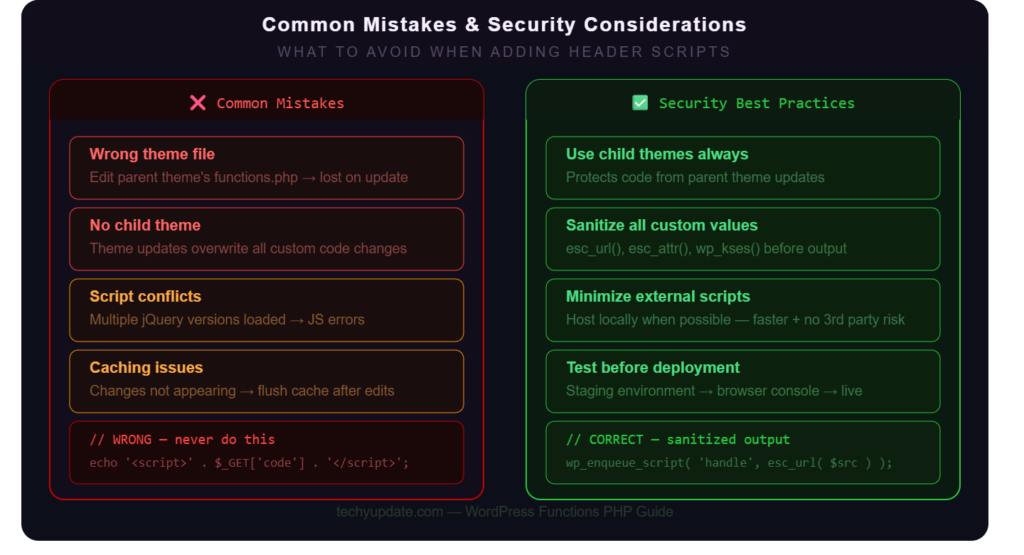
Editing the wrong theme file is the number one mistake. WordPress loads only the active theme’s functions.php file. If you have multiple themes installed and you edit the wrong one, your changes have no effect, and you waste time debugging a problem that does not exist where you are looking.
Ignoring child themes is closely related. If you add your scripts directly to a parent theme’s functions.php, the next time you update that theme, your changes are erased. This is not a rare edge case: it happens to developers all the time. Always use a child theme for any customization you want to persist through updates.
Script conflicts occur when two scripts try to control the same functionality. A common scenario is loading multiple versions of jQuery. WordPress ships with its own version of jQuery, and if a plugin or custom code loads a different version, conflicts arise that can break interactive elements across your site. Using wp_enqueue_script with proper dependencies prevents this.
Forgetting caching issues causes confusion during development and after deployment. After adding a new script to your header via WordPress Functions PHP, you may not see it appear immediately because your caching plugin, CDN, or browser cache is serving an old version of the page. Always clear all caches after making changes to functions.php and verify the script is loading using your browser’s developer tools (F12 > Network tab > filter by JS).
Syntax errors in functions.php are particularly dangerous because WordPress tries to load the file on every request. A single missing semicolon can cause a PHP fatal error that renders the entire site, including the admin panel, inaccessible. Always validate your PHP syntax before saving, and keep your hosting provider’s file manager accessible as a recovery route.
Security and Performance Considerations
Adding scripts to your WordPress header comes with real security and performance responsibilities. Treating this as an afterthought can expose your site to vulnerabilities and slow it down for every visitor.
On the security side, never paste untrusted code into your functions.php file or into a header code plugin. Scripts injected into your header run in every visitor’s browser, which means malicious code could steal session data, redirect users, or execute actions on their behalf. Always source scripts from official, verified vendors. When in doubt, verify the script’s origin and review what it actually does.
Sanitizing any dynamic data that your PHP code outputs into header scripts is non-negotiable. If your script includes user-generated content or database data, run it through WordPress sanitization functions such as esc_js() or esc_url() before outputting it. Failing to sanitize opens your site to cross-site scripting (XSS) attacks, which are among the most common web vulnerabilities according to the OWASP Top 10.
Minimizing external scripts is a performance imperative. Every external JavaScript file your header loads is a separate HTTP request. Each request adds latency, and header scripts are render-blocking by default, meaning the browser pauses rendering the page until each script loads. Audit your header scripts regularly and remove any that are no longer needed.
For scripts that do not need to block rendering, use the async or defer attributes:
function techyupdate_add_async_script() {
echo ‘<script async src=”https://example.com/script.js”></script>’;
}
add_action( ‘wp_head’, ‘techyupdate_add_async_script’ );
The async attribute tells the browser to download the script in parallel and execute it as soon as it downloads. The defer attribute downloads resources in parallel but waits until the page has finished parsing before executing. For most analytics and tracking scripts, async is the appropriate choice and aligns with Google’s recommendations for the GA4 snippet.
Troubleshooting Header Script Issues
Even when you follow every best practice, scripts sometimes do not behave as expected. Knowing how to diagnose issues quickly saves hours of frustration.
When a script is not appearing in the header, the first step is to open your browser’s developer tools (F12), go to the Elements tab, and search for your script in the head section. If it is absent, confirm that your changes to functions.php have been saved, the correct theme is active, and no PHP errors are occurring. Check your WordPress debug log by adding define(‘WP_DEBUG’, true) and define(‘WP_DEBUG_LOG’, true) to your wp-config.php file temporarily.
JavaScript errors in the console often occur when your custom script depends on a library that has not yet been loaded. If you see “$ is not defined” or “jQuery is not defined,” it means your script is trying to use jQuery before it has been loaded. Declare jQuery as a dependency in wp_enqueue_script to fix this automatically.
Theme compatibility problems arise when switching themes. Your child theme’s functions.php does not carry over when you activate a different parent theme. If you switch themes and your scripts disappear, it is because the new theme has its own functions.php, and your customizations are in the old one. Using a site-level plugin like WPCode to store header scripts avoids this problem entirely.
Caching-related issues are the most deceptive. After you add a script and it still does not appear, purge every cache layer: your caching plugin, your CDN, your server-level cache (if using Nginx FastCGI or LiteSpeed), and your browser cache. Use an incognito window for testing to eliminate browser caching entirely.
Read More: How to Make Affiliate Marketing Content Using AI Tools
Productivity and Time Management
One underappreciated benefit of mastering WordPress Functions PHP for adding scripts to the header is the time it saves over the course of a developer’s career. Every hour spent learning this skill properly pays dividends hundreds of times over.
When you rely on manual header.php edits, you spend time re-adding scripts after every theme update. Over a year of managing multiple client sites, that adds up to a significant number of wasted hours. Structuring your script injection through functions.php, especially inside a child theme, eliminates this repetitive work entirely.
Developers who use wp_enqueue_script correctly gain another productivity edge: they can reuse code across projects. A well-written enqueue function can be copied from one project’s functions.php to another with minimal modification. Building a personal library of WordPress functions, PHP snippets for common tasks like analytics integration, verification tags, and custom script loading turns a 20-minute task into a 2-minute one.
For teams, clear naming conventions and inline comments inside functions.php reduce the time new team members spend deciphering what each block of code does. Treat your functions.php like a codebase: document it, version it with Git, and review it periodically to remove outdated scripts that are adding unnecessary load.
Automation tools also benefit from a well-organized functions.php. CI/CD pipelines can deploy theme changes without disrupting live scripts, and staging environments make it easy to test new integrations before they affect real visitors. The productivity gains from doing this correctly compound over time, making it one of the highest-return skills in the WordPress developer’s toolkit.
Coding and Technical Skills
Working with WordPress functions, PHP to add scripts to the header builds a broad range of technical skills that transfer beyond WordPress itself.
Understanding PHP action hooks and filters, which underpin the wp_head and wp_enqueue_scripts approach, introduces you to the event-driven programming paradigm. This same concept appears in JavaScript event listeners, Python Django signals, and nearly every modern framework. Developers who understand WordPress hooks have a significant conceptual head start when learning other frameworks.
Writing clean, conflict-safe PHP functions reinforces good programming habits: unique function names, single responsibility per function, and separation of concerns. These principles are foundational in software engineering and apply equally whether you are writing a WordPress plugin, a Laravel controller, or a Node.js module.
Debugging header scripts using browser developer tools builds proficiency with one of the most important tools in any front-end developer’s workflow. Reading the Network tab, analyzing script load order, diagnosing JavaScript console errors, and inspecting the HTML head section are skills that translate directly to general web development work.
Working with script dependencies in WordPress Functions PHP also provides practical insight into how browsers handle resource loading, the difference between synchronous and asynchronous script loading, the render-blocking nature of head scripts, and how async and defer affect execution timing. These concepts are tested in front-end engineering interviews and are essential for building high-performance websites, regardless of the platform.
Pro Tips to Maximize
Pro Tip 1: Use a dedicated custom plugin for site-wide code instead of functions.php when managing a multi-theme or multi-developer environment. A must-use plugin placed in wp-content/mu-plugins/ loads before themes and persists regardless of which theme is active.
Pro Tip 2: Leverage wp_add_inline_script to attach inline JavaScript to an already-enqueued script rather than using wp_head. This keeps inline code associated with its dependency and prevents it from loading if the parent script is dequeued:
wp_enqueue_script( ‘my-script’, get_template_directory_uri() . ‘/js/custom.js’, array(), ‘1.0’, false );
wp_add_inline_script( ‘my-script’, ‘console.log(“Inline code attached to my-script”);’, ‘after’ );
Pro Tip 3: Always version your scripts. Pass a version number as the fourth argument to wp_enqueue_script. When you update your script file, increment the version number to automatically bust browser and CDN caches, ensuring users always receive the latest version.
Pro Tip 4: Use conditional tags to load scripts only where they are needed. Loading your homepage slider script on every blog post adds needless weight. WordPress conditional tags like is_front_page(), is_single(), is_page(), and is_admin() let you target script loading precisely.
Pro Tip 5: Test your header scripts with Google’s PageSpeed Insights and Lighthouse after adding them. These tools identify render-blocking scripts and provide actionable recommendations to improve load time. A well-optimized script setup can add meaningful points to your Core Web Vitals scores, which influence Google rankings in 2026.
Best Practices for Managing Header Scripts
Sustainable management of header scripts goes beyond the initial implementation. Sites that maintain clean, well-documented script setups perform better, are easier to maintain, and cause fewer headaches when teams change or themes are updated.
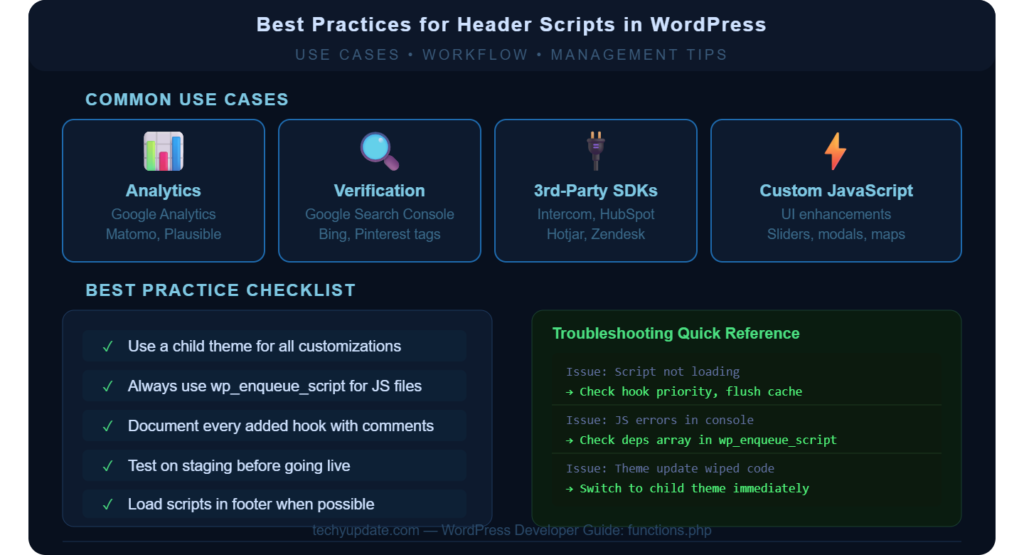
Documentation and maintenance should be part of your workflow from day one. Inside your functions.php file, add a comment above every script injection block explaining what it does, when it was added, and which third-party tool it serves:
// Added 2026-01-15: Google Analytics 4 tracking for techyupdate.com
// GA4 Property ID: G-XXXXXXXXXX
// Documentation: https://developers.google.com/analytics/devguides/collection/ga4
function techyupdate_add_ga4_script() { … }
Six months later, when you are auditing your site and wondering why a particular script is there, this comment saves you significant time.
Using child themes is non-negotiable for production sites. The parent theme will eventually release an update, and any code you added directly to the parent’s functions.php will be erased. A child theme takes roughly 10 minutes to set up and protects all your customizations indefinitely.
Testing before deployment should be a firm rule. Use a staging environment that mirrors your live site to test all script additions before they go live. Many hosting providers, including SiteGround, Kinsta, and WP Engine, offer one-click staging environments. Catching a script conflict or PHP syntax error in staging rather than in production is the difference between a minor inconvenience and an emergency.
Regular audits of your header scripts every three to six months help catch outdated tracking codes, discontinued third-party integrations, and deprecated JavaScript that may affect performance or cause console errors. Every script you remove is a performance gain for your visitors.
Expert Insights on AI Learning Trends
The intersection of artificial intelligence and WordPress development is reshaping how developers approach tasks like header script management. In 2026, AI coding assistants have become standard tools in developers’ workflows, and understanding how to use them effectively with WordPress Functions PHP is a competitive advantage.
Tools like GitHub Copilot and Claude from Anthropic can generate accurate wp_enqueue_script implementations, suggest proper hook priorities, and even review your functions.php code for potential conflicts or security issues. Developers who use these tools thoughtfully, reviewing and testing every AI-generated suggestion rather than blindly copying it, are producing cleaner code faster than ever before.
Google’s Search Generative Experience (SGE) has also shifted how users discover WordPress development guidance. AI-powered search results now surface definition-style answers, code snippets, and step-by-step solutions directly in search results. Content that is structured clearly with short, direct answers performs better in this new landscape, which is why developer tutorials that include real code examples continue to outperform vague, theoretical articles.
From an SEO perspective, Google’s 2026 algorithm updates continue to reward content that demonstrates genuine experience and expertise. For WordPress developers writing content, that means including real code you have tested, explaining why each approach works rather than just showing it works, and honestly acknowledging the trade-offs of each method. The sites that rank for “WordPress Functions PHP” queries in 2026 are those that treat the developer audience with the respect they deserve.
The broader PHP ecosystem is also evolving. PHP 8.3 and beyond bring significant performance improvements and modern language features that make WordPress development more efficient. Developers who keep their PHP skills current benefit from better tooling, cleaner code, and faster sites.
Quick Summary
Here is everything you need to know at a glance:
What it is: WordPress Functions PHP (functions.php) is a theme file that WordPress loads automatically on every page request, giving you a programmatic hook into the site’s behavior, including what loads in the HTML head section.
Why you use it: Adding scripts directly to header.php is risky and can be lost during theme updates. Using functions.php (especially in a child theme) keeps your customizations safe, organized, and maintainable.
Three main methods:
- Direct wp_head hook: Best for inline scripts, third-party code snippets, and verification meta tags
- wp_enqueue_script: Best for loading external JavaScript files with proper dependency management
- Plugins (Insert Headers and Footers, WPCode): Best for non-developers who need a UI-based approach
Key code pattern:
function prefix_add_header_script() {
// Your script here
}
add_action( ‘wp_head’, ‘prefix_add_header_script’ );
Top mistakes to avoid: Editing the wrong theme file, skipping child themes, ignoring caching after changes, and missing dependency declarations.
Performance tip: Use async on scripts that do not need to block rendering, and load scripts only on pages that need them, using conditional tags.
Security tip: Never paste unverified scripts into your header. Always sanitize any dynamic data output into scripts.
FAQ Section
What is the functions.php file in WordPress?
The functions.php file is a PHP template file that comes with every WordPress theme. WordPress automatically loads it on every page request, making it the standard place to add custom functionality, register scripts and styles, and hook into WordPress core behavior. Think of it as your theme’s personal plugin, a file where you write PHP code that extends and customizes your website without modifying core WordPress files.
How do I add a Google Analytics script to the WordPress header using functions.php?
Open your child theme’s functions.php file and add a function that outputs the GA4 snippet, then hook it to wp_head using add_action. Inside the function, paste your Google Analytics tracking code wrapped in PHP output tags. Replace the Measurement ID placeholder with your actual GA4 ID from your Google Analytics account. Save the file, clear your caches, and verify the script appears in your page source by searching for the GA4 snippet in the head section.
Is it safe to edit the functions.php file directly?
It can be safe if you take proper precautions. Always back up your site before editing, work in a child theme rather than the parent theme, and validate your PHP syntax before saving. One syntax error can render your entire site inaccessible. Using a code editor with PHP syntax highlighting and a staging environment to test changes first significantly reduces risk. For non-developers, using a plugin like WPCode is a safer alternative.
What is the difference between wp_head and wp_enqueue_scripts?
The wp_head action hook fires just before the closing head tag and lets you output any HTML, including script tags, directly into the head section. The wp_enqueue_scripts action hook is designed to register and load JavaScript and CSS files using WordPress’s built-in asset management system. wp_enqueue_scripts handles dependency resolution, prevents duplicate loading, and integrates with caching and optimization plugins. For inline code or third-party snippets, wp_head works well. For loading your own JavaScript files, wp_enqueue_scripts is the recommended approach.
Why is my script added to functions.php not showing up in the header?
Several things could be causing this. First, make sure your changes have been saved and that you are editing the active theme’s functions.php, not a different theme’s file. Second, clear all caches, including your caching plugin, CDN, and browser cache, then check the page source in an incognito window. Third, check for PHP errors by enabling WP_DEBUG in wp-config.php. A syntax error in functions.php can silently prevent your function from registering. Fourth, confirm that your theme’s header.php file includes the wp_head() function call, as some poorly built themes omit it.
Should I use a child theme when adding scripts to WordPress?
Yes, absolutely. If you add scripts directly to a parent theme’s functions.php, they will be erased every time the parent theme is updated. A child theme has its own functions.php that inherits all parent functionality but is never overwritten by updates. Setting up a child theme takes about ten minutes and protects all your customizations indefinitely. This is considered a fundamental best practice in professional WordPress development.
Can I load header scripts only on specific pages using functions.php?
Yes, and you should whenever possible. WordPress provides conditional tags like is_front_page(), is_single(), is_page(‘about’), is_category(), and is_user_logged_in() that let you target script loading precisely. Wrapping your wp_enqueue_script or wp_head callback in a conditional check means the script only loads on pages where it is actually needed, reducing page weight and improving performance on all other pages.
What is the async attribute, and should I use it on header scripts?
The async attribute tells the browser to download the script in the background without pausing the page render. Once downloaded, it executes immediately. Adding async to header scripts that do not need to block page rendering, like analytics, chat widgets, and advertising tags, can significantly improve your Core Web Vitals scores, particularly Largest Contentful Paint. Google recommends using async on the GA4 snippet by default. Scripts that modify the DOM structure before it renders should not use async, as they may execute before the elements they target exist.
What plugins can I use to add scripts to the WordPress header without coding?
The most popular options are Insert Headers and Footers by WPBeginner (free, five million-plus active installs) and WPCode, which offers conditional loading, a snippet library, and PHP execution. Header Footer Code Manager is another choice for developers who want more control without directly editing functions.php. All three options inject code into the wp_head hook behind the scenes, providing non-developers with a friendly interface for the same functionality that developers achieve in PHP.
Does adding scripts to the header affect WordPress SEO?
It can, in both directions. Render-blocking scripts in the header slow down page load time, which negatively affects Core Web Vitals and can hurt Google rankings. However, scripts like GA4, Google Tag Manager, and schema markup tools are often required for SEO measurement and structured data. The key is to load only what is necessary, use async or defer where appropriate, and regularly audit your header scripts in PageSpeed Insights to identify any that are hurting performance. A lean, purposeful header script setup supports rather than hurts SEO.
Conclusion
WordPress Functions PHP is the developer’s most reliable tool for managing what loads in the site header. Whether you are adding a Google Analytics 4 tracking code, injecting a verification meta tag, loading a custom JavaScript file with proper dependencies, or connecting a third-party integration, the functions.php file gives you clean, maintainable, upgrade-safe control over your WordPress header.
The three core methods, direct wp_head hooks for inline and third-party snippets, wp_enqueue_script for structured JavaScript file loading, and plugins for non-developers, each have their appropriate use cases. Choosing the right method for your situation, and pairing it with a child theme, proper caching management, and regular script audits, creates a WordPress setup that is both powerful and maintainable.
For most websites, the recommended approach is to use wp_enqueue_script for any JavaScript files you own and control, use the wp_head hook for third-party snippets and verification codes, and always work inside a child theme. Add documentation comments to every function, test on a staging environment before going live, and audit your header scripts every few months to keep the codebase clean.
The developers who master WordPress Functions PHP spend less time fixing broken sites and more time building great ones. Start with the code examples in this guide, practice on a staging site, and build the habit of doing it right from the start. Your future self will thank you.
Internal Linking Suggestions:
- Link “Google Analytics 4 tracking” to your GA4 setup guide on techyupdate.com
- Link “child theme” to your WordPress child theme tutorial
- Link “wp_enqueue_script” to your WordPress script loading best practices article
- Link “caching plugin” to your WordPress caching plugin comparison
- Link “Core Web Vitals” to your WordPress performance optimization guide
High-Authority External References:
- WordPress Developer Handbook: developer.wordpress.org/reference/hooks/wp_head/
- Google Analytics 4 Documentation: developers.google.com/analytics/devguides/collection/ga4
- OWASP Top 10 (XSS): owasp.org/Top10/A03_2021-Injection/
- WordPress wp_enqueue_script reference: developer.wordpress.org/reference/functions/wp_enqueue_script/