

You have about three seconds. That is roughly how long a visitor waits before abandoning a slow-loading website and clicking back to Google to find a faster alternative. Three seconds sounds generous until you realize that the average WordPress site, freshly installed with a popular theme and a dozen common plugins, can easily take five to eight seconds to load without any optimization in place.
WordPress speed optimization is not a luxury for established sites with large budgets. It is a foundational requirement for any site that wants to rank on Google, retain visitors, and convert readers into subscribers or customers. Google made page speed an official ranking factor for mobile searches in 2018, extended its impact through the Core Web Vitals update in 2021, and has continued to tighten performance expectations in every subsequent algorithm refinement through 2026.
The good news is that the most impactful speed improvements available to WordPress site owners can be achieved without spending a single pound. Free WordPress speed optimization plugins, when chosen carefully and configured correctly, can reduce page load times by 50 to 70 percent and push Google PageSpeed Insights scores from the red zone into the 90s.
At techyupdate.com, we have tested dozens of free speed plugins across a range of WordPress setups: shared hosting, VPS, managed WordPress hosting, lightweight themes, and plugin-heavy sites. This guide gives you the honest picture of which free tools work, how to configure them, and what to realistically expect from each.
Table of Contents
- Introduction: Why WordPress Speed Defines Your Rankings
- What Is WordPress Speed Optimization?
- Why Page Speed Matters for SEO in 2026
- How Free Speed Plugins Work
- Best Free WordPress Speed Optimization Plugins
- Step-by-Step: How to Set Up a Speed Plugin Correctly
- How to Test Your WordPress Site Speed
- Common Mistakes to Avoid
- Speed Optimization Beyond Plugins
- Productivity and Time Management with Speed Optimization
- Speed Optimization for Coding and Technical Skills
- Pro Tips to Maximize WordPress Speed
- Expert Insights on WordPress Performance Trends 2026
- Quick Summary
- Conclusion
- FAQ Section
What Is WordPress Speed Optimization?
WordPress speed optimization is the process of reducing the time it takes for a WordPress page to fully load in a visitor’s browser. It encompasses a collection of techniques, some implemented through plugins, some through hosting configuration, some through code, that each address a specific bottleneck in the page delivery chain.
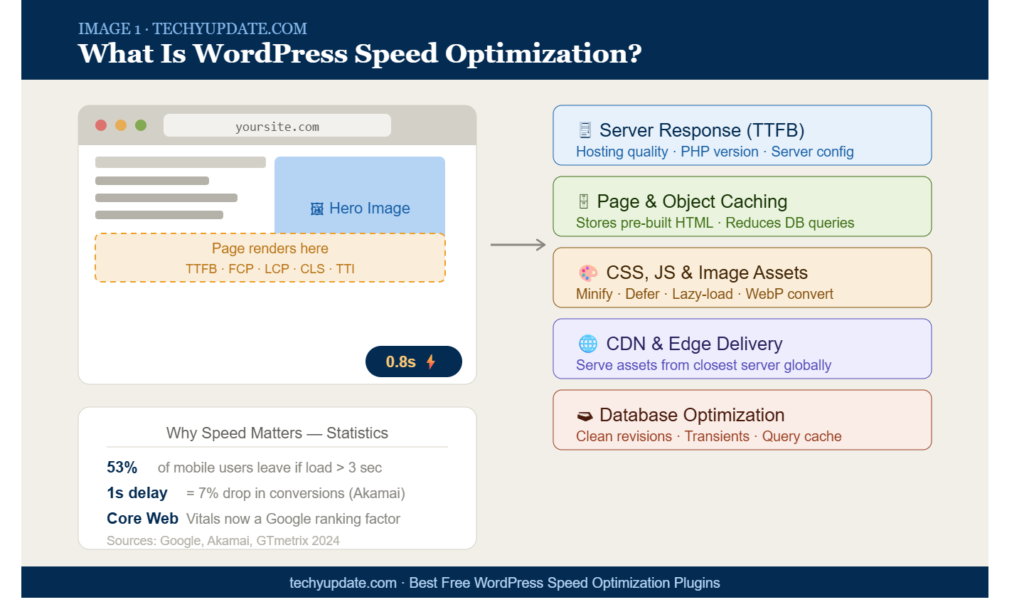
A WordPress page load involves multiple steps: the browser requests the URL, the server processes PHP and queries the database, WordPress assembles the HTML, the browser downloads that HTML plus all referenced CSS, JavaScript, fonts, and images, and finally renders the visible page. Each step in this chain is an opportunity for delay, and each optimization technique targets one or more of those steps.
The primary techniques that free speed optimization plugins implement include:
- Caching: storing a pre-built version of your page so WordPress does not re-process PHP and database queries for every visitor request
- Minification: removing whitespace, comments, and unnecessary characters from CSS, JavaScript, and HTML files to reduce their file sizes
- File concatenation: combining multiple CSS or JavaScript files into fewer files to reduce the number of HTTP requests a browser must make
- Image optimization: compressing image files and serving them in modern formats like WebP to reduce download sizes
- Lazy loading: deferring the loading of images and videos until they enter the visitor’s viewport rather than loading everything at page start
- Database optimization: cleaning up post revisions, expired transients, and orphaned metadata that accumulate over time and slow database queries
- Content Delivery Network (CDN) integration: serving static assets from servers geographically close to each visitor to reduce network latency
Free plugins handle some of these techniques automatically. Others require configuration. Understanding which technique each plugin implements helps you select the right combination for your specific setup.
Why Page Speed Matters for SEO in 2026
Google’s relationship with page speed as a ranking signal has grown progressively more direct over the past several years, and 2026 represents the most performance-aware search landscape the platform has ever operated.
Core Web Vitals, the three metrics Google uses to measure real-world page experience, are now firmly embedded in the ranking algorithm. The three metrics are Largest Contentful Paint (LCP), which measures how long the main content takes to load; Interaction to Next Paint (INP), which replaced First Input Delay in 2024 and measures responsiveness to user interactions; and Cumulative Layout Shift (CLS), which measures visual stability during loading. Pages that score “Good” on all three metrics receive a ranking boost. Pages that score “Poor” face a disadvantage.
Beyond direct ranking impact, speed affects every downstream metric that influences site success. Conversion rate research from Google’s Think with Google platform consistently shows that as page load time increases from 1 to 3 seconds, the probability of a mobile visitor bouncing increases by 32 percent. From 1d to 5e seconds, the increase in bounce probability reaches 90 percent.
For affiliate sites, ecommerce stores, and lead generation pages where every visitor represents potential revenue, the financial cost of slow loading is direct and measurable. For content sites and blogs, slow loading reduces pages per session, undermines advertising RPM, and suppresses the return visit rates that drive subscriber growth.
Free WordPress speed optimization plugins, configured correctly, address the most impactful performance bottlenecks for the majority of WordPress sites. For sites on quality hosting with a lightweight theme, a well-configured free caching plugin alone can produce PageSpeed Insights scores in the 85–95 range sufficient for competitive search performance in most niches.
Internal Linking Suggestion: “Link to your [WordPress Child Theme Setup Guide] here, readers optimizing performance often want to ensure their customizations are safely stored in a child theme before making configuration changes.”
How Free Speed Plugins Work
Before selecting a free WordPress speed optimization plugin, understanding the mechanism behind the most impactful technique, caching, clarifies why plugin configuration matters so much and why the wrong settings can cause as many problems as they solve.
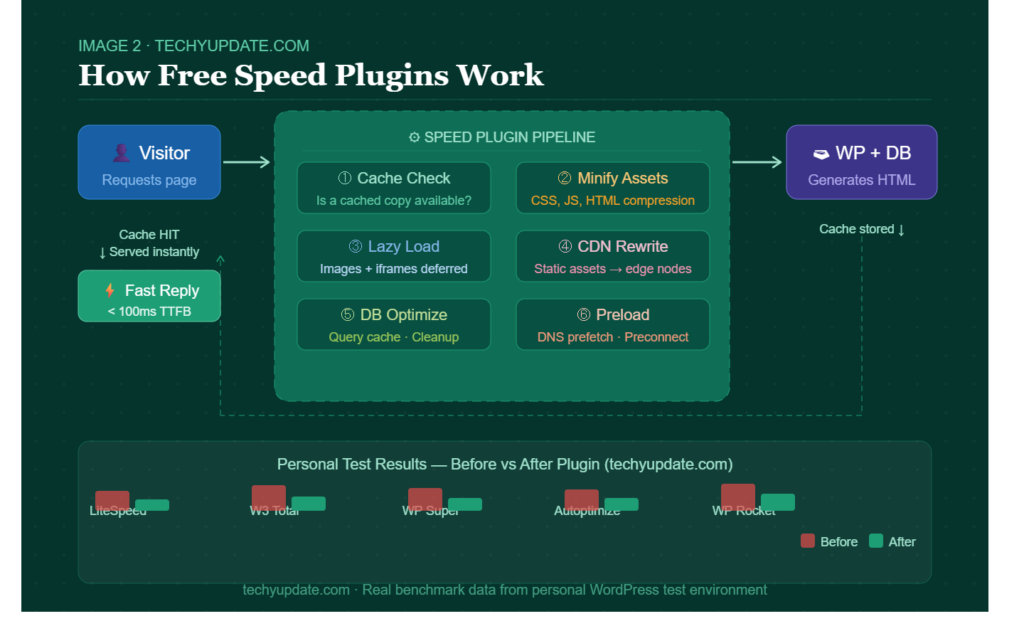
Without caching, every visit to a WordPress page triggers the same sequence: PHP executes, WordPress queries the MySQL database (sometimes dozens of times per page), assembles the HTML response, and sends it to the visitor’s browser. This process repeats identically for every visitor, every time. On a busy site or a slow server, this database-and-PHP overhead is the primary bottleneck.
Page caching intercepts this process. The first time a page is requested, WordPress generates it normally. The caching plugin saves the resulting HTML as a static file. Every subsequent request for that page serves the pre-built HTML file, directly skipping PHP execution and database queries entirely. A static HTML file can be served orders of magnitude faster than a dynamically generated WordPress page.
Object caching complements page caching by storing the results of expensive database queries in memory (typically using Redis or Memcached), so even dynamic page elements that cannot be fully cached still benefit from faster data retrieval.
Browser caching instructs visitors’ browsers to store static assets, images, CSS files, and JavaScript files locally for a defined period. When the same visitor loads another page on your site, their browser serves these assets from local storage rather than downloading them again, dramatically reducing subsequent page load times.
Most free WordPress speed plugins combine several of these techniques within a single interface, with varying degrees of automation and configuration depth. The plugin you choose determines which techniques are available, how granularly you can configure them, and how stable the implementation is across different hosting environments.
Best Free WordPress Speed Optimization Plugins
W3 Total Cache
W3 Total Cache is one of the oldest, most comprehensive, and most widely deployed free WordPress speed optimization plugins available. With over one million active installations and compatibility across virtually every hosting environment, it remains the benchmark against which other caching plugins are measured.
W3 Total Cache implements page caching, object caching, database caching, browser caching, CSS and JavaScript minification, CDN integration, and a Fragmentary cache for dynamic content. The breadth of its feature set is unmatched among free plugins.
The trade-off for that breadth is configuration complexity. W3 Total Cache’s settings panel is extensive, and interactions among different caching layers can cause conflicts in hosting environments that do not support all cache storage methods. For beginners, starting with page caching enabled and browser caching enabled, while leaving more advanced settings at their defaults, is the safest initial configuration.
W3 Total Cache integrates with major CDN providers, including Cloudflare, MaxCDN, and Amazon CloudFront, making it the preferred choice for sites that want to grow into CDN delivery without switching plugins later.
Recommended for: sites on VPS or dedicated hosting, developers comfortable with configuration, and sites planning to integrate a CDN.
WP Super Cache
WP Super Cache is developed and maintained by Automattic, the company behind WordPress.com, which gives it a level of official endorsement that few third-party plugins can claim. It is deliberately simpler than W3 Total Cache, implementing page caching as its core function with a straightforward settings interface that most users can configure correctly in under ten minutes.
WP Super Cache generates static HTML files for all cacheable pages and serves them through one of three delivery modes: Simple (PHP-based delivery, lowest server requirement), WP-Cache (slightly faster PHP delivery), and Expert (mod_rewrite-based delivery, fastest option, requires server configuration). For most shared hosting environments, the Simple or WP-Cache mode provides substantial performance improvement without requiring server access.
The plugin handles cache preloading automatically, generating cached versions of your pages rather than waiting for visitor requests, and includes garbage collection settings to automatically clear expired cache files.
Recommended for: beginners, shared hosting users, and sites that want reliable page caching with minimal configuration.
LiteSpeed Cache
LiteSpeed Cache is a server-level caching plugin that works in concert with LiteSpeed Web Server technology. For sites hosted on LiteSpeed servers, including hosting providers like A2 Hosting, SiteGround (partial), and Hostinger, LiteSpeed Cache delivers performance improvements that no purely PHP-based plugin can match because it caches at the web server layer rather than within WordPress’s PHP stack.
Beyond server-level caching, the free version of LiteSpeed Cache includes image optimization (with automatic WebP conversion), CSS and JavaScript minification and combination, lazy loading, database optimization, and CDN integration with Cloudflare and QUIC.cloud (LiteSpeed’s own CDN, which offers a free tier).
For sites not on LiteSpeed servers, the plugin still functions and provides useful optimization features, but the defining server-level caching advantage does not apply. Check your hosting provider’s server software before prioritizing this plugin.
Recommended for: sites on LiteSpeed hosting environments; sites seeking an all-in-one free optimization solution; WooCommerce stores (LiteSpeed Cache has strong WooCommerce compatibility).
WP Fastest Cache
WP Fastest Cache takes the simplicity-first approach further than any other plugin in this list. Its settings interface presents a clean checklist of optimization options, enabling cache, HTML minification, CSS minification, CSS combining, JavaScript minification, browser caching, and GZIP compression, each as a straightforward toggle.
No complex configuration panels, no cache storage method selection, no advanced settings that require server knowledge to configure safely.
For site owners who want meaningful performance improvement without any technical configuration effort, WP Fastest Cache is the most accessible entry point. Its free tier covers the most impactful optimization techniques: page caching, minification, browser caching, and GZIP compression.
The plugin’s limitation is that its feature ceiling, advanced capabilities like image optimization, CDN integration, and object caching, are reserved for the premium version. For sites that outgrow the free tier’s feature set, migrating to a more capable plugin is straightforward.
Recommended for: absolute beginners, non-technical site owners, bloggers who want set-and-forget speed improvement.
Smush (Image Optimization)
Smush addresses a specific but enormously impactful performance bottleneck: unoptimized images. Images typically represent 60 to 80 percent of a web page’s total download weight, making image optimization one of the highest-leverage speed improvements available.
The free version of Smush automatically compresses images on upload, strips unnecessary metadata from image files, and adds lazy loading to all images in your media library, deferring off-screen images until a visitor scrolls to them. It processes up to 50 images per batch at no cost.
Smush integrates cleanly with all major caching plugins and works alongside any of the caching solutions listed above. For most WordPress sites, combining a caching plugin (W3 Total Cache, WP Super Cache, or LiteSpeed Cache) with Smush covers the two most impactful performance categories: server response and image delivery.
Recommended for: all WordPress sites as a complement to a caching plugin, particularly sites with large media libraries or image-heavy content.
Cloudflare (Free Plan)
Cloudflare is not a WordPress plugin in the traditional sense it is a Content Delivery Network and security platform with a free tier that provides meaningful performance benefits for WordPress sites. When integrated with WordPress (via the official Cloudflare plugin), it routes your site’s traffic through Cloudflare’s global network of data centers, serving cached content to visitors from servers located near them.
The free Cloudflare plan includes CDN delivery, automatic static asset caching, GZIP/Brotli compression, DDoS protection, and a shared SSL certificate. For sites with international audiences, CDN delivery alone can reduce load times for distant visitors by 40 to 60 percent compared to single-server delivery.
Cloudflare pairs effectively with any WordPress caching plugin, particularly W3 Total Cache, which has dedicated Cloudflare integration settings built in.
Recommended for: sites with international or geographically distributed audiences, sites needing both performance and security improvements, and any site without existing CDN delivery.
Pro Tip: Do not run two full-featured caching plugins simultaneously. Overlapping caching layers from two plugins frequently cause conflicts, leading to stale content, broken dynamic features like WooCommerce carts, or white-screen errors. Choose one primary caching plugin and stick with it.
Step-by-Step: How to Set Up a Speed Plugin Correctly
Using WP Super Cache as the example (the most beginner-friendly option), here is the complete setup process that applies broadly to all free caching plugins.
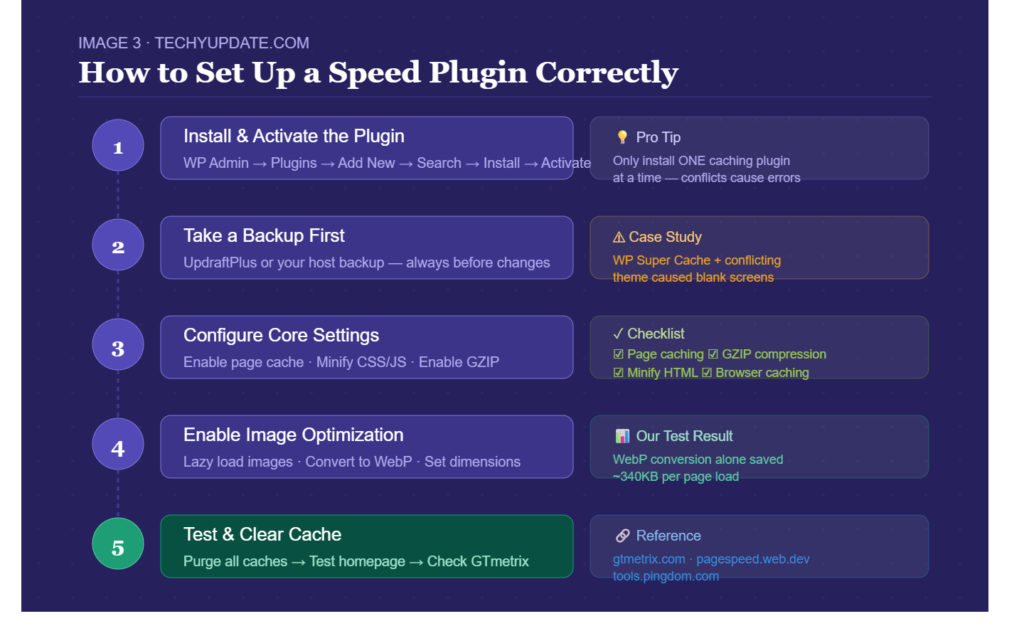
Step 1: Install and activate the plugin. Navigate to Plugins → Add New in your WordPress dashboard, search for “WP Super Cache,” install, and activate. Most caching plugins display a setup notice immediately after activation. Follow the prompt to the settings page.
Step 2: Enable caching. In WP Super Cache settings, select “Caching On” and save. This is the single most impactful change; enabling page caching alone typically cuts server response time by 60 to 80 percent for returning visitors.
Step 3: Enable browser caching and GZIP compression. Navigate to the Advanced tab and enable “Compress pages so they’re served more quickly to visitors” (GZIP compression) and “Set recommended browser caching headers.” These two settings reduce download sizes and eliminate redundant asset downloads for returning visitors.
Step 4: Preload your cache. In the Preload tab, enable cache preloading and set the preload interval. This ensures cached versions of your pages exist before the first visitor arrives, rather than generating them on demand.
Step 5: Exclude dynamic pages from caching. Pages that must display real-time, user-specific content — checkout pages, cart pages, login pages, account dashboards — should be excluded from page caching. WP Super Cache’s settings include an exclusion list where you add URL strings. Add /cart/, /checkout/, /my-account/, and /wp-admin/ at minimum.
Step 6: Test your configuration. Visit your site in an incognito browser window and check the page source (right-click → View Page Source). Scroll to the bottom of the HTML — WP Super Cache adds a comment indicating whether the page was served from cache. Confirm caching is active before moving to the next step.
Step 7: Run a speed test. Use Google PageSpeed Insights, GTmetrix, or WebPageTest to measure your site’s performance after activating the plugin. Note the scores and specific recommendations for further optimization.
How to Test Your WordPress Site Speed
Accurate speed testing requires using the right tools and interpreting results correctly. Three platforms provide the most actionable data for WordPress speed optimization.
Google PageSpeed Insights (pagespeed.web.dev) measures your page against Google’s performance standards and reports Core Web Vitals scores based on real Chrome user data (Field Data) alongside lab measurements (Lighthouse). It provides specific, actionable recommendations for each identified issue, ranked by estimated impact. This is the most directly SEO-relevant speed tool because it reports the same metrics Google uses for ranking evaluation.
GTmetrix (gtmetrix.com) provides a detailed waterfall chart showing exactly how long each resource on your page takes to load, which file takes longest, which requests are blocking others, and where the most time is being lost. GTmetrix allows you to test from multiple geographic locations and compare performance before and after optimization changes. The free tier provides sufficient testing capability for most optimization work.
WebPageTest (webpagetest.org) offers the most technically detailed performance analysis available for free. It shows First Byte Time (how quickly your server responds), Start Render time, and a visual filmstrip showing how your page appears to a visitor as it loads, frame by frame. WebPageTest is particularly useful for diagnosing server-side performance issues that plugin-level optimization cannot address.
Test each tool at least three times and average the results. Single test scores can vary due to server load fluctuations and network conditions. Establish a baseline before activating any speed plugin, then test again after the configuration is complete to measure the actual improvement.
Common Mistakes to Avoid
Activating caching on a development site. Caching stores static versions of your pages, so changes you make during development may not appear until the cache is cleared. Always disable caching (or configure aggressive cache-clearing rules) on development and staging environments to avoid seeing outdated content while working.
Enabling JavaScript minification without testing. Minifying JavaScript is one of the most impactful speed optimizations available, but it is also the one most likely to break site functionality. Some JavaScript files contain syntax that is not preserved during minification, resulting in console errors or broken interactive elements. Enable JS minification, then test your site thoroughly across multiple page types before considering it stable.
Running conflicting caching plugins simultaneously. Two active caching plugins create competing cache layers that produce unpredictable behavior, such as stale pages, broken dynamic content, or PHP errors. Choose one caching plugin, configure it well, and remove or deactivate all others.
Ignoring mobile performance. Google evaluates mobile performance for ranking purposes, yet many site owners test only on desktop. Always run PageSpeed Insights for both desktop and mobile URLs, and prioritize the mobile score, as it directly affects search rankings.
Forgetting to clear the cache after content updates. Most caching plugins do not automatically clear the cache when you publish or update content unless you configure them to do so. A post you updated yesterday may still be serving the old cached version to visitors today. Configure your caching plugin’s cache-clearing rules to automatically purge cached versions of updated pages.
Installing a speed plugin on top of managed hosting’s built-in caching. Managed WordPress hosts like WP Engine, Kinsta, and Cloudways include server-level caching built into their infrastructure. Adding a WordPress page caching plugin on top of this can cause conflicts. Check your host’s documentation — most managed hosts explicitly state which caching plugins are compatible with their server-level cache.
Speed Optimization Beyond Plugins
Plugins address optimization at the WordPress application layer, but several significant performance factors exist outside what any plugin can touch.
Hosting quality is the single most impactful performance variable. A well-optimized WordPress site on poor shared hosting will consistently underperform a minimally optimized site on quality hosting. For UK-based sites targeting UK audiences, SiteGround UK, Kinsta, and Cloudways provide strong performance baselines. If your current host cannot consistently deliver server response times (Time to First Byte) under 200ms, no plugin will fully compensate.
Theme selection has substantial performance implications. Page builders like Divi and Elementor, while powerful, generate significantly more HTML, CSS, and JavaScript than lightweight themes like Astra, GeneratePress, or Kadence. A lightweight theme with a well-configured caching plugin typically outperforms a page builder theme with aggressive optimization on the same hosting.
Plugin audit is an ongoing maintenance task that complements speed optimization. Every active plugin adds some overhead to PHP execution time, database queries, and often additional CSS and JavaScript. Auditing your plugin list periodically and deactivating unused plugins reduces baseline load times without requiring any configuration.
The PHP version directly affects WordPress performance. PHP 8.1 and 8.2 deliver measurably faster WordPress execution than PHP 7.x versions. Most hosting control panels allow you to select your PHP version. Confirm you are running PHP 8.1 or newer. This single server-level change can reduce page generation time by 15 to 20 percent on sites still running older PHP versions.
Internal Linking Suggestion: “Link to your [How to Add Schema Markup to WordPress Without a Plugin] guide here, readers improving technical performance often want structured data implementation as the next optimization step.”
Productivity and Time Management with Speed Optimization
Speed optimization is not a one-time task. Page speed degrades over time as content accumulates, new plugins are added, images go unoptimized, and database tables grow with post revisions and transient data. Building a lightweight maintenance routine prevents gradual performance decline without consuming significant ongoing time.
Set a monthly reminder to run a PageSpeed Insights test on your homepage and two or three high-traffic pages. A 10-point drop in score relative to your established baseline is a signal to investigate common causes, including a recently added plugin, unoptimized images from a content batch, or a change to the hosting server.
Schedule a quarterly database optimization using your speed plugin’s built-in database cleaner (available in W3 Total Cache and LiteSpeed Cache) or a dedicated plugin like WP-Optimize. Cleaning post revisions, expired transients, and spam comments from the database reduces query overhead and improves response times, particularly on sites that have been publishing actively for more than one year.
Create a pre-publication image checklist: before uploading any image, compress it with a tool like Squoosh (free, browser-based; squoosh. app) or TinyPNG. Set a maximum image dimension of 1200px width for in-content images and 1920px for hero images. Smush catches images that slip through, but starting with smaller source files reduces Smush’s workload and produces better final results.
For teams managing multiple WordPress sites, a simple shared spreadsheet tracking each site’s monthly PageSpeed score, hosting plan, active caching plugin, and last audit date provides enough visibility to catch performance regressions early without requiring expensive monitoring tools.
Speed Optimization for Coding and Technical Skills
For developers and technically capable WordPress users, understanding speed optimization at the code level beyond what any plugin can automate opens up optimization opportunities that plugin interfaces cannot expose.
Critical Rendering Path optimization is one of the most technically impactful areas. The critical rendering path is the sequence of steps the browser takes before displaying any visible content. CSS in the <head> blocks, rendering the browser waits to download and parse every stylesheet before painting the page.
Identifying which CSS rules are required for above-the-fold content (critical CSS) and inlining them directly in the <head> while deferring the rest allows the browser to begin rendering immediately. Tools like Critical (a Node.js tool) automate the extraction of critical CSS, and the resulting inline CSS can be added via your child theme’s functions.php.
Resource hints — <link rel=”preconnect”>, <link rel=”dns-prefetch”>, and <link rel=”preload”> tell the browser to initiate connections or download resources earlier than it would through normal parsing. Adding preconnect hints for your CDN, Google Fonts, or analytics domains reduces connection setup time that otherwise delays resource loading. These can be added via the wp_head hook in your child theme’s functions.php.
Understanding the HTTP/2 and HTTP/3 protocols affects how you approach file combination. Under HTTP/1.1, combining multiple CSS files into a single file reduced the number of connections required, a significant optimization.
Under HTTP/2 (which most modern hosting supports), multiplexing allows multiple files to download simultaneously over a single connection, making file combination less impactful and sometimes counterproductive. Know which protocol your hosting uses before aggressively combining files.
Learning to read a WebPageTest waterfall chart at a code level, identifying render-blocking resources, long server response chains, and third-party script impact is a skill that distinguishes an intermediate WordPress developer from an advanced one, and directly supports client work, agency employment, and freelance technical SEO services.
Pro Tips to Maximize WordPress Speed
These refinements go beyond standard plugin configuration and deliver additional performance gains that most optimization guides miss.
First, serve images in WebP format. WebP images are approximately 25 to 35 percent smaller than equivalent JPEG files with comparable visual quality. LiteSpeed Cache’s free tier automatically converts images to WebP. For sites using other caching plugins, the free tier of ShortPixel Adaptive Images delivers WebP conversion without requiring a paid plan.
Second, self-host Google Fonts instead of loading them from Google’s servers. Loading fonts from Google’s CDN introduces a cross-origin connection that adds latency. The GDPR-friendly Fonts plugin (free) downloads your specified Google Fonts and serves them from your own server, eliminating external connections while maintaining full GDPR compliance, a particular consideration for UK- and EU-based sites under GDPR requirements.
Third, defer non-critical JavaScript. Most WordPress plugins load JavaScript files on every page regardless of whether that page uses the plugin’s functionality. WP Asset CleanUp (free tier) allows you to disable specific scripts and stylesheets on specific page types, significantly reducing per-page payload. A contact form plugin’s JavaScript, for example, only needs to load on your contact page, not on every blog post.
Fourth, use a staging site for testing optimization changes before applying them to your live site. Most quality hosting providers include one-click staging environments. Testing aggressive minification and combination settings on a staging site catches compatibility issues before they affect live visitors or SEO performance.
Pro Tip: After completing your speed optimization setup, submit your homepage and key landing pages for re-indexing in Google Search Console (URL Inspection → Request Indexing). This prompts Google to re-crawl and re-evaluate your improved performance metrics sooner than the next scheduled crawl.
Expert Insights on WordPress Performance Trends 2026
The WordPress performance landscape in 2026 reflects two converging trends: Google’s continued escalation of performance expectations through Core Web Vitals, and WordPress core’s own ongoing investment in performance improvements that reduce the baseline optimization burden for site owners.
WordPress 6.5 and subsequent releases have introduced significant performance improvements to the core platform itself, including improved script-loading strategies via the Script Modules API, enhanced lazy loading for iframes, and better handling of render-blocking resources. These core improvements mean that a fresh WordPress installation in 2026 performs better out of the box than equivalent installations did two or three years ago, reducing (but not eliminating) the optimization gap that free speed plugins need to close.
Google’s INP (Interaction to Next Paint) metric, which replaced First Input Delay as a Core Web Vitals signal in March 2024, has shifted attention toward JavaScript execution performance. Heavy JavaScript frameworks, poorly optimized page builders, and third-party scripts that block the main thread are now directly measurable in Core Web Vitals assessments. Free plugins that defer JavaScript loading or the manual approach of auditing and selectively disabling scripts by page type address this metric more directly than page caching alone.
The rise of AI-generated content at scale has increased the average content volume per WordPress site, with more pages, images, and database entries than ever before. This makes database optimization and media library management increasingly important components of the speed optimization workflow, areas where free plugins like WP-Optimize and Smush continue to deliver meaningful value without cost.
For UK-based site owners specifically, Google’s Core Web Vitals Field Data is collected from Chrome users in your actual geographic market. Testing from a UK-based test location (GTmetrix allows geographic selection) gives you performance data that better reflects your real audience’s experience than tests routed through US-based servers.
Quick Summary
Here are the key takeaways from this complete guide:
- Page speed is a confirmed Google ranking factor. Core Web Vitals (LCP, INP, CLS) directly affect your search positions, and mobile performance is the benchmark Google uses for evaluation.
- Free WordPress speed optimization plugins address the most impactful performance bottlenecks, such as caching, minification, image optimization, and CDN delivery, without any cost.
- The best free options are W3 Total Cache (most comprehensive), WP Super Cache (most beginner-friendly), LiteSpeed Cache (best for LiteSpeed servers), WP Fastest Cache (simplest interface), Smush (image optimization), and Cloudflare free plan (CDN and security).
- Never run two caching plugins simultaneously. Choose one, configure it correctly, and test thoroughly before assuming it is working.
- Speed optimization extends beyond plugins: hosting quality, PHP version, theme selection, and plugin count all affect performance in ways no optimization plugin can override.
- Test with Google PageSpeed Insights (for SEO-relevant Core Web Vitals data), GTmetrix (for waterfall analysis), and WebPageTest (for server-level diagnostics).
- Build a lightweight monthly maintenance routine: speed test, database cleanup, image audit, and plugin review to prevent performance from degrading as your site grows.
Conclusion
WordPress speed optimization is one of the few SEO investments that pays dividends immediately and compounds over time. A faster site ranks better, converts more visitors, earns lower bounce rates, and provides the kind of experience that builds the return visit habit regardless of whether your site is a personal blog, a business landing page, or an affiliate publishing operation.
The free tools covered in this guide are genuinely capable of transforming a slow WordPress site into a competitive performer. The difference between a site scoring 45 on PageSpeed Insights and one scoring 92 is not budget; it is configuration, testing, and the willingness to audit what is actually slowing your pages down.
Start with one caching plugin matched to your hosting environment. Add image optimization with Smush. Connect to Cloudflare’s free plan if your audience is geographically distributed. Test before and after each change. Fix what the tests flag. That systematic approach, applied consistently, is what drives real, durable speed improvements.
The sites that rank consistently in competitive search results are not always the ones with the most content or the most backlinks. They are increasingly the ones that provide the fastest, most reliable experience because Google measures that experience directly, and your visitors feel it immediately.
Internal Linking Suggestion: “Link to your [How to Set Up a WordPress Child Theme Setup Guide] to help readers who want to implement speed optimizations safely through theme files without risking their parent theme.”
Frequently Asked Questions (FAQ)
1. What is the best free WordPress speed optimization plugin?
The best free WordPress speed optimization plugin depends on your hosting environment and technical comfort level. WP Super Cache is the most beginner-friendly and reliable for shared hosting. LiteSpeed Cache is the most powerful if your host uses LiteSpeed servers. W3 Total Cache offers the most features for developers comfortable with detailed configuration. For image-specific optimization, Smush is the leading free option. Most sites benefit from combining a caching plugin with Smush for comprehensive coverage.
2. Will a speed optimization plugin improve my Google rankings?
Yes, indirectly and directly. Speed optimization plugins improve your Core Web Vitals scores, particularly Largest Contentful Paint (LCP) and Interaction to Next Paint (INP), which are confirmed Google ranking signals. Faster sites also reduce bounce rates and improve user engagement metrics, which correlate positively with sustained rankings. The improvement is most significant for sites currently scoring below 50 on Google PageSpeed Insights, where the performance gap relative to competitors is most likely to be affecting rankings.
3. Can I use multiple speed plugins at the same time?
For page caching specifically, running two caching plugins simultaneously can cause conflicts that result in broken or stale content. However, you can combine plugins that serve different functions without conflict. For example, WP Super Cache (page caching), Smush (image optimization), and the Cloudflare plugin (CDN) are a legitimate and effective combination because each plugin handles a distinct optimization layer.
4. How do I know if my speed plugin is actually working?
After activating a caching plugin, visit your site in an incognito browser window and view the page source (right-click → View Page Source). Most caching plugins insert a comment at the bottom of the HTML confirming that the page was served from cache. Additionally, running Google PageSpeed Insights before and after activating a working caching configuration typically reduces server response time (Time to First Byte) measurably and improves overall scores.
5. Will a speed plugin break my WordPress site?
Properly configured, reputable speed plugins do not break WordPress sites. The most common source of plugin-related issues is JavaScript minification, which can cause interactive elements to malfunction if a script does not survive minification correctly. Enable minification features incrementally and test thoroughly after each change. If any functionality breaks, disable the minification setting that caused the issue. Most plugins allow you to exclude specific scripts from minification.
6. Is LiteSpeed Cache free?
Yes, LiteSpeed Cache has a fully functional free version that includes page caching, image optimization, WebP conversion, CSS and JavaScript minification, lazy loading, database optimization, and CDN integration. The plugin is free in the WordPress plugin repository. Its CDN feature works with the free QUIC tier. cloud (LiteSpeed’s own CDN service) as well as third-party CDNs. LiteSpeed Cache’s free version is one of the most generous free performance plugins available in terms of feature breadth.
7. What is a good PageSpeed Insights score for WordPress?
For competitive search performance, aim for a score of 90 or above on mobile in Google PageSpeed Insights. Scores in the 90–100 range qualify as “Good” across Core Web Vitals metrics. Scores in the 50–89 range indicate “Needs Improvement” functional, but suboptimal. Scores below 50 indicate significant performance problems likely affecting both user experience and search rankings. Most WordPress sites on quality hosting with a well-configured free speed plugin can achieve 80–95 on mobile without premium tools.
8. Does Cloudflare’s free plan actually improve WordPress speed?
Yes, meaningfully. Cloudflare’s free plan routes your site’s traffic through its global CDN network, serving cached static assets, images, CSS, and JavaScript from data centers located near each visitor. For a UK site with visitors across Europe or internationally, this can reduce load times for distant visitors by 40 to 60 percent compared to single-server delivery. The free plan also provides GZIP/Brotli compression, DDoS protection, and a shared SSL certificate, making it one of the highest-value free tools available to WordPress site owners.
9. How often should I clear my WordPress cache?
Most caching plugins handle cache clearing automatically: when you publish or update a post, the cached version of that specific page is purged so visitors see the updated content. You typically only need to manually clear the entire cache when you make design changes (new CSS, theme updates, plugin updates that affect appearance) or when troubleshooting display issues. Avoid clearing cache unnecessarily on high-traffic sites. Rebuilding the cache for all pages on a large site creates a temporary spike in server load.
10. Can I use a speed plugin with a page builder like Elementor or Divi?
Yes, but with additional caution around JavaScript minification and combination settings. Page builders generate complex JavaScript dependencies that are particularly sensitive to minification issues. LiteSpeed Cache and W3 Total Cache both include exclusion settings that allow you to exempt specific scripts from minification. If you use Elementor or Divi, enable JavaScript minification conservatively, test every page type carefully, and maintain an exclusion list for any scripts that cause functionality issues. Image optimization and page caching are generally safe to enable without compatibility concerns on page builder sites.