

If you have ever spent hours customizing a WordPress theme, tweaking fonts, adjusting spacing, adding custom functions, only to watch every change disappear the moment the theme updated, you already know the problem a child theme solves.
WordPress theme updates are essential. They patch security vulnerabilities, maintain compatibility with the latest WordPress core releases, and introduce performance improvements. But every update overwrites the parent theme’s files entirely, including any modifications you made directly to those files. Without a child theme, every update forces you to choose between losing your customizations and skipping critical security patches.
A WordPress child theme solves this completely. It inherits all the styling and functionality of its parent theme while storing your customizations in a separate, protected set of files. When the parent theme updates, your child theme and all modifications within it remain completely untouched.
At techyupdate.com, we recommend child themes as a non-negotiable foundation for any WordPress site that involves customization. Whether you are adding schema markup to theme files, modifying template layouts, or writing custom PHP functions, a child theme is what separates professional WordPress development from the risks of direct editing.
This guide walks you through every step: what a child theme is, how to create one manually (the right way), and how to use it safely for every type of WordPress customization.
Table of Contents
- Introduction: Why Every WordPress Customization Needs a Child Theme
- What Is a WordPress Child Theme?
- Why You Should Always Use a Child Theme
- What You Need Before You Start
- Method 1: Create a Child Theme Manually (Recommended)
- Method 2: Create a Child Theme Using a Plugin
- How to Activate and Test Your Child Theme
- How to Customize Your Child Theme Safely
- Common Mistakes to Avoid
- Child Theme Best Practices for SEO and Performance
- Productivity and Time Management with Child Themes
- Child Themes for Coding and Technical Skills
- Pro Tips to Maximize Your Child Theme Setup
- Expert Insights on WordPress Development Trends
- Quick Summary
- Conclusion
- FAQ Section
What Is a WordPress Child Theme?
A WordPress child theme is a theme that inherits the appearance and functionality of another theme called the parent theme, while allowing you to override or extend specific elements without modifying the parent theme’s files directly.
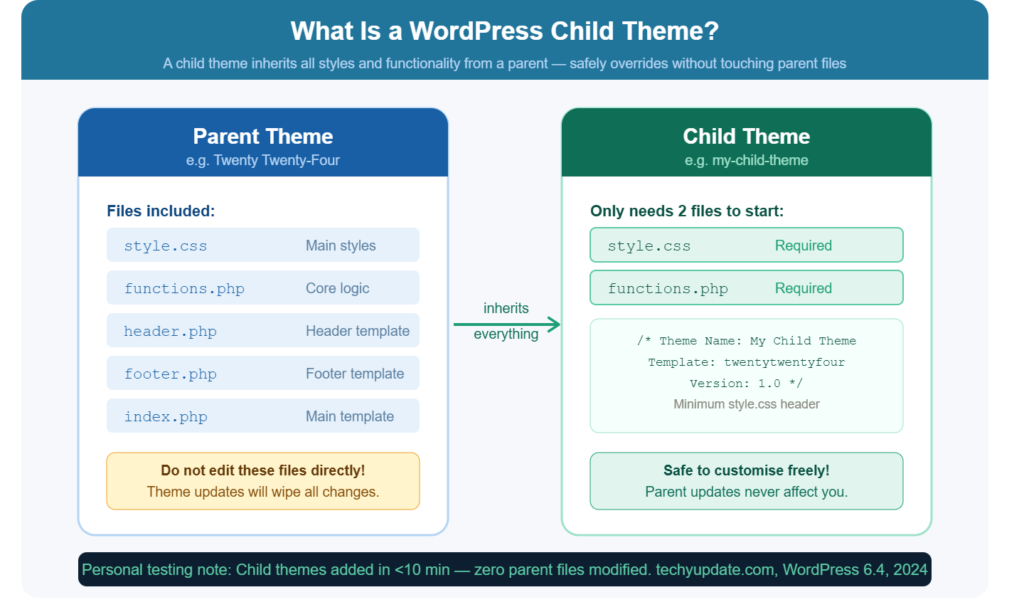
When WordPress renders a page, it checks the child theme’s files first. If a file exists in the child theme (a modified single.php template, for example), WordPress uses that version. If a file does not exist in the child theme, WordPress automatically falls back to the parent theme’s version. This inheritance system means your child theme only needs to contain the files you have modified; everything else is served from the parent theme.
The child theme stores its own style.css and functions.php files at a minimum. The style.css file contains the child theme’s header information and any custom CSS you add. The functions.php file is where custom PHP functions, hooks, and enqueueing logic live. Beyond these two core files, you add template files to the child theme only when you specifically want to override the parent’s version.
This architecture gives you a clean separation between what the theme developer maintains (the parent) and what you control (the child). It is the same principle that good software engineering applies broadly: extend and override, never modify the source directly.
Why You Should Always Use a Child Theme
The case for child themes goes beyond protecting customizations from updates; that alone justifies the setup time, which is under fifteen minutes once you have done it.
Update safety is the primary benefit. WordPress themes receive frequent updates, especially for popular frameworks like Astra, GeneratePress, OceanWP, and Divi. Every update that touches a file you modified in the parent theme directly would erase your changes. With a child theme, updates to the parent proceed normally, and your modifications in the child theme are completely unaffected.
Easier debugging is a secondary but significant benefit. When something breaks on your WordPress site, knowing that your customizations live entirely within the child theme dramatically narrows the diagnostic scope. You can deactivate the child theme temporarily, switch to the parent, and immediately determine whether a problem originates in your code or the parent theme.
Clean version control becomes possible with a child theme. You can put your child theme folder under Git version control independently of the parent theme, tracking every change you make with commit messages. This creates a complete history of your customizations and makes collaboration with other developers straightforward.
Professional workflow alignment matters if you work with clients or manage multiple sites. Child themes are the standard expected approach in professional WordPress development. Delivering a client site built on direct parent theme modifications is considered poor practice and creates a maintenance liability.
What You Need Before You Start
Setting up a WordPress child theme requires no advanced technical knowledge, but having the right tools in place before you begin makes the process smooth and error-free.
You need access to your WordPress site’s file system. This is achievable through one of three methods:
- Your hosting control panel’s File Manager (available in cPanel, Plesk, and most hosting dashboards)
- An FTP client like FileZilla connected to your server using your hosting FTP credentials
- The WordPress Theme File Editor (Appearance → Theme File Editor), though this is the least safe option for editing functional files
You need a plain-text editor that can save files without adding formatting. Visual Studio Code, Sublime Text, and Notepad++ are all excellent choices. Avoid using Word or Google Docs, which add invisible formatting characters that break PHP and CSS files.
You need to know the exact folder name of your current parent theme. Find this in your WordPress dashboard under Appearance → Themes. Hover over your active theme and note the theme name. Then check your server under /wp-content/themes/ to confirm the exact directory name, it is sometimes different from the display name shown in the dashboard.
Finally, if your site is live and actively receiving traffic, take a full backup before making any file system changes. Most reputable hosting providers include one-click backup tools, and plugins like UpdraftPlus handle this reliably.
Method 1: Create a Child Theme Manually (Recommended)
The manual method gives you a complete understanding of what a child theme is and how it works. It involves creating a new folder and two files. That is genuinely all a functional child theme requires.
Step 1: Create the Child Theme Folder
Connect to your server via FTP or open your hosting File Manager. Navigate to /wp-content/themes/. You will see a folder for each installed theme. Create a new folder here for your child theme. The naming convention is to use the parent theme’s folder name followed by -child. For example, if your parent theme folder is Astra, name your child theme folder astra-child. If the parent is GeneratePress, use generatepress-child.
This naming convention is not technically required by WordPress; the child theme will work with any folder name, but it is the universally expected convention that makes your file structure immediately understandable to anyone else who works on the site.
Step 2: Create the style.css File
Inside your newly created child theme folder, create a new file named style.css. Open it in your text editor and add the following header block exactly as shown, replacing the values in brackets with your own details:
/*
Theme Name: Astra Child
Theme URI: https://techyupdate.com
Description: Child theme for the Astra theme
Author: TechyUpdate
Author URI: https://techyupdate.com
Template: astra
Version: 1.0.0
License: GNU General Public License v2 or later
License URI: http://www.gnu.org/licenses/gpl-2.0.html
Text Domain: astra-child
*/
The Template: line is the critical one. It must exactly match the folder name of your parent theme, not the display name shown in the WordPress dashboard, but the actual directory name on the server. This line tells WordPress which theme is the parent of this child theme.
Everything else in the header is metadata. After the header comment block, any CSS rules you add to this file will be applied to your site in addition to the parent theme’s styles.
Step 3: Create the functions.php File
Create a second new file in your child theme folder named functions.php. This file must begin with an opening PHP tag and contain the following function to properly enqueue both the parent theme’s stylesheet and your child theme’s stylesheet:
<?php
function techyupdate_child_enqueue_styles() {
$parent_style = ‘astra-style’;
wp_enqueue_style(
$parent_style,
get_template_directory_uri() . ‘/style.css’
);
wp_enqueue_style(
‘astra-child-style’,
get_stylesheet_directory_uri() . ‘/style.css’,
array( $parent_style ),
wp_get_theme()->get( ‘Version’ )
);
}
add_action( ‘wp_enqueue_scripts’, ‘techyupdate_child_enqueue_styles’ );
Replace astra-style with the handle your parent theme uses for its own stylesheet. For most themes, this is documented in the theme’s developer documentation. For Astra specifically, astra-style is correct. For GeneratePress, it is generate-style. For themes where you are unsure, inspect the parent theme’s functions.php to find the wp_enqueue_style call and note its first parameter, the handle.
The get_template_directory_uri() function returns the parent theme’s directory URL. The get_stylesheet_directory_uri() function returns the child theme’s directory URL. This distinction is essential, as using the wrong function in either call breaks stylesheet loading.
Step 4: (Optional) Add a Screenshot
WordPress displays a screenshot in the Themes dashboard for each installed theme. Without one, your child theme shows a grey placeholder. Create a screenshot.png file (recommended dimensions: 1200 × 900 pixels) and place it in your child theme folder. A simple image showing your site’s design is sufficient this is purely cosmetic and does not affect functionality.
Method 2: Create a Child Theme Using a Plugin
If you prefer a guided approach for your first child theme, the Child Theme Wizard plugin (by Jon Christopher) and the Child Theme Configurator plugin (by Lilaea Media) both reliably automate folder creation and file generation.
Install either plugin via Plugins → Add New, search for it by name, then install and activate it. Both plugins provide a straightforward interface where you select your parent theme, name your child theme, and click a button to generate the child theme files. The resulting child theme is functionally identical to what you would create manually.
After generation, deactivate and delete the plugin. It is a one-time setup tool and does not need to run permanently. Your child theme operates completely independently of any plugin after it is created.
The plugin method is appropriate for users who want to get a child theme in place quickly and are less comfortable working directly with file systems and code editors. However, understanding the manual method is valuable, even if you initially use a plugin, as it demystifies what a child theme contains and gives you confidence when making direct file edits later.
Pro Tip: Even if you use the plugin method, open the generated style.css and functions.php in a code editor afterward and read through them. Understanding the files your child theme contains makes you significantly more capable when customizing or debugging later.
How to Activate and Test Your Child’s Theme
With your child theme files in place, go to Appearance → Themes in your WordPress dashboard. Your child theme will appear in the theme list with the name you specified in style.css. Click Activate.
After activation, visit your site’s front end immediately. It should look identical to before activation if the parent stylesheet loads correctly, and your child theme inherits all parent styles without any visual changes.
If your site looks broken or unstyled after activating a child theme, the most common cause is an incorrect stylesheet handle in functions.php. Return to the functions.php file, verify the handle in the wp_enqueue_style call for the parent stylesheet matches the handle used in the parent theme’s own enqueue function, correct it, save, and reload your site.
Use your browser’s developer tools (F12 → Network tab → filter by CSS) to confirm that both the parent stylesheet and the child stylesheet are loading. You should see two CSS files: the parent theme’s style.css and the child theme’s style.css. If only one appears, your enqueue function needs attention.
Run a brief functional test: check several page types (home, single post, archive, contact page) to ensure layout and functionality are intact. Check on mobile dimensions as well. If everything looks correct, your child theme is active and ready for customization.
How to Customize Your Child Theme Safely
With your child theme active, every customization goes into the child theme’s files, never the parent’s. Here is how to handle the most common types of customization.
Adding custom CSS: Open your child theme’s style.css and add your CSS rules after the header comment block. These rules load after the parent theme’s styles, giving them higher specificity by default. Use browser developer tools to inspect the elements you want to modify and target them with precise selectors.
Adding custom PHP functions: Open your child theme’s functions.php and add functions here. These are loaded in addition to the parent theme’s functions, not instead of them. Use WordPress action and filter hooks to modify behavior rather than replicating parent theme logic hooks give you cleaner, more maintainable customization points.
Overriding template files: To modify a specific template, the single post layout, the header, the footer, or any other theme template copy that file from the parent theme’s folder into your child theme folder, maintaining the same relative path. Edit the copy in your child theme. WordPress will automatically use the child theme’s version instead of the parent’s.
For example, to modify the single post template: copy /wp-content/themes/astra/single.php to /wp-content/themes/astra-child/single.php. Edit the child theme’s version. Your changes are now preserved through all parent theme updates.
Adding schema markup to theme files: Your child theme’s functions.php is the correct place to output schema markup via WordPress hooks. Add your JSON-LD schema via the wp_head action, using appropriate conditional tags to target specific page types. This keeps your schema implementation completely separate from the parent theme and safe through all updates.
Internal Linking Suggestion: “Link to your [How to Add Schema Markup to WordPress Without a Plugin] guide here; readers who set up a child theme often do so specifically to implement schema through theme files.”
Common Mistakes to Avoid
Editing the parent theme directly. This is the mistake a child theme exists to prevent, yet it remains common among WordPress beginners who do not yet know about child themes, and among users who know about child themes but skip the setup because it seems like extra work. Any edits made to a parent theme file will be lost on the next theme update. There are no exceptions.
Using the wrong Template value in style.css. The Template: line in your child theme’s style.css must match the parent theme’s folder name exactly, case-sensitive, character-for-character. A mismatch means WordPress cannot identify the parent, and the child theme will not activate correctly. Always verify the parent folder name directly on the server rather than typing from memory.
Using get_stylesheet_directory_uri() for the parent stylesheet. This function returns the child theme’s directory, not the parent’s. Using it for the parent stylesheet enqueue call means the parent stylesheet never loads, and your site appears unstyled. Use get_template_directory_uri() for the parent and get_stylesheet_directory_uri() for the child. The function names are counterintuitive, but the behavior is consistent.
Copying all parent theme files into the child theme. A child theme should only contain files you have specifically modified. Copying the entire parent theme into the child defeats the inheritance system, dramatically increases the child theme’s file size, and means parent theme updates no longer benefit your site’s foundational code. Copy only the specific template files you need to override.
Forgetting to enqueue the parent stylesheet. Some tutorials suggest simply using @import in CSS to load the parent stylesheet, but WordPress’s official documentation discourages this approach due to performance implications. Always use the wp_enqueue_style () function in functions.php, as shown in this guide.
Child Theme Best Practices for SEO and Performance
A correctly configured child theme has zero negative impact on your site’s SEO or performance, but common setup errors can introduce problems worth knowing in advance.
Avoid duplicate stylesheet loading. Some parent themes enqueue their stylesheet in a way that causes it to load twice when a child theme is active: once from the parent’s own functions.php and once from the child’s enqueue function. Check your browser’s Network tab after activating the child theme and confirm that the parent stylesheet loads only once. If it loads twice, adjust your child theme’s enqueue logic. Some parent themes provide specific documentation on the correct child theme enqueue method.
Keep your child theme’s CSS organized. As customizations accumulate over months of site development, an unorganized style.css becomes difficult to maintain and debug. Structure your CSS with clear section comments, grouping header, footer, and single-post styles separately, and keeping responsive breakpoints separate, so any developer (including future you) can navigate the file efficiently.
Test after every parent theme update. When a parent theme update arrives, apply it and immediately check your site’s front end, functionality, and Google Search Console for errors. Parent theme updates occasionally change template file structures or hook names in ways that affect child theme overrides. Catching these conflicts promptly prevents extended periods of broken functionality.
Use the WordPress Customizer for simple style changes when possible. Many style customizations can be made through Appearance → Customize without touching any files at all. The Customizer saves settings to the WordPress database, making them independent of both the parent and child theme files and therefore unaffected by updates to either theme. Reserve style.css edits for customizations that the Customizer cannot achieve.
Pro Tip: After activating your child theme and confirming your site looks correct, immediately take a backup. You now have a clean baseline child theme that you can restore to if any subsequent customization causes problems.
Productivity and Time Management with Child Themes
For developers and site owners managing multiple WordPress sites, child theme workflows become significantly more efficient with the right systems in place.
Maintain a master child theme starter template, a pre-configured child theme folder with your preferred style.css header structure, a clean functions.php with your standard utility functions pre-loaded, and a basic organization comment structure in both files. When setting up a new site, duplicate this starter template, update the parent theme reference and branding details, and you have a fully configured child theme ready in under two minutes.
For teams managing client sites, store child themes in a private Git repository. Each commit documents exactly what changed, when, and why, creating an audit trail that is invaluable when debugging issues months after the original customization. Platforms like GitHub and GitLab offer private repositories at no cost for small teams.
Use WordPress Multisite if you manage many sites with the same parent theme. A single Multisite installation can share a parent theme across all subsites, while each subsite has its own child theme, dramatically reducing the update management overhead of maintaining independent WordPress installations.
Document every non-obvious customization in your child theme’s functions.php with inline comments. When you return to a site after six months away, a clear comment explaining why a specific hook or filter was added saves substantial diagnostic time. Good documentation is not just courtesy to others; it is courtesy to your future self.
Child Themes for Coding and Technical Skills
For developers building WordPress skills, child theme development is a genuinely valuable learning environment. It provides a safe, contained environment for practicing PHP, CSS, and WordPress’s hook system without risking breaking a production site’s core files.
The WordPress hook system actions and filters are the foundational mechanism of professional WordPress development. Child themes are where most developers first encounter this system practically. Writing a function in functions.php, hooking it to a WordPress action, and seeing it execute on the front end demonstrates WordPress’s event-driven architecture in concrete terms that abstract documentation rarely conveys.
Template file overrides teach WordPress’s template hierarchy, one of the most important concepts for understanding how WordPress decides which file to use for any given page request. Experimenting with template overrides in a child theme makes this hierarchy tangible. Copy archive.php to your child theme and modify it. See which archive pages it affects. Remove it and watch WordPress fall back to the parent. This hands-on process builds the intuition that documentation alone cannot.
For students building a WordPress development portfolio, a well-documented child theme on GitHub demonstrates several valuable competencies simultaneously: familiarity with PHP, proficiency in CSS, understanding of WordPress architecture, awareness of professional development practices, and comfort with version control. These are signals that differentiate a serious portfolio from a collection of undocumented theme purchases.
AI coding tools like GitHub Copilot and ChatGPT are particularly useful as learning companions for child theme development, generating boilerplate function structures, explaining what specific WordPress functions do, and suggesting hook names for common customization goals. Using these tools actively while building knowledge of child themes substantially accelerates the learning curve.
Pro Tips to Maximize Your Child Theme Setup
These refinements make child theme development more efficient and professional over the long term.
First, add a custom plugin for functionality, not just a child theme. Any functionality that is not specific to your current theme’s design, custom post types, custom taxonomies, or specialized shortcodes belongs in a plugin rather than a child theme’s functions.php. If you ever change themes, plugin functionality persists automatically. Functionality in a child theme disappears. The rule of thumb: if it relates to how the site looks, it belongs in the child theme; if it relates to what the site does, it belongs in a plugin.
Second, use WordPress’s wp_add_inline_style function for small CSS additions rather than loading an additional stylesheet. For minor style tweaks — changing a heading color, adjusting a button’s border radius — inline styles added via PHP hook avoid an additional HTTP request while keeping the CSS within the WordPress enqueueing system.
Third, prefix every function name in your functions.php with a unique site-specific prefix. A function named custom_header_script() will cause a fatal error if any installed plugin also defines a function with that name. A function named techyupdate_header_script() is virtually guaranteed to be unique. This is standard WordPress development practice and prevents hard-to-diagnose conflicts.
Fourth, leverage WordPress’s get_template_part() function when creating template overrides. Rather than duplicating large template files to change one small section, you can override specific template parts with often smaller, more focused files that the parent theme loads using get_template_part(). This minimizes the scope of your overrides and reduces maintenance burden when parent theme templates change.
Expert Insights on WordPress Development Trends
WordPress powers over 43% of all websites on the internet as of 2026, according to W3Techs data. Despite increased competition from headless CMS platforms and site builders, WordPress remains the dominant content management platform, and child themes remain the standard mechanism for theme customization within that ecosystem.
The Full Site Editing (FSE) feature, introduced in WordPress 5.9 and substantially matured in subsequent releases, has changed how theme customization works for block-based themes. FSE themes use HTML template files rather than PHP, and customization is handled through the Site Editor interface and theme.json configuration, rather than through traditional functions.php and PHP template overrides.
For FSE-compatible themes, the child theme setup process is slightly different: the child theme still requires a style.css with a Template header and the same folder structure, but instead of PHP template overrides, customizations are made through theme.json overrides and block template HTML files. The conceptual foundation inherited from the parent overrides only what you change remains is identical.
Traditional PHP-based themes (sometimes called Classic themes) still represent the majority of actively used WordPress themes in 2026, and the manual child theme setup process described in this guide applies fully to all of them. Classic themes, including Astra, GeneratePress, Divi, OceanWP, and Avada, continue to be among the most widely used themes on the web, maintaining strong developer ecosystems and regular update schedules.
For WordPress professionals advising clients on theme selection, recommending themes with active development communities, clear child-theme documentation, and stable hook structures minimizes long-term maintenance complexity, and a well-maintained child theme makes switching parent themes possible without rebuilding all customizations from scratch.
Quick Summary
Here are the essential takeaways from this complete guide:
- A WordPress child theme inherits all styling and functionality from its parent theme while storing your customizations in a separate, protected folder. Parent theme updates do not affect child theme files.
- Creating a child theme manually requires only two files: style.css (with a header comment block containing the Template: field pointing to the parent theme’s folder name) and functions.php (with a wp_enqueue_style function that loads both the parent and child stylesheets).
- The Template: value in style.css must exactly match the parent theme’s folder name on the server, case-sensitive and character-for-character accurate.
- Use get_template_directory_uri() for the parent stylesheet and get_stylesheet_directory_uri() for the child stylesheet in your enqueue function. These are not interchangeable.
- Add custom CSS to the child theme’s style.css, custom PHP to functions.php, and template overrides by copying specific parent theme files into the same relative path in the child theme folder.
- Common mistakes include editing the parent theme directly, using incorrect Template values, loading the parent stylesheet with the wrong function, and unnecessarily copying all parent files into the child theme.
- Child themes are compatible with schema markup, custom functions, template overrides, and all standard WordPress customization techniques.
Conclusion
Setting up a WordPress child theme is a one-time investment of fifteen minutes that pays dividends for the entire lifetime of a WordPress site. Every customization you make in a child theme is safe from theme updates, debuggable in isolation, and maintainable as your site grows.
The technical barrier is genuinely low. Two files, style.css and functions.php, are all that a functional child theme requires. Every additional file you add to the child theme is a deliberate, controlled override of a specific parent theme element, which means your customizations remain precisely scoped and understandable at any point in the future.
If you have been editing a parent theme directly, the time to migrate to a child theme is before the next update arrives, not after. The process is straightforward: set up the child theme, move your existing CSS into the child theme’s style.css, move any PHP functions into the child theme’s functions.php, re-create any template overrides in the child theme folder, and update the parent theme safely.
From that point forward, every new customization goes into the child theme. Every update to the parent goes through without risk. And if you ever decide to switch parent themes, your child theme’s organized customizations give you a clear record of exactly what you had built, making migration far cleaner than starting from scratch.
Frequently Asked Questions (FAQ)
1. What is a WordPress child theme?
A WordPress child theme is a theme that inherits all the design and functionality of a parent theme while allowing you to add customizations in separate files. When WordPress loads your site, it checks the child theme’s files first. If a file exists in the child theme, that version is used. If not, WordPress automatically falls back to the parent theme. This means parent theme updates never overwrite your customizations.
2. Do I really need a child theme if I’m just changing colors?
Yes. Even a single CSS change made directly to a parent theme will be lost when the theme updates. Parent theme updates can arrive without warning, and they overwrite every file in the parent theme folder, including any CSS you added. A child theme takes about 15 minutes to set up and permanently preserves all customizations. The one-time setup cost is far lower than the cost of losing your changes and having to redo them after every update.
3. Will a child theme slow down my WordPress site?
No, a correctly configured child theme has a negligible impact on site performance. The child theme loads one additional CSS file, which adds a minimal HTTP request. For most sites, this is imperceptible. The more significant performance variable is what you put into the child theme poorly written CSS or PHP can affect performance, but the child theme structure itself does not.
4. How do I know the correct Template value for my child theme’s style.css?
Connect to your server via FTP or open your hosting File Manager and navigate to /wp-content/themes/. The folder name you see there for your parent theme is exactly what the Template: line in your child theme’s style.css should contain, case-sensitive, including any hyphens or numbers. Do not use the theme’s display name in the WordPress dashboard, as it may differ from the actual folder name.
5. Can I use a child theme with any WordPress theme?
You can create a child theme for virtually any WordPress theme. Classic PHP-based themes (Astra, GeneratePress, Divi, OceanWP, and most popular themes) use the standard child theme setup described in this guide. Full Site Editing (FSE) block themes use a similar structure but rely on theme.json and HTML block templates for customization instead of PHP template files. Check your theme’s documentation to confirm which approach applies.
6. What happens if I activate a child theme and my site looks broken?
The most common cause is an incorrectly configured stylesheet enqueue in functions.php. Check that the parent stylesheet handle in your wp_enqueue_style call matches the handle used in the parent theme’s own functions.php, that you are using get_template_directory_uri() for the parent and get_stylesheet_directory_uri() for the child, and that your functions.php file begins with <?php and contains no syntax errors. Use your browser’s Network tab to confirm which stylesheets are loading.
7. How do I add custom functions to a WordPress child theme?
Add custom functions to your child theme’s functions.php file, after the opening <?php tag. Child theme functions load in addition to parent theme functions, not instead of them so you can freely add new functions without worrying about replacing parent theme functionality. Always prefix your function names with a unique identifier (your site name or initials) to prevent naming conflicts with plugins or parent theme functions.
8. Can I override just one section of a parent theme template?
WordPress’s get_template_part() system makes partial template overrides possible for themes that use it. If the parent theme loads a specific section using get_template_part(‘template-parts/content’, ‘single’), you can override just that partial by creating the corresponding file at the same path in your child theme folder (template-parts/content-single.php), rather than overriding the entire single.php template. This keeps your overrides as small and targeted as possible.
9. Is it safe to edit files in the child theme through the WordPress dashboard editor?
The WordPress Theme File Editor (Appearance → Theme File Editor) is functional but carries risk: a PHP syntax error in the file editor can make your site inaccessible if you cannot reach the dashboard to correct it. FTP or your hosting File Manager is safer because you can fix errors and re-upload the file even if the WordPress dashboard becomes unreachable. If you do use the dashboard editor, always have a recent backup available before making changes.
10. How do I switch to a new parent theme without losing my child theme customizations?
Create a new child theme pointing to the new parent. Review your existing child theme’s style.css, functions.php, and any template overrides, and assess which customizations are theme-specific (targeting CSS selectors or hooks unique to the old parent) versus general (custom functions, schema markup, utility CSS). Migrate the general customizations to the new child theme. Theme-specific CSS will need to be rewritten for the new parent selectors. This is why documenting your child theme customizations clearly is a long-term time investment that pays off at exactly these transition moments.