


Adobe Firefly makes it possible to create and edit images with generative AI using text prompts, reference images and visual editing controls. You can start with a simple description, choose an available Adobe or partner AI model, select an aspect ratio and generate image variations. Firefly also lets you modify existing images by adding, removing or changing objects and backgrounds with text instructions.
For beginners, the easiest way to understand Firefly is to think of it as two connected workflows: generate an image from an idea or edit an image you already have. The generation workflow is useful for creating original concepts, illustrations, product visuals and marketing imagery. The editing workflow is useful when you already have a photograph but want to remove an object, add something new, change part of the scene or extend the canvas.
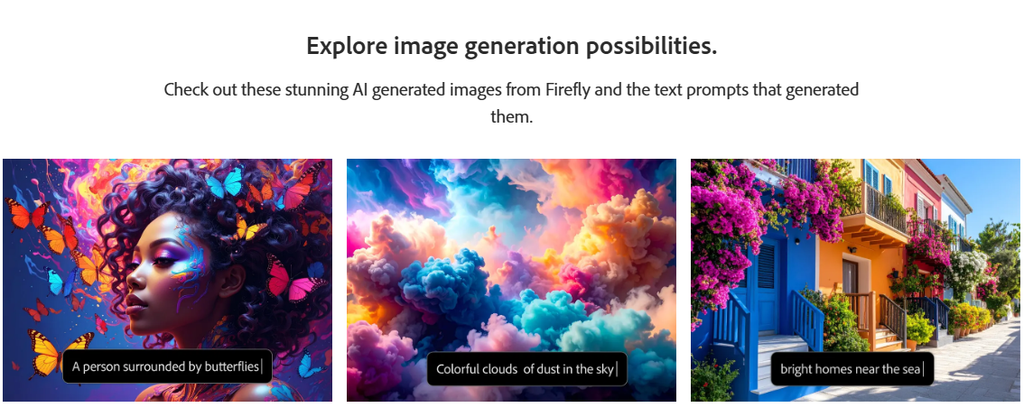
Firefly also provides controls for visual style, content type, aspect ratio and reference images. Depending on the selected model, available settings can differ. Adobe’s current Firefly image-generation workflow includes Adobe models such as Firefly Image 3, Firefly Image 4, Firefly Image 4 Ultra and Firefly Image 5, along with selected partner models.
This guide explains how to use Adobe Firefly step by step, how to write better prompts, how to edit generated or uploaded images, and which features are most useful for everyday creative work.
Visit the official Adobe Firefly website →
Table of Contents
What Can You Do With Adobe Firefly?
Before getting started, it helps to understand the main workflows Firefly supports.
You can use Firefly to:
- Generate images from text descriptions
- Choose between available Adobe and partner AI models
- Select different aspect ratios
- Create more photographic or artistic results
- Use reference images to guide visual style
- Edit existing images with text prompts
- Add objects to images
- Replace unwanted objects
- Remove elements
- Expand an image beyond its original frame
- Generate similar variations
- Use an image as a composition or style reference
- Continue editing results in Adobe applications
Adobe’s current Firefly interface includes quick actions for modifying generated images, including editing, filling, removing, upscaling and creating similar variations.
How to Generate an AI Image in Adobe Firefly
The basic text-to-image workflow is straightforward.
Step 1: Open Adobe Firefly
Open Adobe Firefly and go to the image-generation area.
Adobe’s current documentation instructs users to select Image and then choose Generate image.
Step 2: Write Your Prompt
Enter a description of the image you want.
For example:
Prompt:
A realistic modern home office with a large curved monitor, laptop, warm desk lighting, minimalist furniture, indoor plants, premium technology magazine photography, natural shadows.
A good prompt should explain the important visual elements rather than simply saying something broad such as “modern office.”
You can describe:
- Subject
- Environment
- Composition
- Lighting
- Camera perspective
- Materials
- Colors
- Mood
- Visual style
Step 3: Choose an AI Model
Firefly currently provides access to multiple Adobe image models as well as selected partner models. Adobe’s documentation lists Firefly Image 3, Firefly Image 4, Firefly Image 4 Ultra and Firefly Image 5 among its Adobe image models.
Partner models are also available for some workflows. For example, Adobe documents GPT Image, Imagen and Runway models within Firefly.
This means you should not assume that every Firefly result is generated by an Adobe-developed model. The model selector determines the model used for the generation.
Step 4: Select the Aspect Ratio
Choose the format that matches where you intend to use the image.
Common options can include:
- Square
- Portrait
- Landscape
- Widescreen
- Vertical
The exact options can vary by model. Adobe’s documentation shows aspect-ratio controls as part of the image-generation workflow.
For example:
Blog hero image: 16:9
Instagram-style vertical creative: 9:16
Square social graphic: 1:1
Choosing the format early can reduce the amount of cropping or rebuilding required later.
Step 5: Choose Photo or Art
Firefly can automatically determine a suitable content type, but you can also choose between Photo and Art when the option is available. Adobe describes Photo as producing more realistic photographic results and Art as producing more illustrative results.
Use Photo when you want:
- Product photography
- Realistic environments
- People
- Architecture
- Lifestyle scenes
Use Art when you want:
- Illustrations
- Concept art
- Stylized visuals
- Painterly compositions
- More artistic interpretations
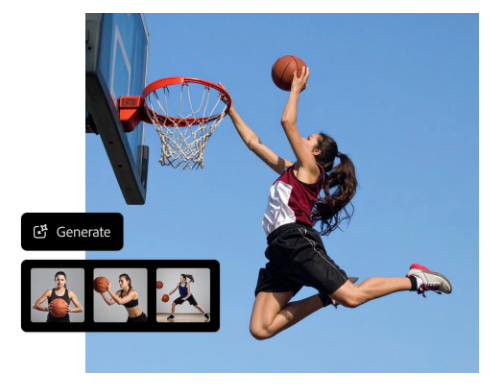
Step 6: Generate the Images
Submit the prompt and review the generated variations.
Do not immediately settle on the first result.
Compare the variations and look for:
- Accurate composition
- Correct subject placement
- Natural lighting
- Realistic details
- Appropriate perspective
- Correct proportions
- Useful negative space
If the results are close but not quite right, improve the prompt rather than repeatedly generating random variations.
How to Write Better Adobe Firefly Prompts
A useful Firefly prompt should communicate the visual idea clearly.
A practical structure is:
Subject + Environment + Composition + Lighting + Style + Details
For example:
A premium wireless keyboard on a minimalist wooden desk, modern home office, three-quarter camera angle, soft morning window light, realistic product photography, clean background, subtle shadows, high-end technology advertisement.
This gives Firefly more useful visual information than:
Nice keyboard image.
Be Specific About Composition
If the subject needs to appear on one side of the image, say so.
For example:
Place the laptop on the right side of the desk and leave clean negative space on the left for headline text.
This is particularly useful for website banners and advertisements.
Describe the Lighting
Lighting can dramatically affect the appearance of an AI-generated image.
Useful descriptions include:
- Soft studio lighting
- Golden-hour sunlight
- Dramatic side lighting
- Diffused window light
- Cinematic lighting
- High-key product lighting
- Moody low-key lighting
Specify the Visual Style
You can describe the desired aesthetic directly:
editorial technology photography
or:
clean 3D product visualization
or:
detailed digital illustration with a modern editorial aesthetic
Firefly also supports reference images for guiding visual style.
Read more: What Is Adobe Firefly? AI Image Features, Styles, and Use Cases
How to Use a Reference Image in Firefly
Reference images can provide additional visual direction when text alone is not enough.
In the image-generation workflow, Firefly allows you to use a reference image to influence the visual style and aesthetic of the generated variations.
A useful workflow is:
- Open the image-generation tool.
- Enter your text prompt.
- Add a reference image.
- Adjust the available reference controls.
- Generate variations.
- Compare the results with your intended visual direction.
Reference images can be particularly helpful when you need a particular:
- Color treatment
- Illustration style
- Texture
- Visual mood
- Design language
- Overall aesthetic
Only use reference images you have permission or appropriate rights to use.
How to Edit an Existing Image With Adobe Firefly
Firefly can also work with an image you already have.
Adobe’s current image editor allows users to upload an image and describe changes using text prompts. The editor can modify objects and backgrounds using everyday language.

Step 1: Upload Your Image
Open the image-editing workflow and upload an image from your device or supported Adobe cloud storage.
Step 2: Describe the Change
Instead of manually rebuilding the entire image, describe what should change.
For example:
Replace the gray office chair with a modern black leather chair.
Or:
Add a small green plant beside the monitor.
Or:
Change the background from an office to a bright minimalist studio.
Firefly then generates edited variations based on the instruction.
How to Add or Replace Objects With Generative Fill
Generative Fill is useful when you want to change a specific part of an image.
Adobe’s current workflow lets you brush over an area, enter a prompt and generate content for that selected region.
Example Workflow
Suppose you have a photo of a desk but want to add a coffee cup.
You can:
- Open the image in Firefly.
- Select the Generative Fill workflow.
- Brush over the area where the cup should appear.
- Enter a description such as “white ceramic coffee mug.”
- Generate variations.
- Choose the result that fits the scene.
The surrounding image remains part of the visual context, helping Firefly create an edit that fits the existing composition.
Removing an Object
You can use a similar process to remove unwanted elements.
For example:
Remove the power cable from the desk.
The important step is to accurately identify the area that should be modified.
How to Edit Images With Text Prompts
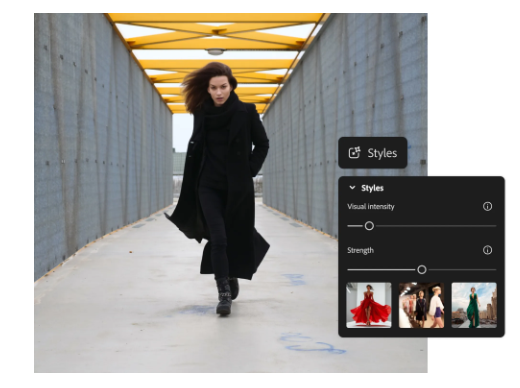
Firefly’s current image editor supports text-based image editing, allowing users to describe changes rather than manually making every adjustment. Adobe’s September 2026 documentation specifically describes adding, removing and transforming objects and backgrounds through text prompts.
This can be useful when you want to make changes such as:
Object change:
Change the blue laptop to a silver laptop.
Background change:
Replace the background with a clean white studio.
Environmental change:
Change the weather to a cloudy afternoon.
Style change:
Transform the scene into a detailed watercolor illustration.
The more specific the requested change, the easier it is to evaluate whether the generated result actually matches your intention.
How to Use AI Markup for More Precise Edits
When a text-only instruction is not precise enough, Firefly’s AI Markup can help identify the area that should change.
Adobe’s current Markup workflow supports text boxes, brush selections and region selections. These can be combined with a text prompt to tell Firefly both where and what to change.
For example, you could mark a chair and write:
Replace this chair with a modern white office chair.
This approach is useful when the image contains several objects and you only want one of them changed.
How to Expand an Image With Firefly
Sometimes an image has the wrong dimensions for the intended layout.
Firefly’s Generative Expand can extend the image beyond its original frame and generate content for the newly created area.
For example, if you have a portrait-oriented photograph but need a wider website banner, you can expand the canvas toward a wider aspect ratio.
The workflow is:
- Open the image.
- Choose the Expand tool.
- Select a new dimension or use a freeform boundary.
- Extend the image frame.
- Add a prompt if you want to describe the new area.
- Generate the expanded image.
- Review the variations.
Firefly can also analyze the existing image and generate suitable content for the expanded area when you leave the prompt blank.
How to Modify a Firefly-Generated Image
You do not have to start over every time a generated image is almost correct.
Firefly provides actions for modifying generated results, including:
- Edit image
- Fill
- Remove
- Upscale
- Generate similar
- Use as composition reference
- Use as style reference
These options are available from generated variations in the current Firefly workflow.
This creates a useful iterative workflow:
Generate → Review → Edit → Generate variation → Refine → Export
That is generally more efficient than trying to write one perfect prompt from the beginning.
How to Get More Consistent Results
AI image generation is inherently iterative, so consistency often requires deliberate prompting and reference use.
Keep the Main Subject Consistent
Repeat important characteristics when generating variations.
For example:
A silver modern laptop with a thin black bezel…
rather than simply:
A laptop…
Use Reference Images
When visual consistency matters, use a reference image where the feature is supported. Firefly provides reference-image controls for influencing visual style.
Change One Thing at a Time
If an image is almost correct, avoid rewriting the entire prompt.
Instead of changing everything, make a targeted adjustment:
Keep the composition but change the lighting to warm evening light.
This makes it easier to understand whether the change improved the image.
Common Adobe Firefly Mistakes to Avoid
Using Extremely Short Prompts
“Modern technology image” gives Firefly little information about the desired result.
Provide enough information to establish the subject, environment and visual direction.
Adding Too Many Conflicting Instructions
A prompt containing many contradictory styles can make the desired outcome less clear.
Keep the creative direction coherent.
Ignoring the Aspect Ratio
A good image can become difficult to use if it was generated in the wrong format.
Choose the intended format before generating when possible.
Accepting the First Result
Generated variations are starting points. Review them carefully before using them in a publication, campaign or commercial project.
Forgetting Credit Usage
Generative AI features consume credits depending on the model and task. Adobe states that credit requirements can vary according to output, size, resolution and model.
Adobe Firefly Generative Credits
Firefly uses generative credits for many AI-powered creation and editing features.
Adobe’s current UK Firefly plans include a free option with limited daily generations and paid plans such as Firefly Standard at £9.98 per month with 2,000 credits and Firefly Pro at £19.99 per month with 4,000 credits. Adobe also lists higher-capacity Pro Plus and Premium plans.
Credit consumption is not necessarily identical for every operation. Adobe states that usage varies according to the output, size, resolution and AI model.
Because Firefly plans and pricing can change, check Adobe’s current pricing before subscribing.
Is Adobe Firefly Good for Beginners?
Yes, particularly if you want to learn AI image generation without immediately dealing with complicated image-generation workflows.
The basic process is easy to understand:
Describe → Generate → Review → Edit → Refine
The more advanced features become useful as your needs grow. Reference images, Generative Fill, AI Markup and Generative Expand give you more control than simple one-click image generation.
For professional work, however, Firefly should generally be treated as part of a larger creative workflow rather than a complete replacement for every design or editing task.
Who Should Use Adobe Firefly?
Firefly is particularly useful for:
- Bloggers
- Content creators
- Graphic designers
- Digital marketers
- Social-media managers
- Photographers
- Advertising teams
- Small businesses
- Adobe Creative Cloud users
- People creating website and campaign graphics
For someone already using Photoshop or other Adobe applications, the integration can make Firefly especially useful.
Adobe also supports Firefly-powered generative features in Photoshop. Current Photoshop documentation shows Adobe and partner AI models available through its Generative Fill workflow.
Who Might Not Need Firefly?
Firefly may be unnecessary if you only need occasional basic AI images and do not need Adobe’s broader creative ecosystem.
It may also be less suitable if your priority is:
- A completely unlimited free workflow
- One specific external AI model
- Specialized image-generation controls unavailable in Firefly
- Avoiding credit-based AI usage
The best tool depends on your workflow rather than simply the number of features offered.
Pros & Cons
| Pros | Cons |
|---|---|
| Simple text-to-image workflow | Generative credits can limit usage |
| Multiple Adobe and partner models | Available settings vary by model |
| Supports reference images | AI-generated results still need review |
| Text-based image editing | Some advanced workflows can require more experimentation |
| Generative Fill and Expand | Pricing and plans can change |
| Useful Adobe Creative Cloud integration | Casual users may not need the full ecosystem |
Pros & Cons Table
| Pros | Cons |
|---|---|
| Easy for beginners to start generating images | Credit consumption varies by model and task |
| Supports both generation and editing | Results are not always perfect |
| Reference images provide more creative control | Different models can produce different results |
| Generative Fill enables targeted changes | Professional projects may still require manual editing |
| Generative Expand helps adapt image formats | Some features may vary by workflow or model |
| Works alongside Adobe creative tools | Paid plans may be necessary for heavier usage |
Comparison Table — only if relevant
| Feature | Adobe Firefly | Basic AI Image Generator |
|---|---|---|
| Text-to-image | Yes | Usually |
| Existing-image editing | Yes | Varies |
| Generative Fill | Yes | Varies |
| Generative Expand | Yes | Varies |
| Reference images | Yes | Varies |
| Multiple AI models | Yes | Depends on service |
| Adobe workflow integration | Strong | Usually limited |
| Best for | Generation + professional creative workflow | Basic image creation |
Alternatives — only if relevant
ChatGPT Image Generation
What it is: A conversational AI image-generation workflow.
Main strength: Useful when image creation is part of a broader conversational task.
Main limitation: It does not provide the same Adobe-specific editing ecosystem.
Best for: Users who want conversational image creation and iteration.
Midjourney
What it is: An AI image-generation platform focused strongly on visual creation.
Main strength: Artistic and visually distinctive image generation.
Main limitation: It is not a direct replacement for Adobe’s professional editing applications.
Best for: Creative exploration and artistic image generation.
Google Gemini
What it is: Google’s multimodal AI environment with image-generation capabilities.
Main strength: Integration with Google’s broader AI ecosystem.
Main limitation: It does not provide the same Photoshop and Creative Cloud workflow.
Best for: Users already working extensively with Google’s AI tools.
FAQs
How do I generate an image in Adobe Firefly?
Answer: Open Firefly, select Image and then Generate image. Enter a text description, choose an available model and adjust settings such as aspect ratio or content type before generating variations.
Can Adobe Firefly edit an existing photo?
Answer: Yes. You can upload an existing image and use Firefly’s text-based editing tools to add, remove or transform objects and backgrounds.
How do I remove an object in Adobe Firefly?
Answer: Use an image-editing workflow such as Generative Fill, select or brush over the area you want to modify and describe the desired change. Firefly then generates variations for the selected area.
Can Firefly add objects to an image?
Answer: Yes. Generative Fill lets you select an area and describe the object you want to add. Firefly generates variations that are intended to fit the surrounding image.
Can I use a reference image in Adobe Firefly?
Answer: Yes. Firefly supports reference images for guiding the visual style of generated images.
How can I make Firefly images more realistic?
Answer: Use specific descriptions of the subject, environment, lighting, camera perspective and photographic style. Choosing Photo content type can also help when a realistic result is the goal.
Does Adobe Firefly use credits?
Answer: Many generative features use Adobe generative credits. The amount required can vary based on the model, output, size and resolution.
Can I use Firefly-generated images in Photoshop?
Answer: Yes. Firefly-generated and Firefly-powered content can be incorporated into Adobe creative workflows, and Photoshop includes Firefly-powered Generative Fill features.
Quick Take
Main point: Adobe Firefly lets you create and modify images using text prompts, reference images and generative editing tools.
Best use case: Creating visual concepts, marketing graphics, blog imagery, product visuals and editing existing images.
Main advantage: It combines AI image generation with editing features and the wider Adobe creative ecosystem.
Main limitation: Credit usage, model differences and the need to review and refine generated results.
Best alternative: Midjourney is worth considering for users focused primarily on artistic image generation, while ChatGPT or Gemini may suit users who prefer broader conversational AI workflows.
Conclusion
Adobe Firefly is easiest to use when you treat image generation as an iterative creative process rather than a one-prompt solution.
Start with a clear description, choose an appropriate model and aspect ratio, generate several variations, and then refine the strongest result. When you already have an image, Firefly’s editing tools can handle targeted changes such as adding or removing objects, modifying backgrounds and expanding the frame.
For beginners, the most important skill is learning how to write specific visual prompts. For more advanced users, reference images, AI Markup, Generative Fill and Generative Expand provide additional control.
Is Firefly worth using? For creators who want AI image generation combined with Adobe’s creative ecosystem, it is a practical option. Users who only need occasional basic image generation may not need all of its capabilities.
The key takeaway is simple: generate first, evaluate carefully, then use Firefly’s editing tools to refine the result rather than trying to create the perfect image in one attempt.
Author Bio
TechyUpdate Editorial Team covers practical technology, AI tools, apps, software and digital productivity, with a focus on clear, useful and independently researched guides.
2 Comments
Pingback: Adobe Firefly Prompts: How to Create Better AI Images
Pingback: Adobe Firefly Pricing and Free Credits: 2026 Guide