

The Google Chrome Web Store is the main marketplace for Chrome extensions, giving users access to thousands of tools for productivity, writing, security, privacy, AI, research, development, shopping, accessibility, and entertainment. A well-chosen extension can add useful functionality to Chrome without requiring users to install a separate desktop application.
However, not every extension is equally useful or trustworthy. Some request broad permissions, collect user data, or can negatively affect browser performance. That makes it important to understand how the Chrome Web Store works and how to evaluate an extension before installing it.
This guide explains what the Chrome Web Store offers, how to choose useful extensions, how security and privacy work, what Manifest V3 means, and how users and developers can get the most from the platform.
Table of Contents
What Is the Google Chrome Web Store?

The Google Chrome Web Store is an online marketplace where users can discover and install extensions and other browser tools for Google Chrome.
Chrome extensions add functionality to the browser. They can modify webpages, automate tasks, improve writing, manage passwords, organize tabs, block unwanted content, assist with research, or add AI-powered features.
The platform serves two main groups: Chrome users seeking useful browser tools and developers looking to distribute their extensions.
For users, the store provides a central place to discover extensions, read descriptions and reviews, check developer information, and install compatible tools. For developers, it provides a distribution channel through which their extensions can reach Chrome users.
The variety of available extensions means that Chrome can be customized for very different workflows. A student may use citation and writing tools, while a developer may need debugging utilities and a marketer may prefer SEO and research extensions.
The key is to focus on extensions that solve a specific problem rather than installing large numbers of unnecessary tools.
How the Chrome Web Store Works
Using the Chrome Web Store is straightforward, but users should still evaluate an extension before adding it to their browser.
Search for an Extension
Start by searching for a specific tool or browsing a category that matches your needs. You can find extensions for productivity, AI, education, security, shopping, development, and many other purposes.
Review the Listing
Before installing an extension, examine its description, developer, ratings, reviews, update activity, and permissions.
The description should clearly explain what the extension does. If its requested permissions seem unrelated to its purpose, that is a reason to investigate further.
Install the Extension
If the extension appears suitable, select Add to Chrome and follow the confirmation process.
Chrome may display the permissions the extension requires. Read these carefully rather than automatically accepting every request.
Use and Configure It
After installation, the extension may appear in Chrome’s toolbar. Depending on the extension, you may need to configure settings or sign into an account before using its features.
Manage It Later
Chrome allows you to disable, remove, and manage installed extensions through its extension management page. This makes it easy to keep your browser organized and remove tools you no longer need.
Best Chrome Extensions by Category
The best Chrome extension depends on what you want to accomplish. Instead of looking for one universal list, it is more useful to organize extensions according to their purpose.
Productivity Extensions
Productivity extensions can help users manage tasks, organize tabs, capture information, and stay focused.
Examples include:
- Todoist
- OneTab
- StayFocusd
- Notion Web Clipper
- Grammarly
OneTab can help users manage large numbers of open tabs, while task-management tools can keep work organized. Focus-oriented extensions can also reduce distractions during work or study sessions.
Writing and Communication Extensions
Writing extensions are useful for students, professionals, marketers, and content creators.
Tools such as Grammarly and LanguageTool can assist with grammar, spelling, clarity, and writing quality. Communication-focused extensions can also support screen recording, online meetings, and collaboration.
These tools are particularly useful when most of your writing and communication takes place inside a web browser.
Security and Privacy Extensions
Security-focused extensions can provide additional protection while browsing.
Common categories include:
- Password managers
- Tracker blockers
- Content blockers
- Privacy protection tools
- Secure browsing utilities
Examples include Bitwarden, Privacy Badger, uBlock Origin, and DuckDuckGo Privacy Essentials.
These extensions can reduce unwanted tracking, help manage passwords, or control content displayed on websites. However, because security extensions can have significant browser permissions, users should install them only from trusted developers.
Developer Extensions
Developers can use Chrome extensions to inspect websites, debug applications, analyze technologies, and test pages.
Useful examples include:
- React Developer Tools
- Wappalyzer
- JSON Formatter
- ColorZilla
- Lighthouse
- Web Developer
These tools can make common development and website-analysis tasks faster without requiring developers to build every utility themselves.
AI Chrome Extensions
AI-powered browser extensions are increasingly useful for everyday work.
Depending on the tool, an AI extension may help users:
- Summarize webpages
- Rewrite text
- Generate content
- Answer questions
- Research information
- Extract important points
- Automate repetitive browser tasks
AI extensions can be particularly useful when users want AI assistance without repeatedly switching between Chrome and a separate application.
Chrome Extensions for Students
Students can use extensions for research, writing, organization, citations, and focused study.
Useful categories include:
- Grammar checkers
- Citation generators
- Dictionary tools
- Note-taking tools
- Research clippers
- Focus timers
The most useful combination depends on the student’s subject and workflow. A research-heavy student may benefit more from citation and note-taking tools, while someone writing frequently may prioritize grammar and writing assistance.
Shopping Extensions
Shopping extensions can help users compare prices, discover discounts, track prices, or earn cashback.
Examples include Honey, Rakuten, Camelizer, and Capital One Shopping.
Users should still compare prices independently because an advertised discount does not always guarantee the lowest final price.
Accessibility Extensions
Accessibility extensions can make websites easier to use for people with different visual, reading, or interaction needs.
Depending on the tool, accessibility features may include:
- Text-to-speech
- Screen adjustments
- Font customization
- Contrast improvements
- Reading assistance
- Keyboard navigation
These extensions can make everyday web browsing more comfortable and accessible.
Key Features of the Chrome Web Store
The Chrome Web Store offers several features that make discovering and managing browser extensions easier.
Large Extension Ecosystem
Chrome has a broad ecosystem covering productivity, AI, security, education, development, shopping, entertainment, and accessibility.
This variety means users can often find specialized tools for very specific workflows.
Simple Installation
The installation process is designed for ordinary users. Instead of manually downloading and configuring software, users can install supported extensions directly through the store.
Chrome Sync
Chrome Sync can synchronize supported browser information across devices when users sign into Chrome and enable synchronization.
This can be useful for people who regularly switch between computers and want a consistent browser environment.
Extension Management
Chrome provides controls for disabling, removing, and reviewing installed extensions. Users can also manage individual extension permissions and settings where supported.
Featured and Established Publishers
Some extensions receive additional recognition within the store. These signals can help users identify extensions that meet certain quality, security, and policy expectations.
They should still be treated as helpful indicators rather than a substitute for personal evaluation.
Enterprise Controls
Organizations can centrally manage Chrome extensions on company devices. Administrators may approve required extensions, restrict unwanted tools, or apply browser policies across managed environments.
This is particularly useful for businesses that need greater control over software installed on employee devices.
Is the Chrome Web Store Safe?
The Chrome Web Store is generally safe to use, but users should not assume that every extension is automatically trustworthy.
Google uses automated scanning, review processes, security systems, developer verification, monitoring, and user reports to identify potentially harmful extensions. These measures help reduce the risk of malicious software reaching users.
However, security problems can still occur. Extensions can be compromised, developers can change functionality, or users may install deceptive copies of popular tools.
How to Check an Extension Before Installing
Before installing an unfamiliar extension, check:
Developer: Look for a recognizable developer or company and verify that the extension is associated with the expected organization.
Permissions: Make sure the requested access is relevant to the extension’s purpose.
Reviews: Read recent reviews rather than relying only on the overall star rating.
Updates: Check whether the extension appears to be actively maintained.
Privacy information: Review how the developer says collected information is handled.
User numbers: A large user base can provide additional context, although popularity alone does not guarantee safety.
Warning Signs
Be more cautious if an extension:
- Requests excessive permissions
- Has a suspiciously low number of reviews
- Copies the name or branding of another extension
- Makes unrealistic claims
- Comes from an unknown developer
- Has unusual or unexplained behavior
- Suddenly requests new permissions
If an extension behaves suspiciously, remove it and review the permissions of your remaining browser tools.
Privacy and Security Risks of Chrome Extensions
Chrome extensions can sometimes access information from websites or interact with browser activity depending on the permissions they receive.
This creates an important privacy consideration: an extension’s usefulness should justify the access it requests.
For example, a tool designed to modify webpage content may reasonably need access to pages you visit. A simple calculator extension requesting broad access to browsing data would deserve closer examination.
Data Collection
Some extensions may collect usage information or other data. Read the developer’s privacy information to understand what information is collected and why.
Browsing Activity
Extensions with broad permissions may potentially interact with information on websites you visit. This is why installing tools from unknown developers can be risky.
Password and Account Security
Be especially careful with extensions that interact with login pages, passwords, financial websites, or sensitive business information.
Keep Your Extension List Small
Installing fewer trusted extensions makes it easier to understand what has access to your browser and can also reduce unnecessary resource usage.
A regular extension audit is a simple way to improve browser security.
What Is Manifest V3?

Manifest V3 is Google’s newer platform architecture for Chrome extensions. It introduced changes intended to improve security, privacy, performance, and extension behavior.
One major change was the move away from persistent background pages toward service workers.
Manifest V3 also changed how certain network requests can be handled. The declarativeNetRequest approach provides a more controlled method for some types of request filtering.
Why Manifest V3 Matters
Manifest V3 affects both developers and users.
Developers need to adapt extensions to the newer architecture, while users may notice changes in the behavior or capabilities of certain tools.
The impact has been especially noticeable for privacy extensions and ad blockers because some advanced filtering techniques available under older extension architecture are more restricted.
For most everyday users, the important point is simply that Chrome’s extension platform continues to evolve, and older extensions may need updates to remain compatible.
Chrome Web Store Alternatives
Chrome has one of the largest browser extension ecosystems, but it is not the only option.
Microsoft Edge Add-ons
Microsoft Edge uses Chromium, so many extensions designed for Chrome can also work with Edge.
Edge provides its own extension marketplace and can be attractive to users who prefer Microsoft’s browser and Windows ecosystem.
Firefox Add-ons
Firefox provides a separate extension ecosystem with a strong emphasis on customization and privacy.
Users who prioritize Mozilla’s open-source approach may prefer Firefox even though its extension selection differs from Chrome’s.
Safari Extensions
Safari extensions are designed for Apple’s ecosystem and are closely integrated with macOS, iPhone, and iPad.
Safari can be a strong option for Apple users who prioritize platform integration and efficiency.
Which One Should You Choose?
Choose Chrome if you want a very large extension ecosystem and broad compatibility.
Choose Edge if you prefer Microsoft’s browser and ecosystem.
Choose Firefox if privacy and customization are major priorities.
Choose Safari if you primarily use Apple devices and want deep integration with Apple’s platforms.
Pros and Cons of the Chrome Web Store
Pros
- Large selection of browser extensions
- Simple installation process
- Tools for many different use cases
- Strong integration with Chrome
- AI and productivity options
- Developer tools
- Security and privacy extensions
- Chrome Sync support
- Enterprise management capabilities
- Large developer ecosystem
Cons
- Not every extension is equally trustworthy
- Some extensions request broad permissions
- Privacy practices vary between developers
- Too many extensions can affect browser performance
- Manifest V3 limits certain extension capabilities
- User reviews are not always reliable
- Extensions can become outdated or unsupported
Who Should Use the Chrome Web Store?
The Chrome Web Store is useful for almost anyone who spends significant time using Chrome.
Students
Students can improve research, writing, citations, note-taking, and focus.
Professionals
Professionals can use extensions for productivity, communication, document work, research, and automation.
Developers
Developers can access browser debugging, testing, performance, and technology-detection tools.
Businesses
Businesses can use extensions for communication, productivity, security, customer workflows, and enterprise-managed environments.
Marketers
Marketers can use SEO, analytics, research, content, screenshot, and AI tools to support daily tasks.
General Users
Even casual Chrome users can benefit from simple tools such as password managers, dark-mode extensions, shopping assistants, and productivity utilities.
The best approach is to install extensions based on actual needs rather than trying to collect as many tools as possible.
How to Install and Manage Chrome Extensions
Installing an extension is usually a quick process.
- Open Google Chrome.
- Open the Chrome Web Store.
- Search for the extension you need.
- Select its store listing.
- Check the developer, reviews, description, and permissions.
- Select Add to Chrome.
- Confirm the installation.
After installation, you can manage extensions by opening:
chrome://extensions
From there, you can disable or remove extensions and access available settings.
When Should You Remove an Extension?
Consider removing an extension when:
- You no longer use it.
- It has stopped receiving updates.
- It behaves unexpectedly.
- It requests new permissions you do not need.
- It slows down Chrome.
- You no longer trust the developer.
Removing unnecessary extensions is one of the easiest ways to keep your browser environment cleaner.
Troubleshooting Chrome Extension Problems
Chrome extensions can sometimes fail to install, stop working, or conflict with other browser tools.
Chrome Web Store Is Not Loading
Try:
- Checking your internet connection.
- Restarting Chrome.
- Updating Chrome.
- Clearing browser cache.
- Trying another Chrome profile.
- Temporarily disabling conflicting extensions.
Extension Will Not Install
Check whether:
- Your Chrome version is up to date.
- The extension supports your browser.
- Your browser profile is working correctly.
- Security software is blocking the installation.
- Your organization has restricted extension installation.
Extension Suddenly Stops Working
First, check whether Chrome or the extension has recently been updated. Then disable and re-enable the extension.
If the issue continues, check the developer’s support information or consider replacing the extension with a maintained alternative.
Enterprise users should also check whether a browser policy has changed.
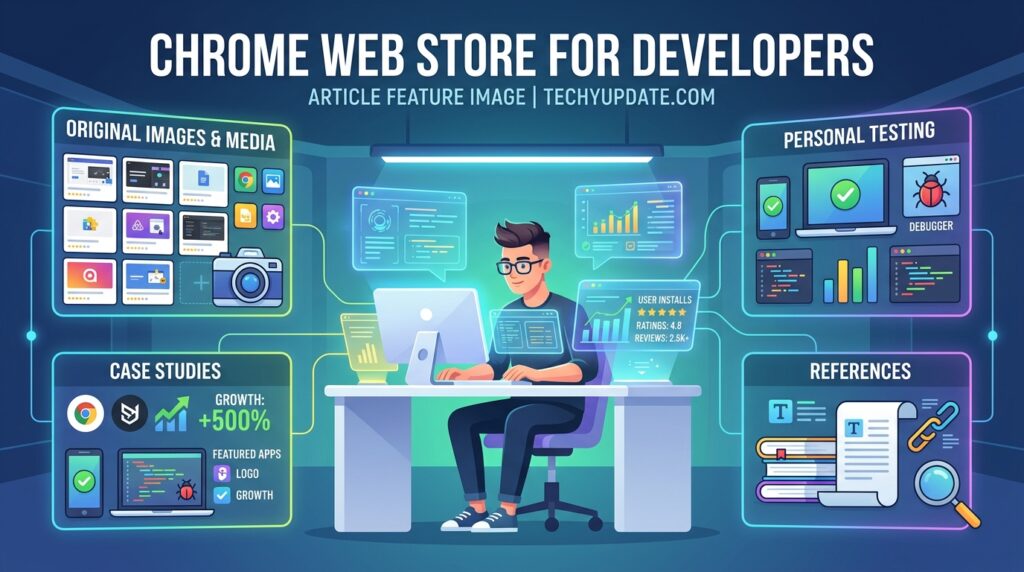
Chrome Web Store for Developers
The Chrome Web Store is not only a marketplace for users. It is also a distribution platform for developers.
Developers can create extensions that add browser functionality and publish them for Chrome users.
Publishing a Chrome Extension
The general process involves:
- Creating a Chrome developer account.
- Completing developer registration.
- Preparing the extension package.
- Uploading it through the Developer Dashboard.
- Creating the store listing.
- Adding descriptions and visual assets.
- Selecting visibility and distribution settings.
- Submitting the extension for review.
The supplied source identifies a one-time developer registration fee of $5 and describes automated and manual review processes.
Chrome Extension Policies
Developers need to follow Chrome Web Store policies covering areas such as:
- Accurate descriptions
- Honest metadata
- Appropriate permissions
- User privacy
- Data handling
- Security
- Malicious behavior
- Intellectual property
Violations can lead to rejection, removal, or other account-level consequences.
Extension Monetization
Developers can monetize Chrome extensions through several approaches, including:
- Freemium features
- Subscriptions
- One-time payments
- Donations
- Enterprise licensing
The appropriate model depends on the type of extension and the value it provides.
Chrome Web Store Pricing
Accessing the Chrome Web Store is free, and many Chrome extensions are available at no cost.
However, individual extensions may use different pricing models.
Free Extensions
Free extensions provide their core features without requiring payment.
Freemium Extensions
Freemium tools offer basic functionality for free while charging for advanced features.
Paid Extensions
Some tools require a one-time purchase or subscription to access their full capabilities.
Enterprise Extensions
Business-focused tools may use organization-wide licensing or subscription models.
Users should always check the extension’s current pricing and cancellation terms before subscribing.
Read More: How to Use the New Gemini Spark Features After the Latest Update
Final Verdict
The Google Chrome Web Store remains one of the most useful resources for extending Chrome’s functionality. Its biggest advantage is the breadth of tools available for productivity, AI, writing, security, research, development, shopping, education, and accessibility.
Its simplicity is another major strength. Most users can search for a tool, review its information, install it, and begin using it within minutes.
However, convenience should not replace caution. Extensions can have significant access to browser information, so users should evaluate permissions, developer reputation, privacy practices, and recent reviews before installing unfamiliar tools.
Manifest V3 has also changed how Chrome extensions operate, particularly for developers and advanced privacy or ad-blocking tools. Users do not need to understand every technical detail, but they should be aware that extension capabilities can change as Chrome evolves.
Overall, the Chrome Web Store is an excellent choice for users who want to customize Chrome and improve their daily workflow. The best strategy is to choose a small collection of trusted extensions that solve specific problems, keep them updated, and remove anything that is no longer necessary.
Overall Score: 4.2/5 — a mature and extensive extension marketplace with excellent variety and convenience, balanced by privacy considerations, extension-quality differences, and ongoing changes to the extension platform.
FAQs
What is the Google Chrome Web Store?
The Google Chrome Web Store is Google’s marketplace for Chrome extensions and browser tools. Users can search for, install, and manage extensions from the platform.
Is the Chrome Web Store safe?
It is generally safe, but individual extensions can still present privacy or security risks. Always check the developer, permissions, reviews, and privacy information before installing an unfamiliar extension.
How do I install a Chrome extension?
Open the Chrome Web Store, find the extension you want, open its listing, select Add to Chrome, and confirm the installation after reviewing its permissions.
Can Chrome extensions access my data?
Some extensions can access website content or other browser information depending on the permissions they receive. The level of access varies by extension.
What is Manifest V3 in Chrome?
Manifest V3 is Google’s newer architecture for Chrome extensions. It changes how extensions handle background processes, permissions, and certain network requests.
How do I remove a Chrome extension?
Open chrome://extensions, locate the extension, and select Remove. You can also manage or disable extensions from the same page.
Can I use Chrome extensions on Microsoft Edge?
Many Chrome extensions can work with Microsoft Edge because Edge is based on Chromium, although compatibility can vary.
What are the best Chrome extensions?
The best extensions depend on your needs. Popular categories include productivity, AI, writing, security, privacy, development, research, shopping, and accessibility.
Are Chrome extensions free?
Many are free, while others use freemium, subscription, one-time payment, or enterprise pricing models.
How do developers publish Chrome extensions?
Developers create a developer account, prepare their extension, upload it through the Chrome Web Store Developer Dashboard, create a store listing, and submit it for review.
Should I install many Chrome extensions?
No. Install only extensions that provide genuine value. Keeping your extension list small makes it easier to manage permissions, privacy, security, and browser performance.
What should I check before installing an extension?
Check the developer, permissions, reviews, update activity, privacy information, and whether the extension actually needs the access it requests.
1 Comment
Pingback: Google Chrome Web Store Review 2026