

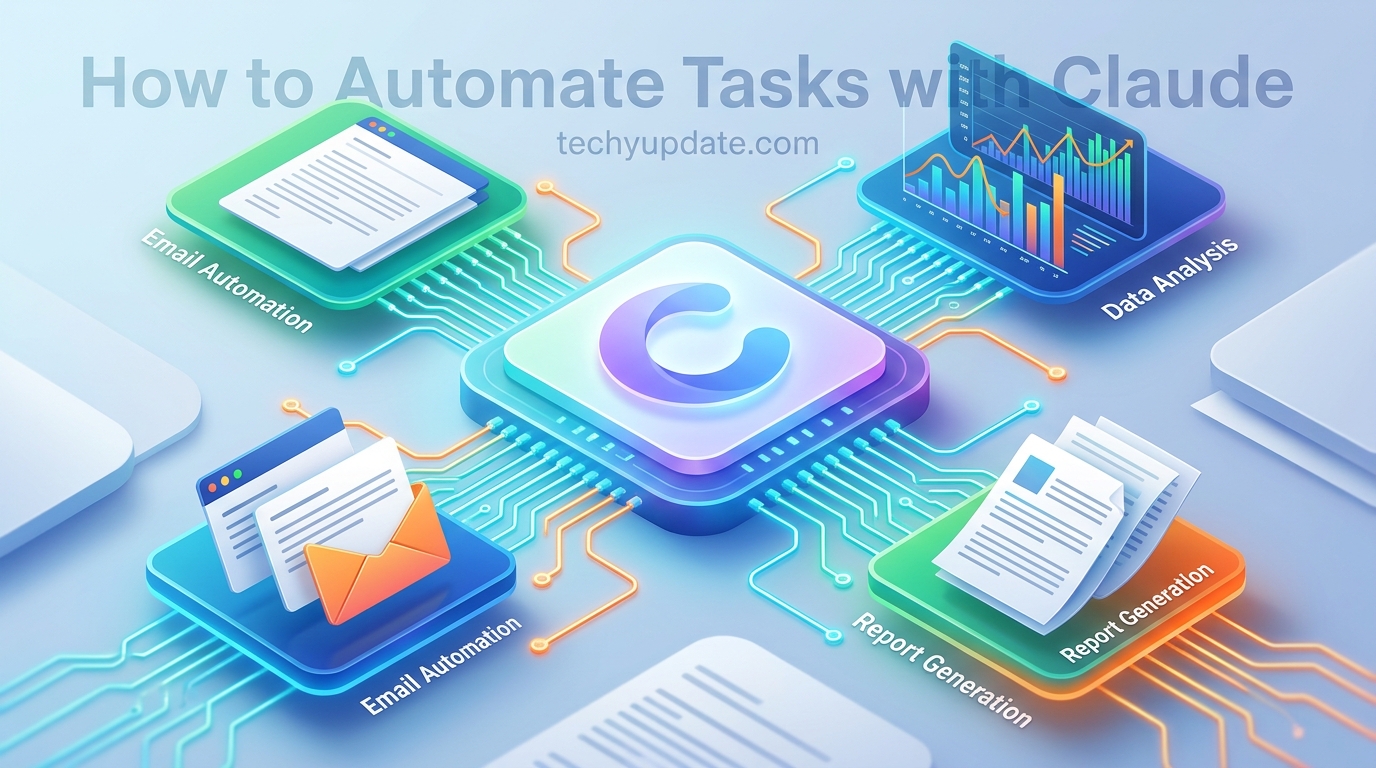
If you’ve ever stared at a backlog of repetitive work, sorting emails, fixing the same kind of bug, formatting the same report for the fifth time, you’ve probably wondered whether AI could just take care of it. That’s exactly what task automation with AI promises, and Claude, the AI assistant built by Anthropic, has become one of the more capable tools for delivering on that promise.

This guide walks through what it really means to automate tasks with AI, how Claude approaches automation differently from older rule-based tools, and how to use Claude Code specifically to automate coding and technical work. We’ll keep things practical: real examples, honest pros and cons, and clear steps you can follow, whether you’ve never touched a terminal or you automate workflows for a living.
Table of Contents
What Does “Automating Tasks with AI” Actually Mean?

Automating tasks with AI means using an AI system to understand a goal, plan the steps needed to reach it, and carry them out with little or no manual input, rather than simply following a fixed set of “if this happens, do that” rules.
That distinction matters. Traditional automation tools (think Zapier or Excel macros) are powerful, but they’re rigid. You tell them exactly what trigger leads to exactly what action, and they execute that recipe forever, regardless of context. AI-based automation is different because the system can reason about what needs to happen, adapt when something unexpected comes up, and handle tasks that don’t fit neatly into a flowchart.
This is often called agentic AI, an AI agent that acts toward a goal with a degree of autonomy rather than just responding to a single prompt and stopping. Claude is one of the more prominent examples of this shift, especially through Claude Code, which behaves less like a chatbot and more like a digital coworker that can actually do the work.
Meet Claude: Anthropic’s AI Assistant Built for Real Work

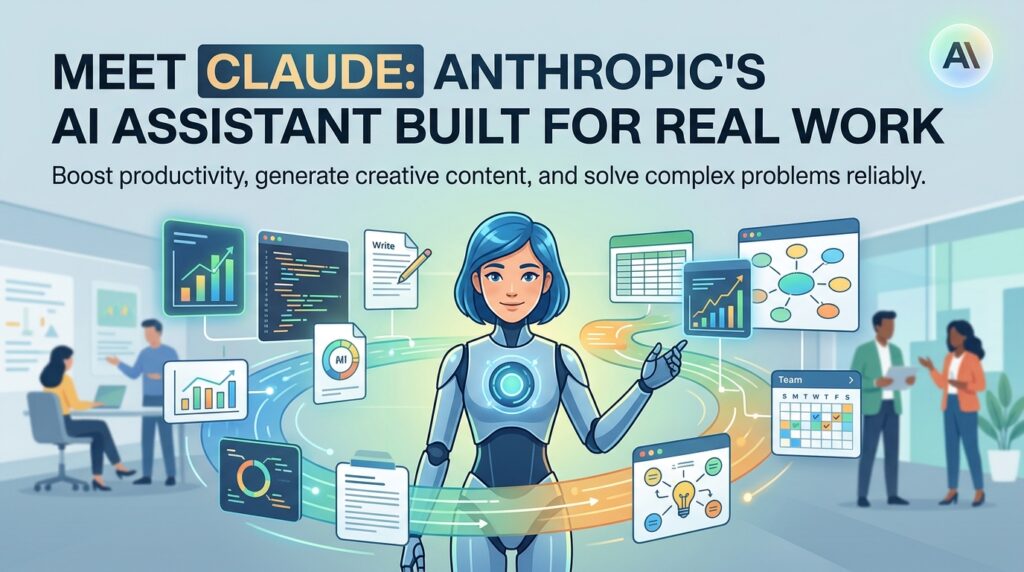
Claude is the AI model and product family developed by Anthropic. Most people first encounter Claude through the chat interface at claude.ai or in the Claude mobile and desktop apps, where you can ask questions, draft content, analyze documents, and build things like spreadsheets, presentations, or simple apps.
But Claude isn’t just a single chat window anymore. Anthropic has built out a family of surfaces, each suited to different kinds of automation:
- Claude.ai (chat): General-purpose assistant for writing, analysis, research, and quick tasks. Good for one-off automation, such as drafting a batch of emails or restructuring a document.
- Claude Code: An agentic coding tool that reads an entire codebase, plans a sequence of actions, executes them with real development tools (editing files, running commands, running tests), and iterates until the job is done. It’s available in the terminal, inside IDEs like VS Code and JetBrains, in a desktop app, and in the browser.
- Claude Cowork: A desktop app aimed at non-developers doing agentic knowledge work, it can use connected tools and even browsing/spreadsheet agents on your behalf.
- Claude in Chrome, Claude in Excel, Claude in PowerPoint: Beta tools that let Claude act directly inside a browser, spreadsheet, or slide deck, useful if your automation target is “stop me from manually reformatting this Excel file every week.”
Claude.ai vs. Claude Code vs. Claude Cowork
| Tool | Best For | Skill Level |
|---|---|---|
| Claude.ai (chat) | Writing, research, one-off content automation | Beginner |
| Claude Code | Coding, technical workflows, multi-file projects | Beginner–Advanced |
| Claude Cowork | Knowledge-work automation across multiple connected tools | Beginner–Intermediate |
| Claude in Chrome/Excel/PowerPoint | Automating inside a specific app you already use | Beginner |
The practical takeaway: you don’t need to be a developer to automate tasks with Claude. Coders will get the most mileage out of Claude Code, but a marketer, ops manager, or student can automate plenty of real work through plain chat, Cowork, or the browser/Excel/PowerPoint integrations.
How Does Claude Automate Tasks?
Here’s the short version, written so it can stand on its own as a definition:
To automate a task with Claude: (1) describe the goal in plain language, (2) let Claude break it into steps and, where relevant, plan its approach, (3) give Claude access to the files or tools it needs, (4) review what it produces or did, and (5) approve, correct, or let it continue automatically next time.
That five-step loop is the backbone of almost every automation example in this guide, whether you’re automating a code refactor or a weekly report.
Automate Tasks with Claude Code: The Developer’s Shortcut
If your repetitive tasks live inside a codebase, bug fixes, refactors, writing tests, and updating documentation, Claude Code is the tool built specifically for that.
What Is Claude Code?
Claude Code is Anthropic’s agentic coding tool. It reads your codebase, edits files, runs commands, and integrates with the development tools you already use, working from your terminal, IDE, desktop app, or browser. Unlike basic autocomplete tools that just suggest the next line as you type, Claude Code operates at the project level: it reads the full codebase, plans an approach across multiple files, executes the changes, runs tests, and adjusts when something fails.
That last part, adjusting on failure, is what separates true automation from a glorified autocomplete. When tests fail, Claude Code reads the error output, fixes the code, and reruns the suite, repeating this until everything passes, rather than handing you a half-finished attempt and walking away.
How Claude Code Plans, Edits, and Tests Automatically
A typical Claude Code automation loop looks like this:
- You describe the goal (“add a dark mode toggle to settings,” “migrate this module from Java to Python,” “fix the failing CI build”).
- Claude Code reads the relevant files to understand the existing structure before making any changes.
- It plans a sequence of steps, often visible to you in “Plan Mode” before any code changes happen useful if you want to review the approach before execution.
- It executes, editing files and running commands such as test suites or linters.
- It evaluates the results and loops back to fix issues automatically.
- You review and commit. Claude Code asks for permission before modifying files or running commands by default; how much autonomy you grant it is configurable, from approving every single action to letting it run more freely on lower-risk tasks.
This last point matters for trust: automation is only useful if you’re not afraid of what it might do unsupervised. Claude Code’s default posture is cautious, and the developer retains control over what actually ships.
Is Claude Code Only for Developers?
Mostly yes, in the sense that it expects a codebase, but the audience has widened. People without a traditional engineering background have started using Claude Code to build internal tools, prototypes, and small personal projects by describing what they want in plain language rather than writing code line by line.
If your “task” is something like “build me a script that renames 200 files based on a pattern,” that’s well within reach even if you’ve never opened a terminal before today.
Step-by-Step: Setting Up Your First Automation
You don’t need an elaborate setup to get started. Here’s a beginner-friendly path:
- Pick one annoying, repetitive task. Don’t start with your most complex workflow; start with something concrete and low-risk, like cleaning up a messy spreadsheet or summarizing a stack of PDFs.
- Choose the right surface. Coding task → Claude Code. Document, email, or spreadsheet task → Claude.ai, Claude Cowork, or the relevant in-app integration (Excel/PowerPoint/Chrome).
- Describe the goal clearly, including constraints (“keep formatting consistent,” “don’t touch column A,” “match our existing tone”).
- Let Claude propose a plan before it acts, especially for anything touching live files or production systems.
- Review the first output carefully. Treat early runs as a trial period, not a black box you trust blindly.
- Refine your instructions based on what went wrong or right, and repeat the task to confirm it now runs cleanly.
- Scale up gradually to bigger or more autonomous workflows once you trust the smaller ones.
10 Real-World Ways to Automate Tasks with Claude
Coding & Engineering Automation
- Fixing failing tests and CI pipeline errors automatically
- Refactoring legacy code across multiple files
- Writing and updating documentation as code changes
- Reviewing pull requests for bugs or style issues before a human review
Writing, Email, and Document Automation
- Drafting first-pass replies to common email categories
- Turning meeting notes into structured action items
- Generating consistent report templates from raw data
Spreadsheet and Data Automation
- Cleaning messy, inconsistent spreadsheet data
- Building formulas and pivot-style summaries from a plain-language description
- Reformatting recurring weekly/monthly reports
Research and Summarization Automation
- Summarizing long documents or PDFs into key takeaways
- Pulling structured facts out of unstructured text
Customer Support Automation
- Drafting responses to common support tickets for a human to review and send
- Categorizing and prioritizing incoming requests
The common thread: in every case, Claude reduces a multi-step, manual chore into “describe it once, review the result, repeat.”
Claude and MCP: Connecting Claude to the Tools You Already Use
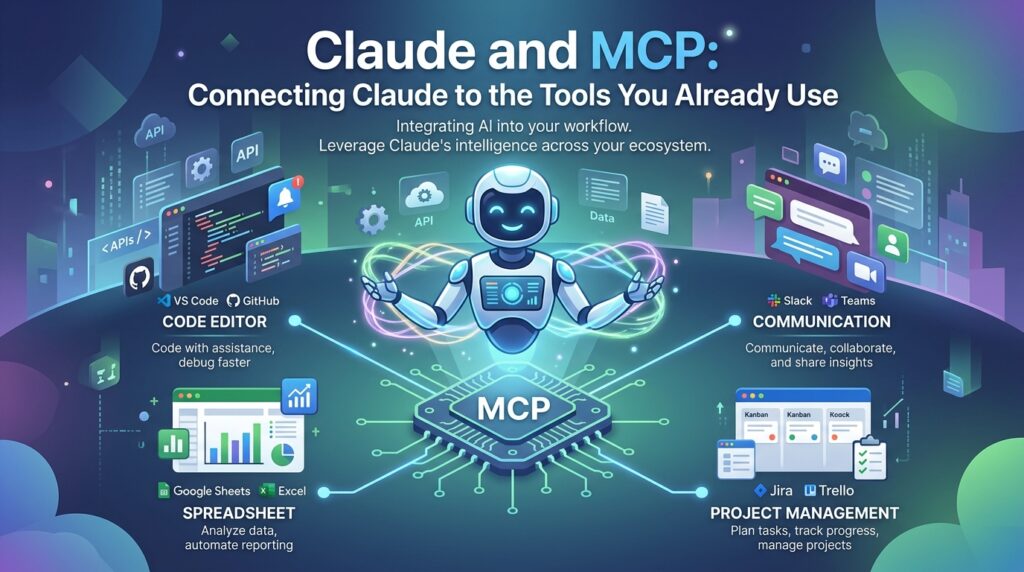
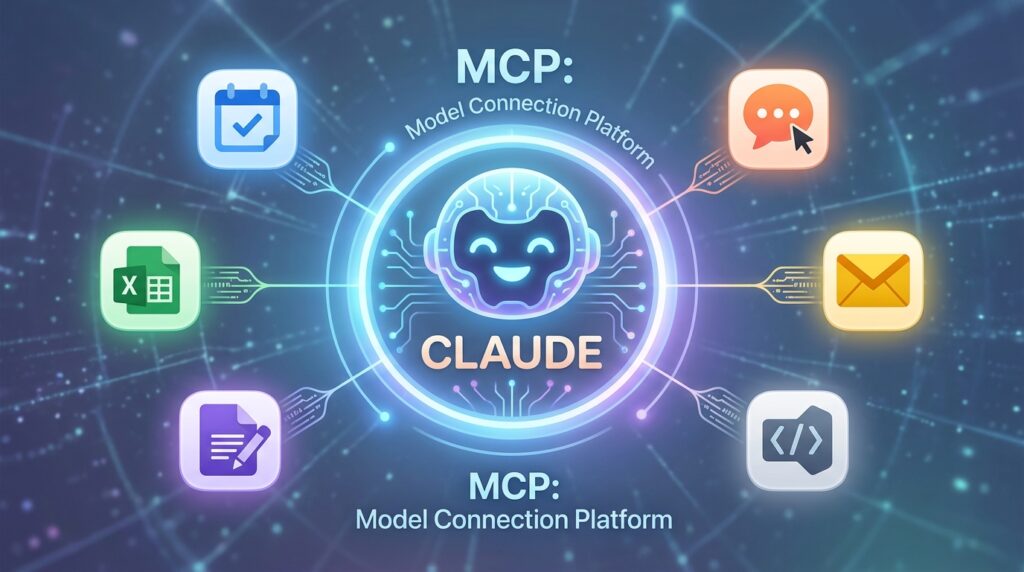
A lot of automation isn’t just about Claude thinking, it’s about Claude acting inside other software: your inbox, your calendar, your project tracker. That’s where MCP (Model Context Protocol) comes in.
MCP is an open standard that lets Claude connect to external tools and data sources such as Gmail, Google Drive, Slack, GitHub, or Calendar, so it can read and act on real information rather than guessing. In practice, this means you can ask Claude to pull data from a connected app, take an action in it, or combine information across several tools in a single request, rather than manually copy-pasting between them.
For automation purposes, MCP is the bridge that turns “Claude can write a great email” into “Claude can read the thread, draft the reply, and (with your approval) send it.”
Claude Code vs. GitHub Copilot vs. Cursor: Which Should You Use?
| Tool | Core Strength | Best Fit |
|---|---|---|
| Claude Code | Full project-level agent: reads, plans, edits, tests, iterates across files; terminal/IDE/desktop/browser | Complex refactors, multi-file tasks, automated bug-fixing, non-developers building tools via natural language |
| GitHub Copilot | Inline autocomplete embedded in Microsoft/enterprise tooling | Routine, line-by-line completion inside an existing workflow |
| Cursor | AI-integrated visual IDE with fast inline editing | Developers who want a full IDE experience with AI assistance built in for day-to-day editing |
A fair, balanced read: Copilot is the most widely deployed because it ships inside tools many enterprises already use, and it’s excellent for routine completion, but it isn’t built to operate as a full multi-file agent the way Claude Code is.
Cursor and Claude Code are often used together by the same developer: Cursor for fast daily editing, Claude Code for the harder, larger, more autonomous jobs like cross-cutting refactors or debugging issues that span several files. None of these tools is strictly “best”; the right pick depends on whether you want inline help or a more autonomous collaborator.
(Specific benchmark numbers and exact pricing tiers shift quickly; verify the latest figures on Anthropic’s official Claude Code page and pricing page before publishing or quoting numbers.)
Read more: Claude.ai Review
Is Claude Code Safe? Permissions, Oversight, and Human Control
A reasonable worry with any “AI that edits your files and runs commands” is: what if it breaks something? Claude Code’s design leans toward supervised autonomy rather than unchecked freedom:
- By default, it asks for explicit permission before modifying files or running commands.
- Developers can choose how much autonomy to grant, from approving every action to letting built-in safeguards separate routine, low-risk actions from riskier ones.
- It works within your existing environment and tools, rather than operating in an opaque, hidden backend.
- Decisions about what code actually ships remain with the human.
This doesn’t mean zero risk; any AI-generated change should still be reviewed and tested before it reaches production, and most reputable guides on the topic make this explicit. But it does mean the system isn’t designed to silently rewrite your codebase while you’re not looking.
Claude vs. Zapier/Make: AI Reasoning vs. Trigger-Based Automation
It’s worth being upfront about where Claude fits next to classic automation platforms like Zapier or Make:
- Zapier/Make excel at simple, well-defined triggers and actions (“when a form is submitted, add a row to this sheet”). They’re fast, reliable, and don’t require AI reasoning for genuinely repetitive, unambiguous tasks.
- Claude excels when the task requires judgment, language understanding, or handling variation — drafting a reply that actually sounds right, deciding how to refactor code, or summarizing something nuanced.
In practice, many teams use both: trigger-based tools to move data around, and Claude (often via MCP connections) to handle the “thinking” part of a workflow that a simple if/then rule can’t capture.
Pros and Cons of Automating Tasks with Claude
Pros
- Handles tasks that require judgment, not just fixed rules
- Works across multiple surfaces (chat, code, browser, Excel/PowerPoint)
- Default permission-based safety model, not a free-for-all
- Genuinely useful for non-developers via plain-language instructions
Cons
- Still requires human review, especially for anything touching production systems
- Not a drop-in replacement for simple, ultra-reliable trigger-based automation
- Setup for technical use cases (Claude Code, MCP) has a learning curve for true beginners
- Pricing and feature availability across tiers have shifted over time, so it’s worth double-checking current terms
Common Mistakes to Avoid When Automating with AI
- Skipping the review step. Even strong automation benefits from a human check, especially early on.
- Starting with your hardest task first. Build trust with small, low-risk automations before scaling up.
- Vague instructions. “Clean this up” gets worse results than “remove duplicate rows and standardize date format to YYYY-MM-DD.”
- Ignoring permissions settings. Understand what access you’re granting before turning on more autonomous modes.
- Assuming one tool does everything. Combining Claude with trigger-based tools like Zapier, where appropriate, is often more efficient than forcing Claude to handle simple plumbing.
How Much Does It Cost to Automate Tasks with Claude?
Pricing and which tier includes which features (for example, whether a base-level plan includes Claude Code access) have changed multiple times during 2026, and sources disagree on the current state at any given moment. Rather than quote a number here that may already be outdated, check Anthropic’s official pricing page directly before publishing or making purchasing decisions based on this article.
Conclusion
Automating tasks with AI isn’t about replacing every manual process overnight it’s about handing off the repetitive, well-understood parts of your work so you can spend time on the parts that actually need a human. Claude makes that practical on two fronts: a flexible chat assistant for general writing, research, and document work, and Claude Code for genuinely agentic, project-level coding automation.
Start small, review what Claude produces, and scale the autonomy you grant it as trust builds. That’s the same pattern that works whether you’re automating a spreadsheet or a software migration.
Notes (woven into article above)
- Experience: Framed as informed analysis/walkthrough rather than fabricated first-person claims, per accuracy requirement.
- Expertise: Technical depth on Claude Code’s plan→edit→test→iterate loop, MCP, and permission model.
- Authority: References Anthropic’s own documented product descriptions (Claude Code overview, product page) rather than unverifiable claims.
- Trust: Explicit pros/cons section and an honest note that pricing/benchmarks are volatile and should be verified before publishing.
Featured Blocks (standalone, lift-ready)
Definition: Automating tasks with AI means using an AI system to understand the goal, plan the necessary steps, and carry them out with minimal manual input.
List — Surfaces for automating with Claude: Claude. ai (chat), Claude Code, Claude Cowork, Claude in Chrome, Claude in Excel, Claude in PowerPoint.
Table — Claude Code vs Copilot vs Cursor: (see comparison table above, reusable as-is)
Comparison — Claude vs Zapier/Make: Claude handles judgment-based, language-heavy tasks; Zapier/Make handles fixed trigger→action rules.
How-To — 5 steps to automate a task with Claude: Describe the goal → Let Claude plan → Give it access to files/tools → Review output → Approve or refine and repeat.
FAQs
Can Claude automate tasks for me?
Yes. Claude can plan, draft, edit, and execute multi-step tasks from coding fixes to document automation based on plain-language instructions, with human review built into the default workflow.
Is Claude Code free to use?
Access and pricing tiers for Claude Code have changed multiple times in 2026. Check Anthropic’s current pricing page directly, as tier inclusion is inconsistent across sources at this time.
Do I need to know how to code to use Claude Code?
Not strictly. While built for developers, people without engineering backgrounds use Claude Code to build prototypes and internal tools by describing desired outcomes in plain language.
What’s the difference between Claude.ai and Claude Code?
Claude.ai is a general chat assistant for writing, research, and analysis. Claude Code is an agentic tool specifically for reading codebases, editing files, running commands, and automating development work.
How does Claude compare to ChatGPT in terms of automation?
Both can automate language-based tasks. Claude Code is specifically built as a project-level coding agent; comparisons should be verified against current benchmarks, since both companies update models frequently.
Can Claude connect to apps like Gmail or Google Sheets?
Yes, through MCP (Model Context Protocol) and built-in connectors, Claude can read from and act on data in external tools rather than relying only on information you type manually.
What is MCP in Claude AI?
MCP, or Model Context Protocol, is an open standard that lets Claude connect to external tools and data sources, such as email, calendars, and project trackers, to support real, action-based automation.
Is Claude Code safe to use on important codebases?
Claude Code asks for permission before changing files or running commands by default, and developers control its level of autonomy. Still, generated changes should always be reviewed and tested before deployment.
What can Claude automate besides coding?
Email drafting, document summarization, spreadsheet cleanup, report generation, research synthesis, and customer support response drafting are all common non-coding automation use cases for Claude.
Can Claude automate spreadsheet tasks?
Yes. Through Claude.ai, Claude Cowork, or the Claude in Excel integration, Claude can clean data, build formulas, and reformat recurring reports based on plain-language descriptions of what you need.
What is “Plan Mode” in Claude Code?
Plan Mode lets Claude Code outline its intended approach to a task before making any actual changes, giving developers a chance to review and adjust the plan first.
Is Claude Code better than GitHub Copilot?
They serve different needs: Copilot excels at inline autocomplete inside existing workflows, while Claude Code operates as a full project-level agent for multi-file, multi-step automated tasks.
Can beginners realistically use Claude for automation?
Yes, especially through Claude.ai chat, Claude Cowork, or app integrations like Excel and Chrome, which don’t require any coding background to automate everyday tasks.
What devices support Claude Code?
Claude Code is available via the terminal CLI, IDE extensions (VS Code, JetBrains), a desktop app, and a browser interface, and works across macOS, Linux, and Windows.