

Google’s Gemini app is now available as a native macOS application, giving Mac users direct access to Gemini without keeping a browser tab open. The app is designed to bring AI assistance into your normal desktop workflow, including writing, brainstorming, coding, summarizing, image analysis, and screen-based assistance.
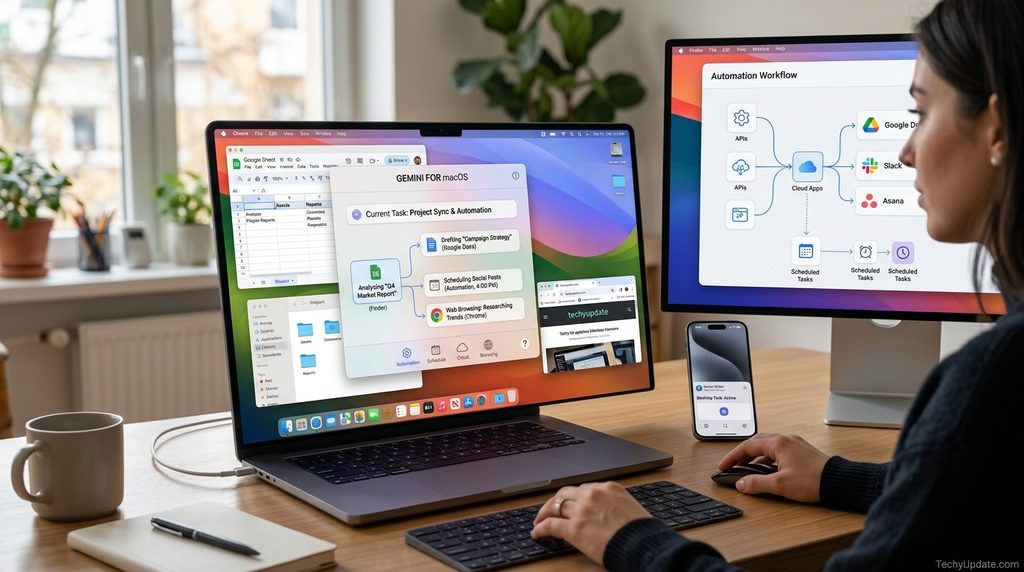
The Mac version has also been expanding quickly. Recent updates introduced voice-powered features that let you speak naturally while working in another application, while Gemini Spark brings more advanced automation capabilities to supported users.
Visit the official Gemini for macOS website →
Table of Contents
What is Gemini for macOS?
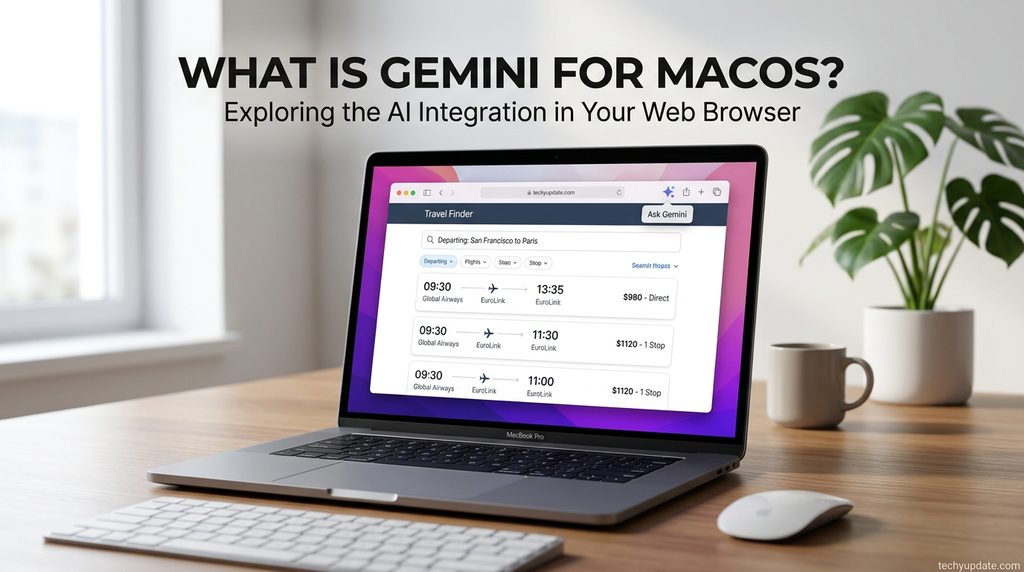
Gemini for macOS is Google’s dedicated desktop app for its AI assistant.
Instead of opening Gemini in Safari or Chrome every time you need help, you can launch the Mac application and access Gemini directly from your desktop.
The app is designed for everyday tasks such as:
- Writing and rewriting content
- Brainstorming ideas
- Summarizing information
- Coding and debugging
- Analyzing images
- Getting answers to questions
- Working with files
- Sharing your active window for additional context
- Using voice input
Google also provides a global keyboard shortcut, Option + Space, to bring up Gemini without leaving your current application.
Gemini for Mac Requirements
Before installing the application, make sure your Mac meets Google’s current requirements.
You need:
- macOS Sequoia 15.0 or later
- 8 GB RAM or more
- At least 200 MB of available storage
- A stable internet connection
- A supported Google Account
Google’s current support documentation lists these requirements for the Gemini Mac application.
The native app is designed for Apple Silicon Macs, so users should also check that their Mac has a supported Apple processor.

How to Download Gemini for Mac
Installing Gemini is relatively simple.
Step 1: Visit the Gemini Mac Page
Open Google’s official Gemini Mac download page:
Step 2: Download the App
Select Download for Mac.
The installer will download as a.dmgfile.
Step 3: Install Gemini
Open the downloaded file and drag the Gemini application into your Applications folder.
Step 4: Open Gemini
Go to Applications and launch Gemini.
Sign in with your Google Account when prompted.
Step 5: Set Up the Shortcut
After installation, you can use Option + Space to quickly open Gemini. Google also allows you to customize the shortcut through the application’s settings.
What Can Gemini Do on Mac?
Write and Edit Content
Gemini can help you create drafts, rewrite text, improve wording, brainstorm headlines, and prepare content for different purposes.
For example, you can ask:
“Rewrite this paragraph to make it clearer and more professional.”
You can also use Gemini to create emails, outlines, social media posts, reports, and other written material.
Brainstorm Ideas
Gemini can act as a brainstorming partner when you need ideas for a project, article, presentation, business plan, or creative task.
You can start with a simple concept and ask Gemini to develop multiple approaches.
For example:
“Give me 10 blog topic ideas about AI tools for beginners.”
Coding Assistance
Developers can use Gemini on Mac to:
- Generate code
- Explain code
- Find bugs
- Suggest improvements
- Understand programming concepts
- Convert code between languages
This makes the desktop app useful for developers who want quick AI assistance without constantly switching to a browser.
Analyze Images and Files
Gemini can analyze supported images and files that you provide in a conversation.
You can upload an image and ask questions about it, or use the image as context for a creative task.
Google also allows users to share their current window with Gemini, giving the assistant additional context about what is currently visible on the Mac.
Share Your Screen or Window
One of the most useful desktop features is window sharing.
Instead of explaining everything manually, you can share a window with Gemini and ask it to help with what you are viewing.
For example:
“Explain this chart in simple terms.”
Or:
“What are the three most important points in this document?”
Google introduced window sharing to provide Gemini with more direct context while users remain in their existing workflow.
Gemini Voice Features on macOS
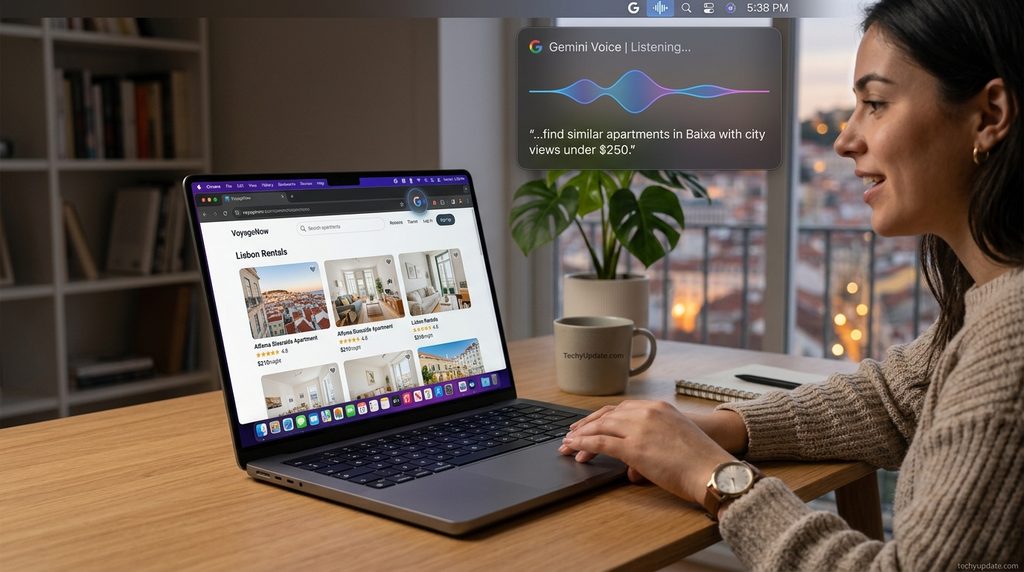
Google recently added a more natural voice experience to the Mac application.
By long-pressing the Fn key, you can speak naturally while working in another application. Gemini can turn your speech into clean text, remove filler words, recognize corrections made while speaking, and insert the resulting text at your cursor position.
You can also enable Gemini reasoning for more advanced voice-assisted actions through the app’s settings.
This can be particularly useful when:
- Writing emails
- Taking notes
- Drafting documents
- Creating ideas
- Rewriting text
- Dictating longer passages
Gemini Spark on Mac
Gemini for macOS has also become more powerful with the addition of Gemini Spark for eligible users.
Spark differs from standard Gemini chat because it is designed to complete multi-step tasks.
On Mac, Spark can work with specifically connected folders and supported Connected Apps. Google says Spark can analyze, edit, rename, and reorganize files in folders that you explicitly add.
For example, you could ask Spark to:
“Organize the PDFs in this folder into separate folders based on their topics.”
Spark can also perform supported workflows involving Google services and other Connected Apps.
Remote Mac Control
Another Spark feature allows users to start supported tasks on their Mac from another device, such as a phone.
This means you don’t necessarily need to be sitting in front of your Mac to initiate a supported workflow.
Google says the Gemini Mac app must be set up and running for remote control to work.
Gemini for Mac vs Gemini in a Browser
| Feature | Gemini in Browser | Gemini for Mac |
|---|---|---|
| AI Chat | Yes | Yes |
| Writing | Yes | Yes |
| Brainstorming | Yes | Yes |
| Coding | Yes | Yes |
| Image Analysis | Yes | Yes |
| File Uploads | Yes | Yes |
| Window Sharing | Limited | Yes |
| Global Shortcut | No | Yes |
| Voice Dictation | Browser-based | Integrated Mac experience |
| Desktop Workflow | Limited | Stronger |
| Gemini Spark | Supported where available | Supported where available |
The biggest advantage of the Mac app is convenience and desktop integration. You can access Gemini without repeatedly opening a browser and can provide context from the application you’re already using.
Gemini for Mac Is Free
The Gemini Mac application itself is available at no cost in supported markets. Google announced the native macOS application is available for free download on compatible Macs.
However, some advanced Gemini capabilities have separate subscription or eligibility requirements.
For example, Gemini usage limits and access to certain advanced models and features can vary depending on your Google AI plan.
Gemini Spark also has separate availability requirements.
Privacy and Permissions
Because Gemini for Mac can work with screen context, files, and connected services, permissions are important.
For regular Gemini use, provide only the information you are comfortable sharing with the service.
For Spark, be even more careful. Google says Spark can access, edit, share, and delete files within the permissions granted to it. Users should also avoid putting sensitive login information or payment details directly into Spark task threads.
A good approach is to:
- Start with a non-sensitive folder.
- Test Gemini with simple tasks.
- Review what information it can access.
- Connect additional services only when necessary.
- Check important changes before accepting them.
Gemini for macOS: Best Uses
Gemini becomes particularly useful on Mac when you use it as part of your existing workflow rather than treating it only as a chatbot.
Some practical uses include:
For Students
- Summarize study material
- Explain difficult concepts
- Brainstorm assignments
- Improve writing
- Analyze images and documents
For Writers
- Generate article outlines
- Rewrite paragraphs
- Create headlines
- Summarize research
- Brainstorm content ideas
For Developers
- Debug code
- Explain errors
- Generate functions
- Review code
- Learn new programming concepts
For Professionals
- Draft emails
- Summarize documents
- Analyze spreadsheets or charts
- Prepare reports
- Brainstorm business ideas
How to Get the Most From Gemini on Mac
For the best experience, keep your prompts specific.
Instead of:
“Help me with this.”
Try:
“Review this paragraph and rewrite it in a professional but easy-to-understand style.”
You can also provide context by sharing the relevant window, file, image, or text when appropriate.
For repetitive work, Spark can take this further by turning supported workflows into reusable or scheduled tasks.
Continue Reading: Gemini Spark Latest Changes
Continue Reading: Gemini Spark New Features: Step-by-Step Guide
Continue Reading: Gemini Spark Update Explained: New Features, Limits and Changes
FAQs About Gemini for macOS
1. What is Gemini for macOS?
Gemini for macOS is Google’s native AI desktop app that lets Mac users get help with writing, brainstorming, coding, research, image analysis, and other tasks without opening a browser.
2. What Macs are compatible with Gemini?
The Gemini Mac app requires macOS Sequoia 15.0 or later, at least 8 GB of RAM, 200 MB of available storage, and an Apple Silicon Mac.
3. Is Gemini for Mac free?
Yes. The Gemini Mac application is available at no cost in supported markets, although some advanced Gemini features may require an eligible Google AI plan.
4. Can I use Gemini without opening a browser?
Yes. The native Mac app runs directly on your desktop. You can also use the Option + Space keyboard shortcut to quickly open Gemini while working in another application.
5. Can Gemini see what’s on my Mac screen?
Gemini can use Share Window to receive context from the window you’re working in. You need to grant the required macOS permissions before using this feature.
6. Can Gemini for Mac use voice commands?
Yes. You can dictate prompts using the microphone, while Speak to Window lets you speak naturally and have Gemini help create, refine, or summarize content in supported applications.
7. Can Gemini for Mac work with files?
Yes. Depending on the feature you’re using, Gemini can analyze uploaded files and images, while Gemini Spark can work with specifically connected Mac folders for supported tasks such as analyzing, editing, renaming, and reorganizing files.
Final Verdict
Gemini for macOS is more than a browser version packaged as an app. Google has built the Mac application around quick desktop access, contextual assistance, voice interaction, and increasingly advanced AI workflows.
The Option + Space shortcut makes Gemini easy to access, while window sharing lets you provide context from your current work. New voice features make dictation and editing faster, and Gemini Spark adds automation capabilities for eligible users.
4 Comments
Pingback: Gemini Spark Latest Changes: Features, Availability
Pingback: Gemini Spark New Features: Step-by-Step Guide to What Changed
Pingback: How to Use the New Gemini Spark Features After the Latest Update
Pingback: Gemini Spark Update: Settings You Should Check - TechyUpdate