

Google is rapidly turning Gemini from a conversational AI assistant into something much more action-oriented, and Gemini Spark is at the center of that shift. Introduced as a personal AI agent, Spark is designed to handle multi-step tasks, integrate with connected services, run scheduled workflows, and continue working on tasks even after a user has left the Gemini interface.
Since its initial rollout in May 2026, Gemini Spark has received several important updates. Google has expanded its availability, added more Google Workspace actions, introduced additional connected applications, brought Spark to the Gemini macOS experience, improved real-time topic monitoring, and added Chrome-based browsing capabilities for certain web errands.
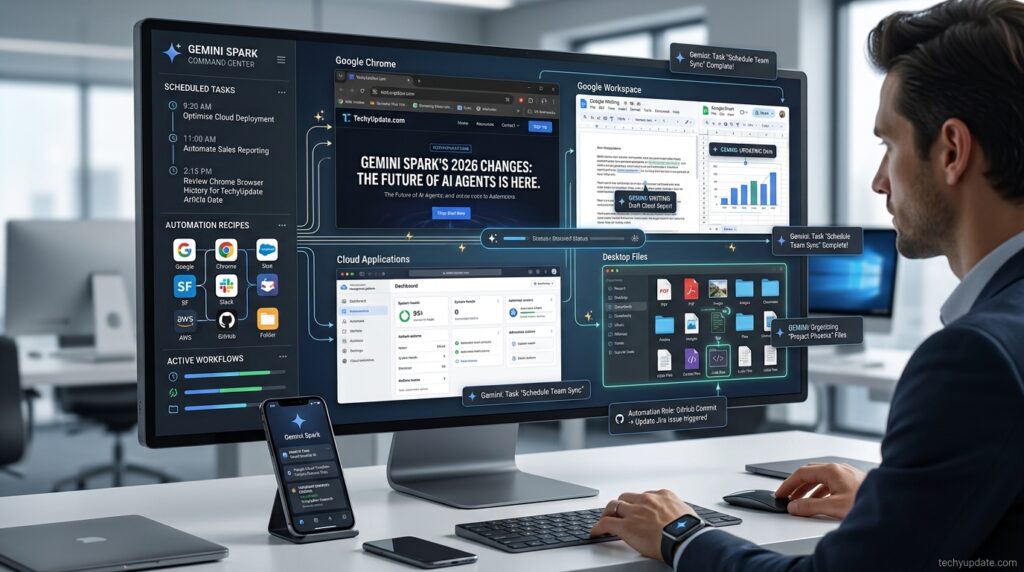
These changes matter because they move Spark beyond the traditional question-and-answer model. Instead of simply asking Gemini to explain how to complete a task, users can increasingly give Spark a goal and allow it to carry out supported steps on their behalf.
For example, Spark can be used for recurring research, monitoring topics, organizing information, working with Google files, handling supported email workflows, and performing certain web-based errands. Users can also create reusable Skills and scheduled workflows so that repetitive instructions do not have to be entered manually every time.
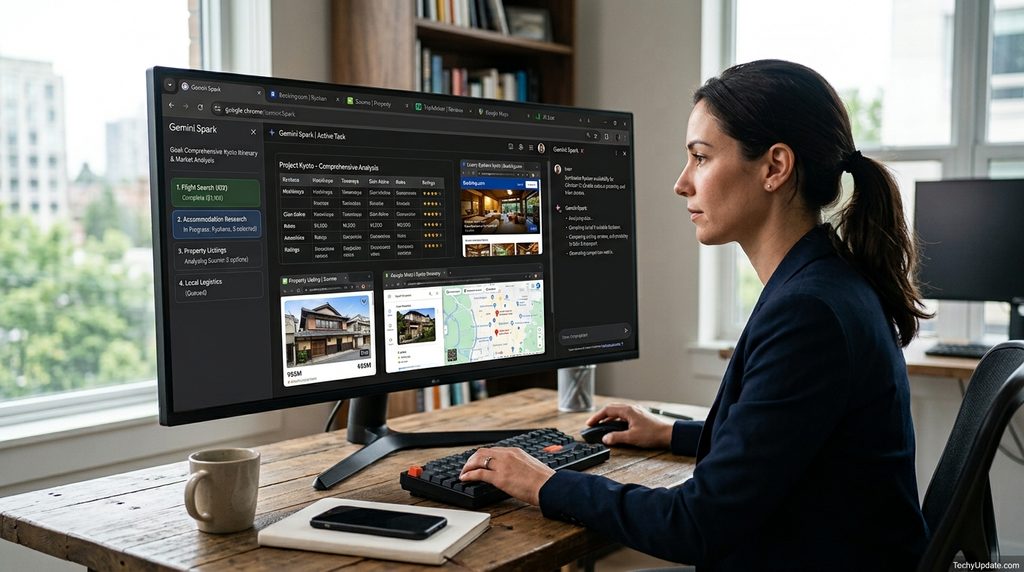
The newest Chrome integration is particularly significant. Google says Spark can use Chrome to handle certain tedious web tasks, including researching flight options, starting booking processes, or scheduling apartment viewings. These workflows can use logged-in accounts and saved information with permission, while sensitive actions such as payments remain subject to user involvement.
At the same time, availability is still an important consideration. Google has expanded Spark beyond its original U.S. Ultra rollout, but access varies by subscription, age, language, country, and the specific Gemini experience used.
This guide explains what changed in Gemini Spark, which features are new, who can access them, what the major integrations do, and what users should know before relying on Spark for automated workflows.
Visit the official Gemini Spark Latest Changes website →
Quick Summary of Gemini Spark Latest Changes
| Update | What It Means |
|---|---|
| Chrome integration | Spark can handle certain web errands through Chrome |
| Expanded availability | Access has moved beyond the original U.S. Ultra rollout |
| Google AI Pro access | Google began rolling Spark out to eligible U.S. Pro subscribers |
| Workspace actions | More spreadsheet, presentation and comment-related actions |
| macOS support | Spark became available in the Gemini Mac experience |
| Connected apps | More third-party services can be connected |
| Topic monitoring | Spark can monitor news, finance, sports and other topics |
| Skills and Tasks onboarding | Spark can help users create their first workflows |
| Custom MCP apps | Advanced users can connect compatible custom applications |
| Background workflows | Spark can continue to support scheduled tasks without remaining in the chat |
Table of Contents
What is Gemini Spark?
Gemini Spark is Google’s personal AI agent designed to complete tasks and workflows under the user’s direction.
The difference between a traditional chatbot and an AI agent is primarily what happens after the response is generated. A chatbot usually answers a question or creates content. An agent can potentially use tools, access connected services, and perform a sequence of actions to achieve a goal.
Spark is built around that agentic approach.
A user can provide a goal such as monitoring a topic, organizing information, researching a subject or working with connected applications. Spark can then use available capabilities to perform supported steps.
Its core workflow system includes:
- Tasks for specific goals
- Skills for reusable instructions
- Schedules for recurring or triggered workflows
- Connected Apps for external services
- Web access for supported research and browsing workflows
- Personal context where available
- Desktop capabilities for supported Mac workflows
The important point is that Spark is not simply another name for Gemini’s normal chat interface. It is intended to operate as a more proactive layer that can work on tasks over time.
Why Gemini Spark Is Getting So Much Attention
The biggest reason is the shift from AI that answers to AI that acts.
People already use AI to write emails, summarize documents, analyze information, and answer questions. The next step is allowing AI to perform parts of the workflow itself.
Imagine a recurring research task. Instead of opening Gemini every Monday and typing the same prompt, a user could create a workflow that monitors a topic and produces an update according to a schedule.
Or consider a research-heavy shopping task. Rather than manually opening multiple websites, Spark’s newer browser capabilities can assist with certain online errands.
This makes Spark particularly relevant to:
- Professionals
- Researchers
- Students
- Content creators
- Small businesses
- Frequent travelers
- People managing large amounts of information
- Users already invested in Google’s ecosystem
Gemini Spark Latest Features in 2026
The feature set has changed considerably since the initial launch.
Chrome Auto Browse for Web Errands
One of the most important recent changes is Spark’s integration with Chrome.
Google announced that Spark can now use Chrome for certain complex web errands. With permission, Spark can use logged-in accounts and saved information to handle supported tasks.
Examples given by Google include:
- Researching flight options
- Starting a flight booking process
- Scheduling apartment viewings
- Working through tedious online research
This is different from simply asking Gemini to find information. Spark can interact with websites as part of a broader workflow.
Google has also emphasized safeguards around sensitive actions. When a task reaches an action such as payment, the workflow can be returned to the user rather than allowing the agent to complete the sensitive step independently.
This creates an important balance: Spark can automate tedious browsing while the user remains involved when an action has higher consequences.
Why it matters: Chrome support significantly expands Spark’s usefulness, as many everyday tasks occur outside Google Workspace.
Expanded Google Workspace Actions
Spark’s Google Workspace integration has also grown.
Google’s July update added more actions involving spreadsheets and presentations. Spark can work with private spreadsheets and presentations and can read comments on supported spreadsheets and presentations.
Earlier updates also expanded its ability to work with Google Docs comments.
This creates more possibilities for workflows such as:
- Reviewing business documents
- Extracting information from spreadsheets
- Preparing presentation-related tasks
- Working with comments
- Turning information into organized outputs
The exact actions available can depend on the account and connected service.
Gemini Spark on macOS
Google introduced Gemini Spark into the Gemini app for macOS in beta.
This gives Spark access to supported desktop-oriented workflows and local files.
Potential workflows include:
- Organizing files
- Working with documents
- Connecting desktop files to broader tasks
- Automating supported Mac workflows
- Assigning certain tasks remotely
The remote capability is particularly interesting because it allows supported tasks to be initiated from another device while the Mac remains available for the workflow.
More Connected Apps
Google has expanded Spark’s connected-app ecosystem.
The June 2026 update introduced connections for:
- Google Tasks
- Google Keep
- Canva
- Dropbox
- Instacart
- OpenTable
- Zillow Rentals
These integrations make Spark more useful for real-world workflows.
For example, information stored in Google Keep can be turned into action items in Google Tasks. Canva can support design workflows, Dropbox can provide file access, OpenTable can support restaurant reservations, Instacart can support grocery workflows, and Zillow Rentals can assist with apartment-related tasks.
Availability and supported actions can vary.
Real-Time Topic Monitoring
Another major update is topic monitoring.
Spark can monitor selected areas and react when relevant events occur. Google has described monitoring across categories such as:
- News
- Finance
- Sports
- Local events
- Shopping
- Weather
- Blogs
- Social media
For example, a sports fan could ask Spark to track a team’s latest match and provide an update after the event.
A financial user could create a workflow that monitors a specified condition and generates a report when the condition is met.
This changes Spark from a tool users manually activate into a system that can watch for information over time.
Gemini Spark Skills
Skills are reusable instructions that enable Spark to execute a specific workflow consistently.
The concept is simple: if you repeatedly give an AI the same type of instructions, turn those instructions into a reusable Skill.
For example, a technology writer could create a Skill for researching weekly AI news.
A student could create a Skill for organizing study material.
A business owner could create a Skill for preparing a weekly operational summary.
Skills can reduce the need for repetitive prompting and make workflows easier to repeat.
How to Create a Gemini Spark Skill
- Open Gemini and access Spark if it is available on your account.
- Start creating a Skill or ask Spark to help you set one up.
- Describe the workflow in natural language.
- Explain what information Spark should use.
- Specify the desired output.
- Connect required applications if necessary.
- Save the Skill.
- Test it with a simple example.
- Refine the instructions if the output needs improvement.
The best Skills are specific. Instead of telling Spark to “research everything,” define what it should look for, what sources matter, and how the final result should be organized.

Gemini Spark Schedules
Schedules allow Spark to perform supported tasks repeatedly.
This is one of the most important parts of Spark because it enables automation.
A workflow can be designed around a recurring requirement rather than a one-time prompt.
Examples include:
- Daily news monitoring
- Weekly research reports
- Recurring email summaries
- Sports updates
- Financial monitoring
- Weather monitoring
- Local event tracking
How Gemini Spark Schedules Work
A typical workflow looks like this:
- Define the task.
- Explain what information Spark should monitor or process.
- Connect the required applications.
- Choose when the workflow should run.
- Review permissions.
- Save the schedule.
- Check the first few results.
- Adjust the instructions if needed.
Users should test important workflows before fully relying on them.
Gemini Spark and Google Keep
The Google Keep integration is useful for people who capture information quickly but struggle to turn notes into actions.
A user can keep ideas, reminders, or unstructured notes in Keep and then use Spark to help process them.
Google specifically described a workflow in which Spark can scan scattered notes in Keep and turn them into action items in Google Tasks.
That creates a useful chain:
Keep → Spark → Tasks
Instead of manually reviewing every note, the AI can help identify which notes should be converted into tasks.
Gemini Spark and Google Tasks
Google Tasks gives Spark a destination for actionable information.
A workflow can potentially transform unstructured notes or information into organized tasks.
This is particularly useful for:
- Personal productivity
- Project management
- Follow-up reminders
- Daily planning
- Turning research into actions
The benefit is not simply creating another task. The larger advantage is connecting task creation with information that already exists elsewhere.
Gemini Spark and Canva
Canva is one of the third-party applications Google introduced as a connected app for Spark.
This opens the door to workflows where information and design are connected.
For example, a user may want to turn information into a visual asset or create a customized design based on a workflow.
Users should still verify the exact actions available in their account because integrations can change over time.
Gemini Spark and Dropbox
Dropbox provides cloud file access for supported Spark workflows.
This can be useful when files are stored outside Google Drive.
A user may want Spark to locate relevant information, work with files or use Dropbox content as part of a larger workflow.
For businesses that already use Dropbox, this makes Spark less dependent on the Google Drive ecosystem.
Gemini Spark for Research
Research is one of Spark’s strongest potential use cases.
A normal Gemini prompt might produce a one-time answer. Spark can be used for workflows that repeatedly monitor a topic.
For example:
Task: Monitor developments in AI search.
Sources: News, websites, and selected connected information.
Schedule: Weekly.
Output: Concise summary with important developments.
This approach can save time for researchers, writers, and professionals who need to remain informed.
For high-stakes research, however, users should still verify important claims against primary sources.
Gemini Spark for Email
Email is another obvious automation area.
Depending on supported actions and permissions, Spark can help:
- Find relevant conversations
- Summarize email
- Identify information requiring attention
- Prepare drafts
- Organize supported information
The most useful approach is to start with low-risk workflows.
For example, ask Spark to summarize messages before asking it to perform actions.
This lets users evaluate how accurately Spark interprets their inbox.
Gemini Spark for Google Docs, Sheets and Slides
Workspace support is becoming increasingly important to Spark.
Google Docs
Spark can work with supported documents and can read comments in Google Docs files.
This can help with:
- Document review
- Summarization
- Editing workflows
- Comment analysis
- Information extraction
Google Sheets
Spark can work with supported spreadsheets, including expanded actions introduced in July.
Potential use cases include:
- Reviewing spreadsheet information
- Extracting data
- Editing supported content
- Preparing reports
- Working with comments
Google Slides
Spark can also work with supported presentations.
This is useful for workflows involving:
- Presentation editing
- Content review
- Comment analysis
- Information organization
Gemini Spark Availability: Who Gets It?
Availability is one of the most confusing parts of Spark because Google has expanded access in several stages.
The initial May launch focused on trusted testers and access to Google AI Ultra in the United States.
In June, Google expanded availability and introduced additional features.
In July, Google began rolling out Spark to eligible Google AI Pro subscribers in the United States and expanded availability to eligible Ultra subscribers in additional supported regions.
Google’s official pages currently show different scopes depending on the specific Gemini product surface and update being referenced. For this reason, users should check their own Gemini account rather than assuming that a feature announcement means every Spark feature is immediately available in every country.
Current Eligibility Factors
Access can depend on:
- Country
- Google AI subscription
- Age
- Language
- Gemini app version
- Web versus mobile experience
- Feature rollout status
- Connected application availability
Google’s current Google AI Pro help documentation states that Spark requires users to be 18 or older and that certain access requirements apply. Google’s Spark update documentation also records different regional rollouts for Pro and Ultra users.
Therefore, “Spark is available” does not necessarily mean every Spark feature is available to every user.
Gemini Spark Availability by Rollout Stage
| Period | Major Availability Change |
| May 2026 | Initial U.S. rollout with Skills and Schedules |
| June 2026 | Broader availability and expanded country/language support |
| June 2026 | macOS Beta for eligible Ultra users |
| July 2026 | U.S. Google AI Pro rollout |
| July 2026 | Broader international Ultra availability |
| July 2026 | Chrome web-errand capabilities |
| July 2026 | More Workspace actions |
This staged rollout is important because screenshots and tutorials from earlier months may not match the current Spark experience.
Gemini Spark Pricing and Subscription Requirements
Spark’s access has been connected to Google’s AI subscription tiers during its rollout.
Google initially announced Spark as part of its Google AI Ultra offering in the United States. Later, Google began expanding access to Spark for Google AI Pro subscribers in the U.S.
Because subscription benefits and regional availability can change, users should not rely on an old article for current pricing.
Before subscribing specifically for Spark, check:
- Your country
- Your Google AI plan
- Whether Spark appears in your Gemini account
- Whether the feature you need is included
- Whether the required connected apps are available
Gemini Spark Security and Privacy
An AI agent that can access files, email, websites, and connected applications requires more careful permission management than a basic chatbot.
Users should understand which accounts Spark can access and which actions it can perform.
Google has highlighted safeguards around sensitive actions and web-based threats. Chrome-based Spark workflows are designed to keep users involved in high-stakes actions such as payments.
Still, users should follow basic precautions:
- Connect only the services you need.
- Review permissions carefully.
- Test new workflows before scheduling them.
- Avoid giving unnecessary access.
- Review important outputs.
- Check sensitive actions before approving them.
- Remove unused connections.
The more powerful the workflow becomes, the more important permission management becomes.
Gemini Spark Limitations
Spark is powerful, but it is not an unrestricted autonomous computer operator.
Important limitations include:
- Availability varies by location.
- Subscription requirements differ.
- Some features are still rolling out.
- Connected app actions can vary.
- Web automation is limited to supported workflows.
- Sensitive actions may require user confirmation.
- AI-generated results still require review.
- Experimental features can change.
Users should therefore treat Spark as an assistant that can perform supported actions, not as a system that can safely handle every digital task without supervision.
Gemini Spark Pros and Cons
| Pros | Cons |
| Multi-step AI workflows | Availability varies |
| Reusable Skills | Some features require eligible plans |
| Scheduled automation | Regional restrictions remain |
| Connected Google services | Integrations can change |
| Third-party applications | AI results need supervision |
| Chrome web errands | Sensitive actions may require confirmation |
| Topic monitoring | Some capabilities are still developing |
| macOS support | Feature parity can vary |
Gemini Spark vs Traditional Gemini
The difference can be summarized simply:
Gemini answers. Spark is designed to act.
| Capability | Traditional Gemini Chat | Gemini Spark |
| Answer questions | Yes | Yes |
| Generate content | Yes | Yes |
| Multi-step workflows | Limited | Core capability |
| Reusable Skills | Not the main focus | Yes |
| Scheduled tasks | Limited | Core feature |
| Topic monitoring | Limited | Yes |
| Connected apps | Available in selected Gemini experiences | Central to Spark |
| Web errands | Varies | Supported workflows |
| Background tasks | Limited | Designed for supported workflows |
| Desktop automation | Limited | macOS support |
Spark should therefore be understood as an agentic extension of Gemini rather than simply another chatbot mode.
Who Should Use Gemini Spark?
Professionals
Spark can reduce repetitive administrative work involving email, documents, research, and recurring information.
Content Creators
Creators can use topic monitoring, research workflows, connected apps, and scheduled tasks.
Researchers
Researchers can benefit from recurring topic monitoring and multi-source workflows.
Students
Students can use Spark for organization, research, and task management where their account supports the necessary features.
Small Businesses
Small teams can potentially automate repetitive digital workflows without building a custom AI agent from scratch.
Common Gemini Spark Mistakes
Giving Vague Instructions
“Manage my work” is too broad.
Instead, describe the exact workflow, sources, timing, and expected output.
Connecting Every App
Only connect applications that the workflow actually needs.
Automating Sensitive Actions Immediately
Start with review-based workflows before allowing more consequential actions.
Trusting Every AI Result
Automation does not eliminate the need for human review.
Assuming All Users Have the Same Features
Spark is being rolled out in stages, so another user’s interface may contain capabilities that are not yet available on your account.
How to Get Started With Gemini Spark
- Open the Gemini app or the supported Gemini web experience.
- Check whether Spark is available on your account.
- Confirm your subscription and regional eligibility.
- Start with a simple task.
- Describe the desired outcome clearly.
- Connect only the applications you need.
- Review the permissions.
- Test the workflow.
- Create a Skill if you expect to repeat the process.
- Create a Schedule if the task needs to run regularly.
- Review the first few results.
- Expand the workflow only after it works reliably.
Starting small is the safest way to understand how Spark behaves.
Is Gemini Spark Worth Using?
Gemini Spark is becoming significantly more capable than the product Google introduced in May 2026.
The most important change is not any individual feature. It is the combination of Skills, Tasks, Schedules, connected applications, topic monitoring, and action-oriented workflows.
Chrome integration takes that concept even further by allowing Spark to handle certain online errands. Expanded Workspace support makes it more useful for people who already work inside Google’s productivity ecosystem. Connected apps make Spark more flexible, while macOS support brings agentic workflows closer to desktop files and applications.
There are still important caveats. Availability is not uniform; feature access can depend on the account and region, and AI actions should not be treated as infallible. Google is also continuing to roll out and refine the product.
For Google ecosystem users, however, Spark is becoming a serious productivity tool rather than a simple experimental chatbot feature.
Continue Reading: Gemini Spark New Features: Step-by-Step Guide
Continue Reading: How to Use the New Gemini Spark Features After the Latest Update
Continue Reading: Gemini Spark Update Explained: New Features, Limits and Changes
Continue Reading: What’s New in Gemini Spark
Continue Reading: Gemini Spark Latest Update
FAQ
What is Gemini Spark?
Gemini Spark is Google’s personal AI agent designed to perform supported multi-step tasks and workflows under the user’s direction.
What are the latest Gemini Spark changes?
The major recent changes include Chrome web-errand capabilities, broader access, expanded Workspace actions, more connected apps, macOS support and improved topic monitoring.
Is Gemini Spark available now?
Yes, but availability depends on country, subscription, age, language and the specific Gemini experience being used.
Who can use Gemini Spark?
Eligibility varies. Google has expanded Spark from its initial U.S. Ultra rollout to additional users and regions, while current access requirements still depend on account and location.
Is Gemini Spark available to Google AI Pro users?
Google began rolling Spark out to eligible Google AI Pro subscribers in the United States in July 2026.
Is Gemini Spark available to Google AI Ultra users?
Google has expanded Spark access for eligible Ultra users across additional supported regions, subject to regional exclusions and rollout requirements.
Is Gemini Spark available worldwide?
Google has expanded availability substantially, but users should check the current availability page for their country because regional restrictions and feature availability can differ.
Is Gemini Spark available in the UK?
Google’s July 2026 Gemini update documentation lists the United Kingdom among locations where Spark is not available.
Is Gemini Spark available in Europe?
The European Economic Area is listed among regions excluded from the current Spark rollout.
Does Gemini Spark work with Chrome?
Yes. Google’s July 2026 update introduced Chrome integration for supported web errands.
Can Gemini Spark book flights?
Spark can research flight options and start certain booking processes. Sensitive actions such as payments can require the user to take over.
Can Gemini Spark access saved passwords?
For supported Chrome workflows, Google says Spark can use logged-in accounts and saved passwords with permission.
Can Gemini Spark use Gmail?
Spark can work with supported Gmail workflows, depending on account permissions and available actions.
Can Gemini Spark use Google Docs?
Yes. Spark supports various Google Docs workflows, including reading comments in supported documents.
Can Gemini Spark use Google Sheets?
Yes. Google expanded Spark’s spreadsheet actions in July 2026, including support for editing private spreadsheets and presentations.
What are Gemini Spark Skills?
Skills are reusable instructions that allow Spark to perform recurring types of workflows.
What are Gemini Spark Schedules?
Schedules allow supported Spark tasks to run repeatedly according to a defined schedule or monitoring condition.
Can Gemini Spark monitor news?
Yes. Spark can monitor news and other supported topics and respond when relevant events occur.
Can Gemini Spark monitor sports?
Yes. Sports are among the topic categories Google has identified for Spark monitoring.
Does Gemini Spark work with Canva?
Canva is one of the connected third-party applications introduced for Spark.
Does Gemini Spark work with Dropbox?
Yes. Dropbox was added among Spark’s connected apps.
Does Gemini Spark work on Mac?
Yes. Google introduced Gemini Spark in the Gemini macOS experience, initially as a beta for eligible users.
Can Gemini Spark work with local Mac files?
Google introduced Spark for macOS specifically to support workflows involving desktop files and supported Mac tasks.
Is Gemini Spark safe?
Spark includes permission controls and safeguards, but users should still review connected services, permissions and important actions.
Can Gemini Spark work without the laptop being open?
Spark is designed as a cloud-based agent that can continue supported scheduled workflows even after the user leaves the device.
Can Gemini Spark connect to custom applications?
Yes. Google introduced custom Model Context Protocol connections for compatible applications.
Should businesses use Gemini Spark?
Businesses can benefit from Spark for repetitive workflows, but important outputs and actions should remain subject to appropriate human review.
Conclusion
Gemini Spark has changed quickly since its initial May 2026 launch. What started as a personal AI agent with Skills and Schedules has developed into a broader automation platform that can work with Google services, third-party applications, topics, websites and supported desktop workflows.
The newest Chrome integration is arguably the biggest change because it extends Spark beyond the traditional Google ecosystem. Spark can now assist with certain web errands, including flight research and apartment-viewing workflows, while keeping users involved in sensitive actions.
The expansion of Google Workspace actions is also important. Support for spreadsheets, presentations and comments makes Spark more practical for people who already use Google productivity tools every day. Meanwhile, connected apps such as Canva and Dropbox make the system more flexible.
Topic monitoring is another valuable addition. Instead of waiting for users to ask for information, Spark can monitor supported areas and provide updates when something relevant happens.
The biggest limitation remains availability. Google has expanded access significantly, but eligibility depends on region, subscription, age, language and the individual feature rollout. Users should always check Google’s current availability information rather than assuming that every announced feature is accessible on their account.
2 Comments
Pingback: Gemini Spark Update: Settings You Should Check - TechyUpdate
Pingback: Gemini Spark vs Previous Gemini Version: What Changed?