


AuthoredUp is a LinkedIn-focused content creation platform that helps users write, edit, format, organize, schedule and analyze LinkedIn posts. Its editor includes text formatting, post previews, readability information, hooks, endings and reusable snippets, while its draft system lets users save and continue working on posts later.
If you are using AuthoredUp for the first time, the most useful approach is not to treat it as simply another text box for writing LinkedIn posts. It can support a complete workflow: start with an idea, turn it into a draft, improve the structure, format the text, check readability, preview the result, save it, and eventually publish or schedule it.

AuthoredUp also has Coauthor, an AI writing assistant built into the editor. Current official information describes Coauthor as a feature that works with your draft and learns from your existing posts to help maintain your writing voice. As of the latest official update, Coauthor is in beta, with the newer version allowing users to train or retrain a voice using their own or saved posts and add custom instructions.
This guide explains how to use AuthoredUp for writing and rewriting content, how to improve a rough LinkedIn draft, how to use snippets and readability tools, and where AI assistance fits into the workflow.
Explore More: What’s New in Gemini Spark? Latest Features, Changes and Improvements
Table of Contents
What Can You Do With AuthoredUp?
AuthoredUp’s editor is designed around LinkedIn publishing.
Its current editor supports:
- Writing and editing posts
- Bold and italic formatting
- Bullet and numbered lists
- Emojis
- Post previews
- Readability information
- Word and character information
- Hooks and endings
- Reusable snippets
- Draft creation and management
- Attachments such as images, videos and PDFs
- Publishing and scheduling workflows
The official help center describes the Editor as the core part of AuthoredUp for creating, editing, scheduling and publishing posts and drafts.
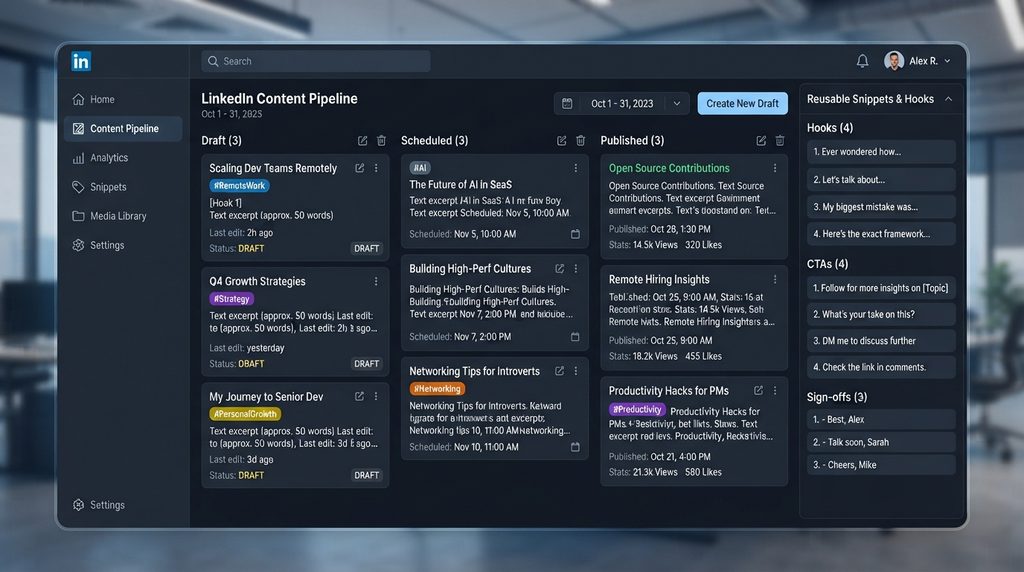
The platform can also organize drafts with tags and statuses, while saved posts and historical content can be used for research and reuse.
How to Start Using AuthoredUp
Before writing, you need an AuthoredUp account and access to its platform or browser extension.
AuthoredUp currently offers a free 14-day trial and says no credit card is required to start. Its onboarding process includes creating an account, verifying your email, installing the Chrome extension and connecting your LinkedIn profile.
A basic setup looks like this:
- Create your AuthoredUp account.
- Start the free trial if appropriate.
- Install the AuthoredUp Chrome extension.
- Connect your LinkedIn profile.
- Open the AuthoredUp Editor.
- Create a new draft.
- Write or paste your initial content.
- Edit and format the post.
- Preview the result.
- Save, publish or schedule it.
AuthoredUp says much of its functionality is also available directly on its platform without the browser extension, although the extension is an important part of the LinkedIn publishing and data-collection workflow.
How to Write a LinkedIn Post in AuthoredUp
The easiest way to use AuthoredUp is to start with a rough idea rather than trying to make the first version perfect.
Step 1: Open the Editor
Open AuthoredUp and start a new post or draft.
The platform allows users to create a new draft from the Editor and later return to existing drafts through the Drafts area.
Step 2: Write the Core Idea
Start by answering one question:
What should the reader understand, learn or do after reading this post?
For example, instead of beginning with:
LinkedIn is an important platform for professionals.
You could start with a more specific idea:
Most LinkedIn posts fail before the reader reaches the second paragraph.
The second version creates a clearer reason to continue reading.
Step 3: Add a Hook
AuthoredUp provides hook templates that can help users develop opening lines.
The platform currently promotes a library of more than 150 hooks and snippets.
Use these as starting points rather than copying a template word-for-word.
A useful hook should establish a reason to keep reading. It could:
- Present a problem
- Challenge an assumption
- Introduce a lesson
- Ask a specific question
- State an unexpected observation
- Promise a practical takeaway
Step 4: Develop the Main Point
After the opening, keep the body focused on one central idea.
Short paragraphs are generally easier to scan on a professional social feed.
Instead of writing one large block, separate ideas into smaller sections.
For example:
Problem
Explain what is happening.
Reason
Explain why it matters.
Solution
Show what the reader can do.
Example
Demonstrate the idea.
This creates a natural structure without making every LinkedIn post look like a formal article.
How to Rewrite Content in AuthoredUp
Rewriting should mean improving the original message, not simply replacing words with synonyms.
A useful rewriting workflow is:
Original → Diagnose → Restructure → Simplify → Format → Preview
1. Keep the Main Idea
Before changing anything, identify the central point.
Ask:
- What is this post actually saying?
- Who is it for?
- What should the reader remember?
- Is every paragraph supporting that point?
If the original message is unclear, changing individual words will not solve the problem.
2. Remove Unnecessary Words
Look for phrases that add length without adding meaning.
For example:
Before:
It is important to note that there are many different ways that you can potentially improve the overall quality of your LinkedIn content.
After:
You can improve your LinkedIn content in several ways.
The second version communicates the same idea with less friction.
3. Make Sentences More Direct
Replace complicated constructions with straightforward language.
Instead of:
Users who are interested in improving their content should consider taking the time to review their previous posts.
Try:
Review your previous posts before creating new ones.
The goal is not to make every sentence extremely short. The goal is to remove unnecessary complexity.
4. Improve the Structure
A rewrite may require moving entire sections rather than changing individual sentences.
A practical LinkedIn structure could be:
Hook
↓
Problem
↓
Key insight
↓
Examples
↓
Actionable takeaway
↓
Ending or CTA
AuthoredUp’s editor supports hooks and endings, making these components easier to manage within the writing workflow.
How to Improve a Weak LinkedIn Post
Suppose your original draft says:
LinkedIn content is important for growing your personal brand. You should post regularly and provide value to your audience. There are many different strategies that you can use to improve your content.
This is understandable, but it is generic.
A stronger version could be:
Posting more isn’t always the answer.
Before publishing another LinkedIn post, look at your last 10.
Which topics generated meaningful comments?
Which posts were ignored?
Which openings made people stop scrolling?
Your old content already contains clues about what your audience responds to.
The improved version has:
- A clearer opening
- Shorter paragraphs
- Specific questions
- A practical action
- A stronger connection between the problem and solution
AuthoredUp can help with the editing and presentation of this process, but the underlying insight still needs to come from the writer.
Use AuthoredUp’s Readability Tools
AuthoredUp provides a readability score and word-count information inside its editor. Its editor documentation describes these tools as ways to help users understand how readable and concise their posts are.
Use readability information as a diagnostic signal rather than a target that must always be maximized.
If a post is difficult to read, check for:
- Long sentences
- Dense paragraphs
- Unnecessary technical language
- Repeated phrases
- Too many ideas in one section
- Complicated introductions
A readability score cannot determine whether an idea is valuable. It simply gives you another way to inspect the writing.
Format Your Post in AuthoredUp
Formatting can make a LinkedIn post easier to scan.
AuthoredUp supports formatting options such as:
- Bold
- Italic
- Bullet points
- Numbered lists
- Emojis
It also provides a preview so you can see how the content is expected to appear before publishing.
Use Formatting Carefully
Formatting should support meaning.
For example:
Three things I learned:
- Keep the opening focused.
- Remove unnecessary words.
- Give readers a clear takeaway.
That is usually more useful than bolding almost every sentence.
How to Use Snippets
Snippets are reusable pieces of text.
AuthoredUp’s current documentation says snippets can be small elements such as signatures or hashtags, but they can also contain complete LinkedIn post templates.
To create one:
- Select text in the Editor.
- Choose Create Snippet.
- Save the snippet.
- Give it a recognizable name.
- Reuse it from the Snippets area when needed.
This is useful for recurring content elements such as:
- Standard CTAs
- Sign-offs
- Brand statements
- Reusable post structures
- Frequently used text
- Hashtag groups
Avoid turning every post into the same template. Reusable elements should save time without making your content repetitive.
How to Use AuthoredUp to Improve Existing Drafts
AuthoredUp’s draft system is particularly useful when you separate writing from editing.
Instead of writing and publishing immediately:
Pass 1: Write
Get the main idea onto the page.
Pass 2: Edit
Remove repetition and unclear statements.
Pass 3: Structure
Improve the hook, body and ending.
Pass 4: Format
Add lists, emphasis and appropriate spacing.
Pass 5: Review
Check readability, length and preview.
Pass 6: Finalize
Save, publish or schedule the post.
AuthoredUp automatically saves changes to saved drafts, and its current draft system also maintains snapshots of previous versions.
That makes it easier to experiment without treating every edit as permanent.
How to Use AuthoredUp Coauthor for AI-Assisted Writing
AuthoredUp now includes Coauthor, an AI writing assistant integrated directly into the editor.
According to AuthoredUp’s July 2026 product update, Coauthor can work on a draft in real time, learn from a user’s posts and provide suggestions without requiring the user to switch to another application. The newer beta version allows users to train or retrain their writing voice using their own or saved posts and add their own instructions.
A practical AI-assisted workflow is:
Write your idea → Ask for assistance → Review suggestions → Keep useful changes → Rewrite manually where necessary → Finalize in your own voice
The important step is review.
Do not automatically accept every AI suggestion. Check whether the revised version:
- Still represents your original idea
- Sounds natural
- Contains accurate information
- Preserves your intended tone
- Adds genuine value
- Avoids generic language
- Does not make unsupported claims
The current Coauthor feature is described as beta, so its exact availability and behavior may change.
How to Rewrite AI-Generated Content
AuthoredUp can be useful when an AI-generated draft sounds generic, but the rewriting process should focus on adding your own perspective.
A practical sequence is:
Remove Generic Introductions
Delete statements that do not immediately contribute to the topic.
Add Your Experience Carefully
If you actually experienced something, explain the relevant detail.
Do not invent personal stories simply to make an AI-generated post sound authentic.
Replace General Advice
Instead of:
Consistency is important when creating content.
Use a concrete observation:
Publishing three posts in one week taught me less than reviewing why one post generated meaningful discussion.
Only use claims that are genuinely supported by your experience.
Add Specific Examples
Specific examples make abstract advice easier to understand.
Rewrite the Ending
Avoid ending every post with a generic:
What do you think?
A better ending asks a question directly connected to the post’s subject.
How to Use Drafts Efficiently
AuthoredUp’s draft system allows users to save multiple drafts, change their status, rename them, duplicate them and delete them. Drafts can also be tagged and assigned to relevant publishing profiles or company pages.
A simple workflow could use three stages:
Active
The idea is still being written.
Ready
The content has been edited and is ready for publication.
Submitted
The content has moved into the publishing process.
AuthoredUp currently supports draft statuses and tags as part of its content organization system.
How to Improve Your Content Using Previous Posts
One of AuthoredUp’s useful capabilities is the ability to work with historical content.
The platform provides access to collected LinkedIn posts and saved posts, while its Personal Dashboard can provide suggestions for posts to reuse based on factors such as age, posting frequency and engagement.
Instead of copying a successful post, ask:
- What topic did it address?
- What made the opening effective?
- Was the post unusually concise?
- Did the example generate discussion?
- Could the underlying idea be updated?
- Has new information changed the subject?
This approach turns older content into research material rather than a source of repetitive posts.
How to Create a Better Content Workflow
For regular LinkedIn publishing, AuthoredUp can be used as a repeatable system.
Stage 1: Research
Collect ideas, questions and relevant examples.
Stage 2: Draft
Write the core message without worrying about perfect formatting.
Stage 3: Rewrite
Remove unnecessary wording and improve clarity.
Stage 4: Optimize
Review the hook, structure, readability and length.
Stage 5: Format
Use bullets, emphasis and spacing where they improve scanning.
Stage 6: Preview
Check how the post looks before publishing.
Stage 7: Schedule or Publish
Move the completed post into your publishing workflow.
Stage 8: Analyze
Review performance after publication.
Stage 9: Learn
Use the results to improve future posts rather than simply repeating the same format.
AuthoredUp’s current platform brings editing, drafts, calendar, posts and analytics into the same broader workflow.
Common Mistakes to Avoid
Overusing Templates
Hooks and snippets can speed up writing, but using identical structures repeatedly can make content predictable.
Optimizing Only for Readability
A readable post can still lack a useful idea.
Clarity should support substance, not replace it.
Letting AI Replace Your Perspective
Coauthor can suggest changes, but your expertise and judgment should remain central.
Editing Forever
Content does not need endless revisions.
Once the message is clear, accurate and useful, additional edits may produce diminishing returns.
Copying Successful Posts
Use successful posts to understand patterns. Do not simply reproduce someone else’s content.
Publishing Without Reviewing the Preview
Formatting can change how a post feels when displayed in the feed. AuthoredUp’s preview exists specifically to help writers review presentation before publishing.

Can AuthoredUp Rewrite Content Automatically?
AuthoredUp provides editing tools and now has its Coauthor AI writing assistant, but it is more accurate to describe the platform as a LinkedIn content workflow rather than a generic automatic rewriting service.
Coauthor is designed to make suggestions inside the AuthoredUp editor and work with the user’s writing voice. Its current beta status means capabilities can evolve.
For important content, review every AI-assisted change before publishing.
Can You Use AuthoredUp Without the Chrome Extension?
Yes, AuthoredUp says users can access around 80% of its features directly through the platform without the extension. However, its official onboarding documentation says the extension is an important part of the workflow for posting to LinkedIn and gathering post data.
The exact functionality available in each environment can change, so check the current help documentation when a specific workflow matters.
AuthoredUp Pricing
AuthoredUp currently lists an Individual plan at $19.95 per month and a Business plan at $14.95 per profile per month, with the Business plan requiring at least three profiles. Annual billing is listed at $199.50 per year for Individual and $149.50 per profile per year for Business.
The service currently offers a 14-day free trial with no credit card required.
Pricing and plan features can change, so verify the official pricing page before subscribing.
Who Should Use AuthoredUp?
AuthoredUp is particularly relevant to:
- LinkedIn creators
- Personal-brand professionals
- Consultants
- Freelancers
- LinkedIn-focused marketers
- Company-page managers
- Employee advocacy teams
- Agencies and organizations managing multiple profiles
It is less compelling for someone who publishes only occasionally and is already satisfied with LinkedIn’s native writing and publishing tools.
A Simple AuthoredUp Workflow for Beginners
If you are new to the platform, start with this process:
1. Open the Editor
Create a new draft.
2. Write one clear idea
Do not try to cover five unrelated topics in one post.
3. Improve the opening
Make the first lines explain why the reader should continue.
4. Rewrite for clarity
Remove filler and unnecessary repetition.
5. Add examples
Use specific information where possible.
6. Check readability
Look at the available readability and length information.
7. Format the post
Use bullets, emphasis and spacing selectively.
8. Preview it
Review the post as a reader would see it.
9. Save the draft
Keep the improved version in AuthoredUp.
10. Publish or schedule
Use the available LinkedIn publishing workflow.
11. Review performance later
Use analytics to understand what happened.
12. Apply the lesson to the next post
Improve the process rather than copying the previous post.
Pros & Cons Table
| Pros | Cons |
|---|---|
| Dedicated LinkedIn writing and editing workflow | Primarily focused on LinkedIn |
| Formatting and preview tools are built into the editor | Paid subscription after the trial |
| Readability and text metrics help with editing | Readability scores do not measure content quality |
| Drafts can be saved, organized and versioned | Some advanced AI functionality is still in beta |
| Reusable snippets can speed up recurring content | Overusing templates can make posts repetitive |
| Coauthor provides integrated AI writing assistance | AI suggestions still require human review |
| Historical and saved posts can support content research | Historical performance does not guarantee future performance |
Comparison Table — only if relevant
| Feature | AuthoredUp | LinkedIn Native Editor | General AI Writing Tool |
|---|---|---|---|
| LinkedIn-focused | Yes | Yes | Usually no |
| Post formatting | Yes | Yes | Depends on tool |
| LinkedIn preview | Yes | Native preview | Usually not LinkedIn-specific |
| Readability information | Yes | Limited | Often available |
| Draft management | Yes | Yes | Depends on tool |
| Reusable snippets | Yes | Limited | Depends on tool |
| Hooks/endings | Yes | Not a dedicated feature | Often available |
| LinkedIn analytics workflow | Yes | Yes | Usually not native |
| AI writing | Coauthor beta | Limited/native features vary | Usually a core feature |
| Historical LinkedIn content | Yes | Native LinkedIn data | Usually requires separate access |
| Best use | LinkedIn content workflow | Basic LinkedIn publishing | General writing/AI assistance |
Alternatives — only if relevant
LinkedIn Native Editor
What it is: LinkedIn’s own publishing environment.
Main strength: Direct publishing within LinkedIn without another content platform.
Main limitation: It does not provide the same specialized AuthoredUp workflow for reusable snippets, dedicated draft organization and its particular editing tools.
Best for: Users who publish occasionally and want a simple native workflow.
Buffer
What it is: A social media management platform with LinkedIn publishing and analytics.
Main strength: Managing LinkedIn alongside other social networks.
Main limitation: Its broader multi-platform approach is different from AuthoredUp’s LinkedIn-focused workflow.
Best for: Users managing several social channels.
Taplio
What it is: A LinkedIn-focused content and growth platform.
Main strength: LinkedIn-specific content creation and publishing features.
Main limitation: Its feature set and workflow differ from AuthoredUp, so users should compare the tools they actually need.
Best for: Professionals looking for a broader LinkedIn content-growth platform.
FAQs
How do I start writing in AuthoredUp?
Answer: Open the AuthoredUp Editor, start a new draft and enter your LinkedIn post. You can then format, preview, edit and save the content.
Can AuthoredUp rewrite my LinkedIn posts?
Answer: AuthoredUp provides editing functionality and its Coauthor AI assistant can suggest changes within the editor. Coauthor is currently in beta, so its capabilities may change.
How can I improve readability in AuthoredUp?
Answer: Use the editor’s readability score and text metrics as signals, then shorten overly complex sentences, break up dense paragraphs and remove unnecessary wording.
What are AuthoredUp snippets?
Answer: Snippets are reusable pieces of text that can range from short signatures or hashtags to complete LinkedIn post templates.
Can AuthoredUp save multiple drafts?
Answer: Yes. AuthoredUp lets users save and manage multiple drafts, change their status, rename or duplicate them, and maintain versions of draft changes.
Does AuthoredUp have AI writing?
Answer: Yes. AuthoredUp’s Coauthor is an AI writing assistant integrated into the editor. The current version is in beta and supports voice-related customization based on a user’s own or saved posts.
Can I use AuthoredUp without the extension?
Answer: AuthoredUp says around 80% of its features can be used directly through its platform without the browser extension, although the extension remains important for parts of its LinkedIn publishing and data workflow.
Should I accept every AI suggestion from AuthoredUp Coauthor?
Answer: No. Review AI suggestions for accuracy, tone, originality and relevance before publishing. Coauthor is an assistance tool, so the writer should make the final editorial decisions.
Quick Take
Main point: AuthoredUp provides a dedicated workflow for writing, rewriting, formatting and managing LinkedIn content.
Best use case: Regular LinkedIn creators who want more structure around drafting, editing, formatting and content improvement.
Main advantage: Writing, readability tools, drafts, snippets, preview and LinkedIn-focused workflow are combined in one environment.
Main limitation: AuthoredUp is specialized around LinkedIn, and its newer AI Coauthor functionality is still in beta.
Best alternative when relevant: LinkedIn’s native editor is sufficient for basic publishing, while Buffer is more relevant when multiple social networks need to be managed together.
Conclusion
AuthoredUp works best when you treat content creation as a process rather than a single writing task.
Start with a rough idea, develop the main point, strengthen the hook, rewrite unclear sections, remove unnecessary wording, format the post, check readability and preview the final version before publishing. AuthoredUp’s drafts, snippets and historical-content tools can make that workflow easier to repeat.
Its newer Coauthor feature adds AI assistance directly inside the editor and is designed around the user’s existing writing voice. Because it remains in beta, it should be treated as an evolving feature rather than the entire reason to use AuthoredUp.
For regular LinkedIn publishers, the bigger benefit is the combination of writing, editing, organization and content improvement tools. For occasional users, LinkedIn’s native editor may provide enough functionality without another subscription.
The key takeaway is simple: use AuthoredUp to make your content clearer, more organized and easier to manage—but keep the original idea, expertise and final editorial judgment yours.
Author Bio
TechyUpdate Editorial Team covers practical technology, AI tools, apps, software and digital productivity, with a focus on clear, useful and independently researched guides.
1 Comment
Pingback: AuthoredUp Prompts: Examples for Better LinkedIn Writing